
How to Save LinkedIn Search Results (And Never Rebuild Filters Again)
I spend a lot of time on LinkedIn. And for years, one thing drove me crazy.
Every morning, I'd open LinkedIn to find the same types of people - CMOs at SaaS companies, founders in my network posting about growth, recruiters sharing hiring updates. And every morning, I'd rebuild the same search from scratch.
Location filter. Industry filter. Connection degree. Date posted. Keywords.
Click. Click. Click. Click. Click.
Then I'd do it again for a different search. And again. And again.
I calculated it once. I was spending 15-20 minutes every single day just setting up searches I'd already done yesterday.
That's over 5 hours a month. Just clicking filters.
So we built something to fix this. It's called LinkedIn Lists - a new feature inside the LiGo Chrome Extension that lets you save any LinkedIn search and access it with one click.
No more rebuilding. No more forgetting that one filter. No more wasted time.
Here's everything you need to know about it.
What Are LinkedIn Lists?
LinkedIn Lists is a saved search manager built directly into the LiGo Chrome extension.
Think of it like bookmarks, but specifically designed for LinkedIn search results.
Here's the problem it solves:
When you search on LinkedIn, you often apply multiple filters. Industry. Location. Connection degree. Content type. Date posted. Keywords. Maybe you're looking for "Marketing Directors in Austin who posted in the last week" or "Software Engineers at Series A startups with mutual connections."
These aren't simple searches. They're specific. They take time to set up.
And if you're doing the same search every day (which most salespeople, recruiters, and marketers do), you're wasting a lot of time rebuilding filters that you already know work.
LinkedIn Lists fixes this by letting you:
- Save any LinkedIn search URL with all its filters intact
- Give it a name you'll remember (like "Marketing Directors Austin")
- Access it anytime from the extension with one click
- Open the search directly in LinkedIn, pre-filtered exactly as you saved it
That's it. Simple concept. Massive time savings.
Who This Feature Is Built For
LinkedIn Lists isn't for everyone. It's for people who search LinkedIn repeatedly and need consistent results.
That usually means:
Sales Professionals - You're prospecting specific industries, roles, or company sizes. You run the same searches daily to find new leads. Lists lets you save those searches and check them in seconds instead of minutes.
Recruiters - You're hunting for candidates with specific qualifications. Different roles need different filters. Lists keeps each search organized and ready to go.
Marketers - You're monitoring industry conversations, finding content to engage with, or researching what competitors are posting. Lists helps you track multiple topics without losing your filter combinations.
Business Development Reps - You're researching target accounts and building contact lists. Lists keeps your prospecting searches consistent across your entire pipeline.
LinkedIn Power Users - You live on this platform. You search for the same things constantly. Lists is your shortcut.
If you only search LinkedIn once a week, you probably don't need this feature.
But if you're searching multiple times per day? LinkedIn Lists will save you hours every month.
Two Ways to Create a LinkedIn List
We built two methods for creating lists because different situations call for different approaches.
Method 1: Paste URL (For Complex Searches)
This is the quick method. If you've already done a search on LinkedIn and you like the results, you can save it in about 10 seconds.
When to use Paste URL:
- You need LinkedIn's full advanced search filters (people search, company search, job search)
- You've already performed the search and the results look good
- You need very specific filter combinations that our builder doesn't support
- You're saving job searches
Here's how it works:
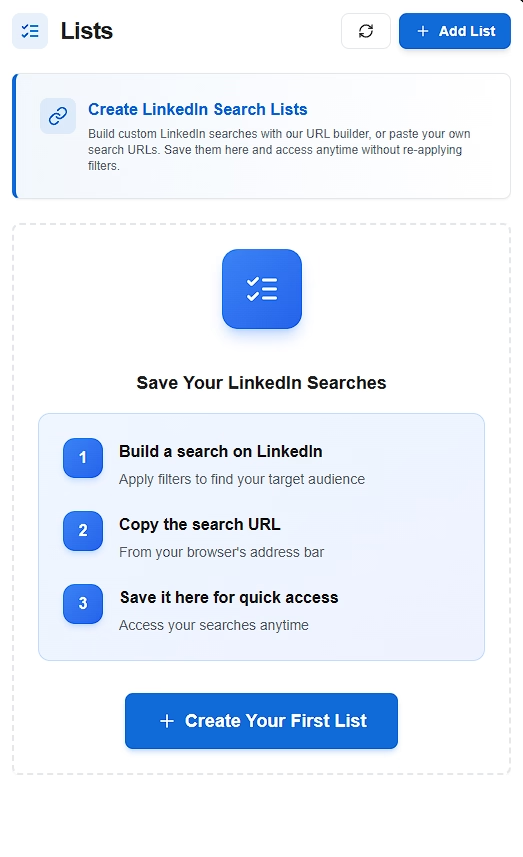
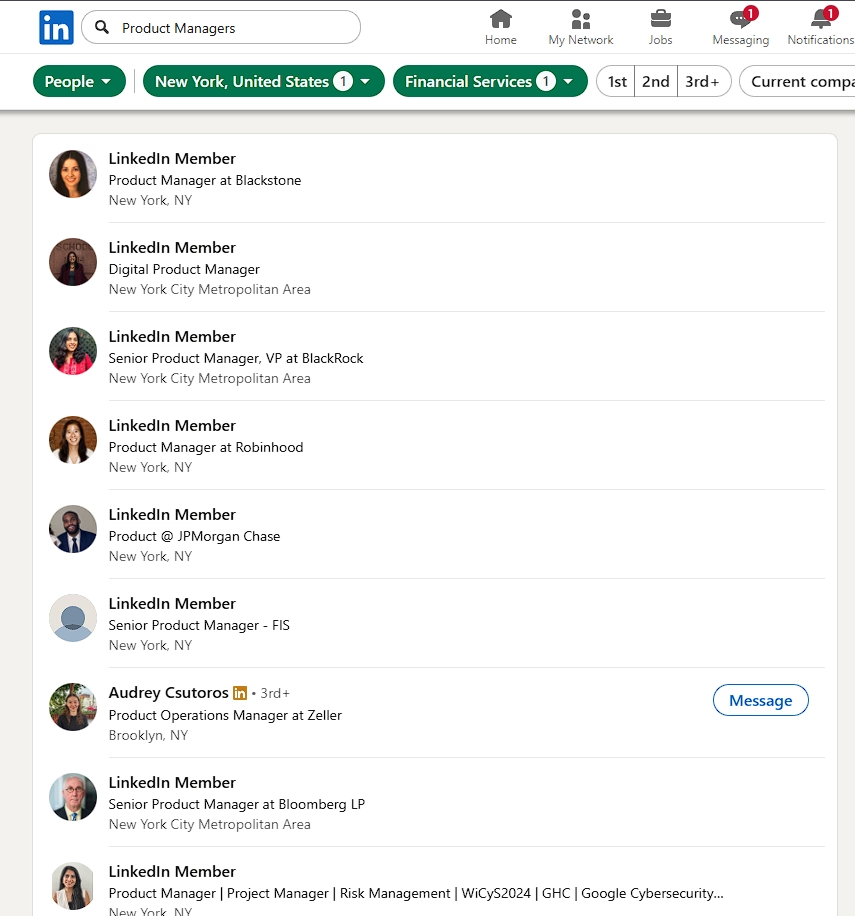
Step 1: Go to LinkedIn and perform your search with all the filters you want.
Let's say you're looking for "Product Managers at FinTech companies in New York with 5+ years of experience." Apply all those filters on LinkedIn until you see the results you want.
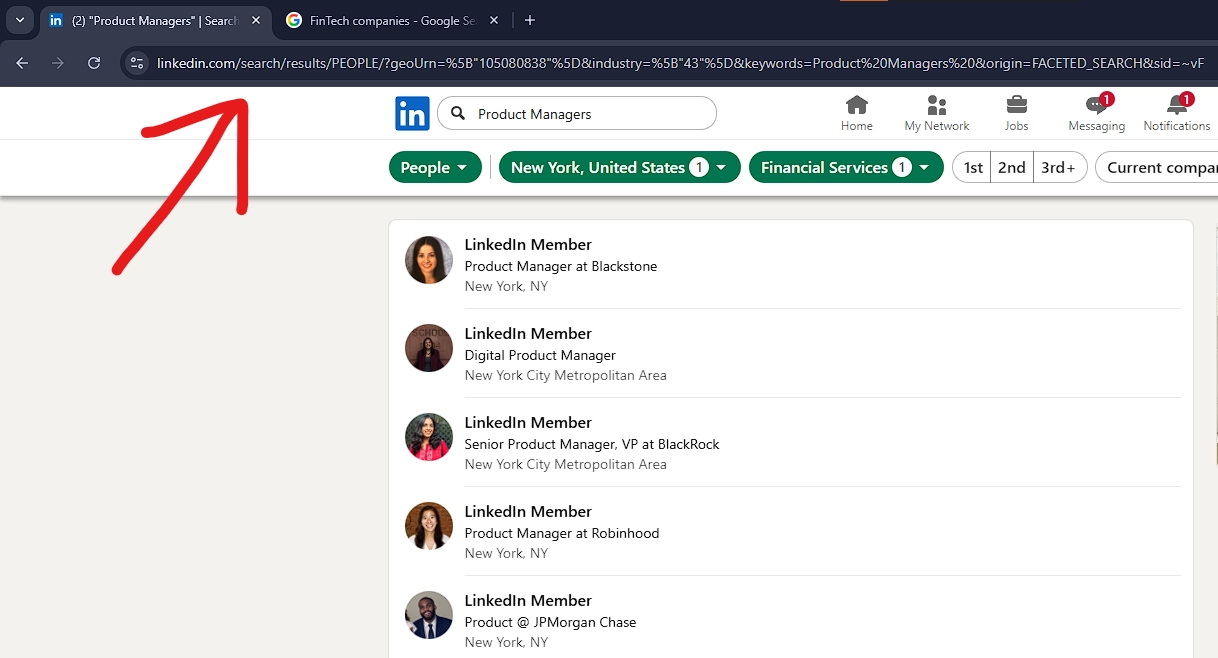
Step 2: Copy the URL from your browser's address bar.
The URL will look something like this: https://linkedin.com/search/results/people/?keywords=product manager&location=New York&industry=fintech...
That long URL contains all your filter settings. Copy the whole thing.
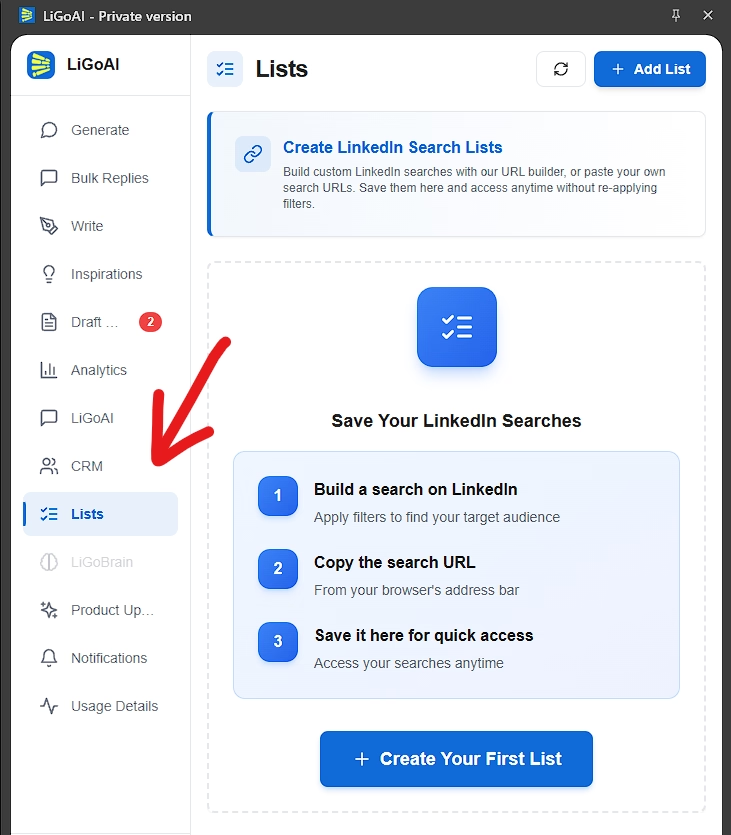
Step 3: Open the LiGo Chrome extension and go to the Lists tab.
Click the icon in your browser toolbar, then look for the Lists tab in the sidebar (it has a checkbox list icon).
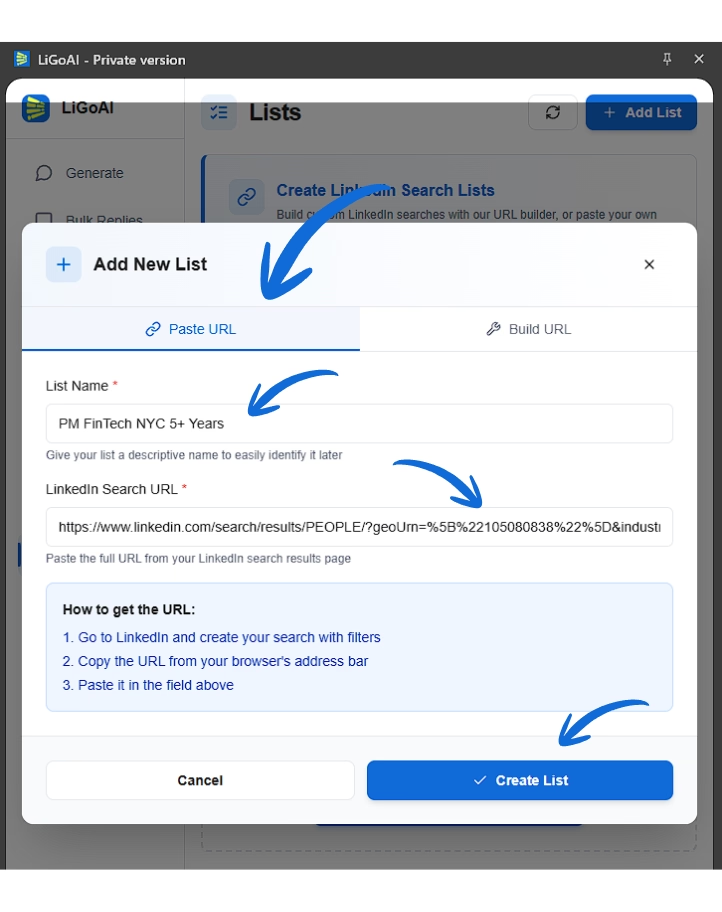
Step 4: Click "Add List" and select the "Paste URL" tab.
Step 5: Give your list a descriptive name.
Something like "PM FinTech NYC 5+ Years" - short but specific enough that you'll know exactly what it is next week.
Step 6: Paste the LinkedIn URL you copied.
The extension validates the URL to make sure it's a real LinkedIn search page.
Step 7: Click "Create List".
Done. Your search is now saved and accessible anytime with one click.
Method 2: Build URL (For Content Searches)
This method lets you create LinkedIn searches without ever leaving the extension. It's ideal for content searches where you want to find posts, articles, and updates.
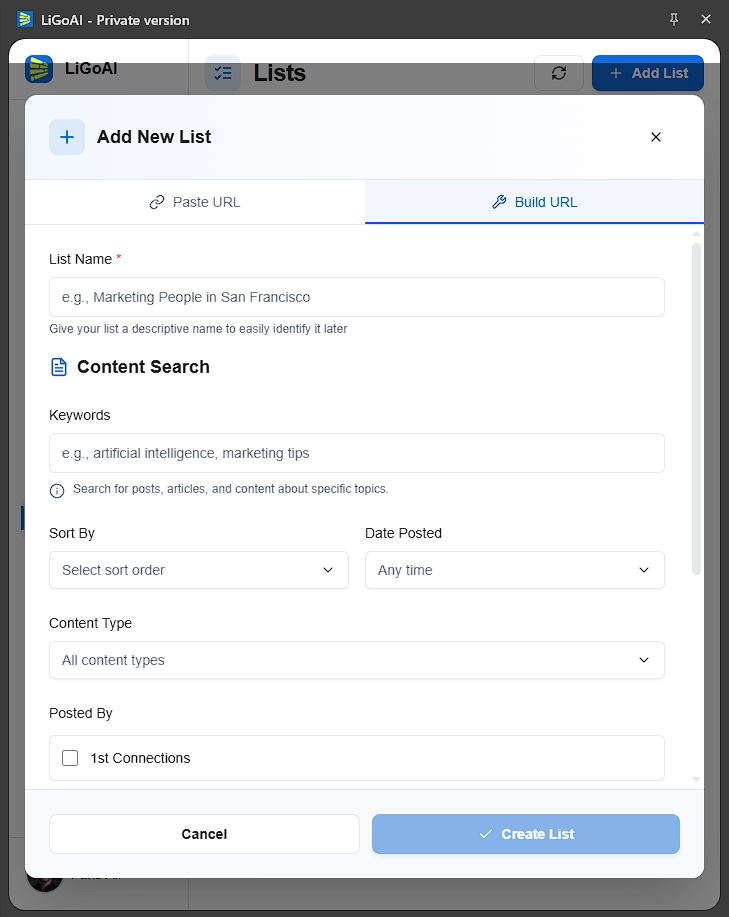
When to use Build URL:
- You're creating content searches (finding posts to engage with)
- You want to experiment with different filter combinations quickly
- You prefer a guided interface with dropdowns and checkboxes
- You want to test the URL before saving it
- You're new to LinkedIn search and want structure
Available filters in the URL Builder:
The builder supports the most common content search filters:
- Keywords - Search for specific terms, topics, or phrases
- Sort By - Order results by "Most Relevant" or "Most Recent"
- Date Posted - Filter by recency (Past 24 Hours, Past Week, Past Month)
- Content Type - Choose what kind of content you want:
- Videos
- Photos
- Job Posts
- Live Videos
- Documents
- Collaborative Articles
- Posted By - Filter by who created the content:
- 1st Connections (people you're directly connected to)
- Your Posts (content you've shared)
- People You Follow (creators you follow)
- You can select multiple options here
- Author Job Title - Filter by the content creator's role (e.g., only show posts from CEOs)
Here's how it works:
Step 1: Open the LiGo Chrome extension and go to the Lists tab.
Step 2: Click "Add List" and select the "Build URL" tab.
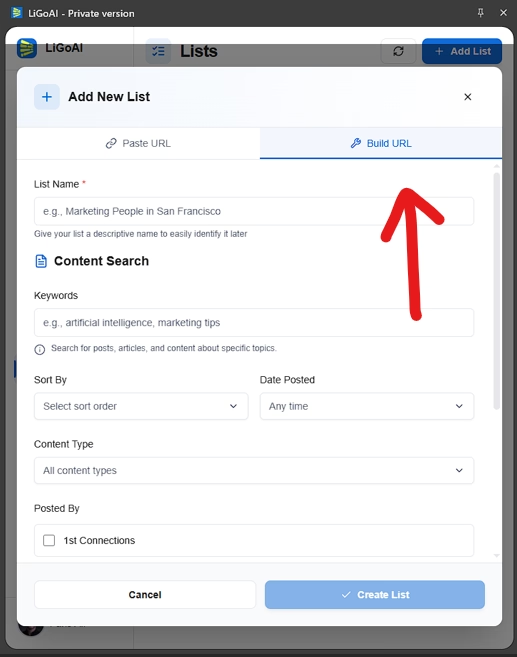
Step 3: Enter your search criteria using the form.
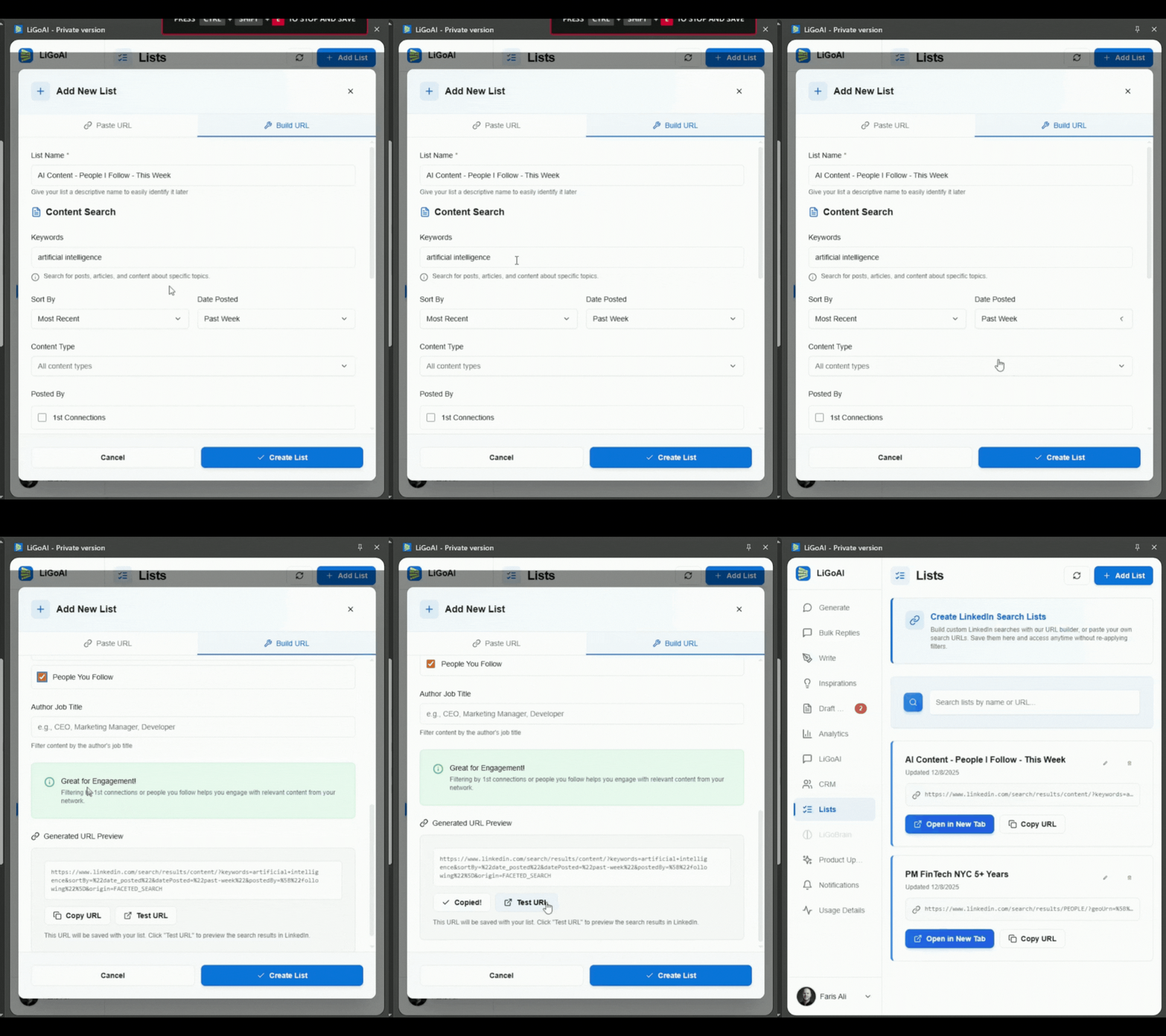
Let's say you want to find AI-related content posted in the last week by people you follow. You'd set:
- Keywords: "AI" or "artificial intelligence"
- Sort By: Most Recent
- Date Posted: Past Week
- Posted By: People You Follow (checked)
As you select filters, watch the URL preview at the bottom update in real-time.
Step 4: Click "Test URL" to preview your results.
This opens LinkedIn in a new tab with your constructed search. Check the results. If they're not what you wanted, close the tab and adjust your filters.
Step 5: Once you're happy with the results, enter a List Name at the top.
Something like "AI Content - People I Follow - This Week"
Step 6: Click Save.
Your list is ready to use.
Quick decision guide:
| If you need... | Use this method |
|---|---|
| People search with advanced filters | Paste URL |
| Company search | Paste URL |
| Job search | Paste URL |
| Content/post search | Build URL (easier) or Paste URL |
| Quick experimentation | Build URL |
| Full control over every filter | Paste URL |
Managing Your Saved Lists
Once you've created a few lists, you need to know how to work with them. Here's everything you can do.
Viewing Your Lists
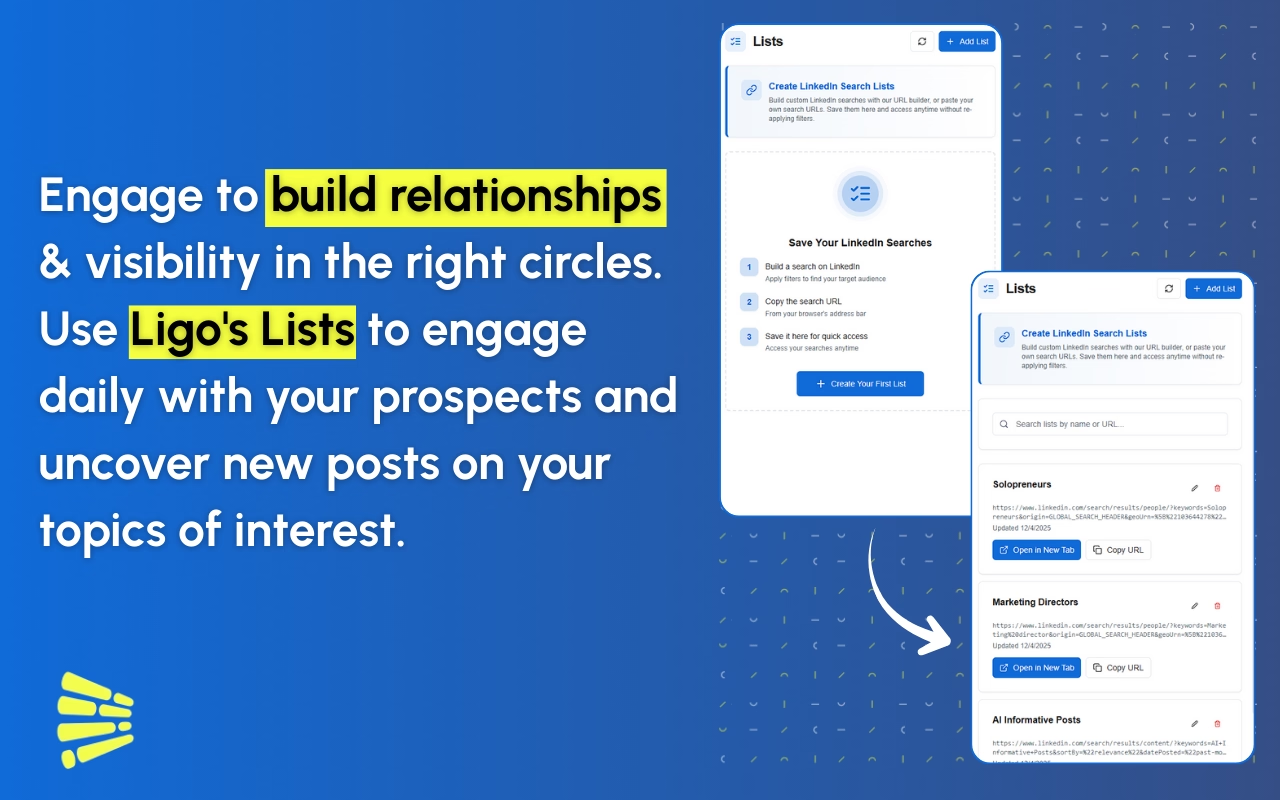
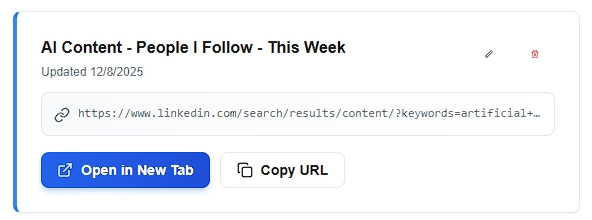
All your saved lists appear as cards in the main Lists view. Each card shows:
- List name - Your custom label
- Last updated date - When you created or edited it
- URL preview - A truncated version of the LinkedIn URL
- Action buttons - Quick access to open, copy, edit, or delete
Opening a Saved Search
This is the whole point of the feature.
Click the "Open in New Tab" button on any list card. LinkedIn opens in a new browser tab with your saved search already filtered exactly as you saved it.
No clicking through filters. No remembering what you set last time. Just instant results.
Copying the URL
Need to share a search with a teammate? Click "Copy URL" and the full LinkedIn search URL copies to your clipboard. You'll see a brief "Copied!" confirmation.
Paste it into Slack, email, a document - wherever your team communicates. They can use the URL directly or save it to their own Lists.
Editing a List
Hover over any list card to reveal the edit button (pencil icon). Click it to open the edit modal where you can:
- Update the list name
- Change the LinkedIn URL
This is useful when:
- You want to add or remove a filter from an existing search
- You want to rename a list for better organization
- LinkedIn results aren't what you expected and you need to tweak the URL
Deleting a List
Hover over the list card and click the delete button (trash icon). A confirmation dialog appears to prevent accidental deletions.
Once deleted, the list is permanently removed. There's no undo, so make sure you really want to delete it.
Searching Your Lists
If you have a lot of saved lists (10+), use the search bar at the top of the Lists view. It filters your lists in real-time as you type.
The search checks both list names and URLs, so you can search for:
- Part of a list name ("marketing")
- Keywords in the URL ("fintech")
- Location terms ("NYC")
Clear the search box to see all your lists again.
Syncing Across Devices
Your lists are stored in LiGo's cloud backend, not just on your local browser. That means they sync across any device where you're logged into your LiGo account.
Start a list on your work laptop, access it from your home computer. It just works.
If you ever need to manually refresh (like if you just created a list on another device), click the Refresh button in the Lists header.
Real-World Use Cases
Let me show you how different professionals actually use LinkedIn Lists.
Sales Prospecting
The situation: You're a B2B sales rep targeting CMOs in the SaaS industry. You check LinkedIn every morning for new prospects.
Without Lists: Every morning you go to LinkedIn, click People search, type "CMO", add industry filter for SaaS, add location filter for your territory, filter by 2nd degree connections, and finally start reviewing results. Takes 3-5 minutes just to set up.
With Lists: You open the LiGo extension, click your "CMO SaaS West Coast" list, and you're instantly looking at fresh results. Takes 5 seconds.
Example lists a sales rep might save:
- "CMO SaaS SF Bay Area"
- "VPs Marketing FinTech NYC"
- "Sales Directors Healthcare Boston"
- "Founders Series A B2B"
Time saved: If you're running 3-4 prospecting searches daily, you're saving 10-15 minutes per day. That's over 4 hours per month of clicking you don't have to do.
Content Monitoring
The situation: You're a social media manager or founder who engages with industry content every day. You need to find relevant posts to comment on.
Without Lists: You search for your industry keywords, apply the "Past 24 Hours" filter, maybe filter by content type... and repeat this for every topic area you monitor.
With Lists: You've saved searches for each topic area. "AI Marketing Content Last 24h", "SaaS Growth Posts This Week", "My Network's Posts Today". Click, engage, click, engage, done.
Example lists a content marketer might save:
- "AI Marketing Content Last 24h"
- "MarTech News This Week"
- "1st Connection Posts Today"
- "Competitor Company Updates"
This pairs perfectly with our Chrome extension's comment generation feature. Find content with Lists, generate authentic comments with LiGo. Your engagement workflow becomes incredibly efficient.
Recruitment
The situation: You're a recruiter or HR professional hiring for multiple roles simultaneously. Each role has different requirements.
Without Lists: You maintain a spreadsheet of search criteria for each role. Every time you source candidates, you manually rebuild the search based on your notes.
With Lists: Each open role has its own saved search. "Senior Frontend Remote", "Product Manager FinTech London", "Data Scientist 3+ Years". Switch between them instantly.
Example lists a recruiter might save:
- "Senior Frontend Developers Remote"
- "Product Managers FinTech London"
- "Data Scientists 3+ Years Python"
- "DevOps Engineers AWS Certified"
Networking
The situation: You're actively growing your professional network in specific areas. You want to connect with people in certain industries, roles, or who attended specific events.
Without Lists: You search sporadically, often forgetting the exact filters you used last time. Your networking efforts are inconsistent.
With Lists: You have systematic searches saved. Check them weekly. Send connection requests. Your network grows predictably.
Example lists for networking:
- "Startup Founders in Ecommerce"
- "Attended Web Summit 2024"
- "Works at Google + Mutual Connections"
- "YC Founders W24 Batch"
Market Research
The situation: You're researching competitors, tracking industry trends, or monitoring what thought leaders are saying.
Without Lists: You remember to check competitor activity sometimes. You miss important announcements. Your research is reactive.
With Lists: You have dedicated searches for competitor content, industry trends, and key influencers. Check them regularly. Stay ahead.
Example lists for research:
- "Competitor Company Posts"
- "Industry Analyst Content"
- "VC Investment Announcements"
- "Conference Speaker Content"
Best Practices for LinkedIn Lists
After using this feature internally for a while, here's what I've learned about getting the most out of it.
Naming Your Lists
Your list names matter more than you think. A month from now, you need to know exactly what each search is for just by glancing at the name.
Bad examples:
- "Search 1"
- "List"
- "People"
- "Monday search"
Good examples:
- "Product Managers in Boston"
- "AI/ML Content Last Week"
- "Senior Developers JavaScript Remote"
- "CMO SaaS West Coast 2nd Degree"
The pattern that works: [Role/Topic] + [Industry/Location] + [Timeframe/Other]
If your list name answers "who am I looking for and where?", you're doing it right.
Organizing a Large Collection
If you have 20+ lists, organization becomes important. Since Lists uses a flat structure (no folders), use naming prefixes to group related searches:
- "SALES: CMO SaaS West Coast"
- "SALES: VP Marketing FinTech"
- "CONTENT: AI Posts Today"
- "CONTENT: Industry News Week"
- "RECRUIT: Frontend Remote"
- "RECRUIT: PM London"
Now when you search your lists for "SALES:", you see all your prospecting searches together.
The Morning Routine
Here's a workflow that works well:
- Open the LiGo extension
- Go to Lists
- Open your first list in a new tab
- Review results, take action (connect, comment, message)
- Back to extension, open next list
- Repeat
If you have 5 daily searches, this takes maybe 10 minutes total. The same routine without Lists would take 25-30 minutes.
Combine with Other LiGo Features
LinkedIn Lists works even better when you combine it with other parts of the LiGo extension:
Lists + Comment Generation: Use Lists to find content to engage with, then use the Generate feature to create authentic comments in your voice. Find, engage, repeat.
Lists + CRM: Save prospecting searches in Lists, then track the people you reach out to in LiGo's CRM feature. Your outreach becomes systematic.
Lists + Post Creation: Monitor industry content with Lists, get inspired, then use LiGo's post generation to create your own content on trending topics.
The features are designed to work together.
Maintenance
Every month or so, review your lists:
- Delete searches you no longer use
- Update names if your focus has changed
- Refresh URLs if results seem off (LinkedIn occasionally changes URL parameters)
A clean list collection is a useful list collection.
Common Questions About LinkedIn Lists
Q: What types of LinkedIn searches can I save?
You can save any LinkedIn search URL. That includes people searches, content/post searches, company searches, and job searches. As long as it's a valid LinkedIn search results page, Lists can save it.
Q: Do my lists sync across devices?
Yes. Lists are stored in LiGo's cloud backend and sync across all devices where you're logged into the same LiGo account. Create a list on your laptop, access it from your desktop.
Q: What happens if LinkedIn changes their URL structure?
Your saved lists will continue to work as long as LinkedIn honors the URL parameters. If LinkedIn makes breaking changes to their search URLs (which is rare), you may need to recreate affected lists. We'll notify users if widespread issues are detected.
Q: Can I share my lists with teammates?
You can share the LinkedIn search URLs by copying them and sending to others. Your list collection itself is private to your account - others would need to save the URLs to their own Lists feature. But sharing the URLs is easy with the Copy URL button.
Q: Is there a limit to how many lists I can create?
No hard limit. Create as many lists as you need to stay organized.
Q: The URL Builder doesn't have all the filters I need. What should I do?
Use the Paste URL method. The URL Builder focuses on content search filters. For advanced people searches, company searches, or complex filter combinations, build your search directly on LinkedIn and paste the URL.
Q: My list opens LinkedIn but shows no results. Why?
A few possible reasons:
- Your filter combination is too restrictive (try removing some filters)
- LinkedIn has no content matching your specific criteria
- Your search was for a very recent time period with no new content yet
- LinkedIn's search index hasn't updated (try again later)
Q: I deleted a list by accident. Can I recover it?
Currently, deleted lists cannot be recovered. You'll need to recreate it. This is why we show a confirmation dialog before deletion - always read it before clicking confirm.
Q: Does saving a list share my search data with anyone?
Lists saves only the search URL and your custom name to LiGo's servers. No search results or personal data from LinkedIn is stored. Your lists are private to your account.
Q: Do I need to be logged into LinkedIn for Lists to work?
You need to be logged into LinkedIn for the "Open in New Tab" feature to show results. The extension can save and manage lists regardless of your LinkedIn login status, but viewing actual search results requires being logged in to LinkedIn.
Final Takeaway
LinkedIn search is powerful. But rebuilding the same filters every day is a waste of time.
LinkedIn Lists fixes this by letting you save any search and access it with one click. Whether you're prospecting for sales, sourcing candidates, monitoring content, or researching markets - if you're searching LinkedIn repeatedly, Lists makes you faster.
The feature is live now in the LiGo Chrome Extension. Here's how to get started:
- Install or open the LiGo Chrome extension
- Click the Lists tab in the sidebar
- Create your first list using Paste URL or Build URL
- Start saving time immediately
If you're spending more than 5 minutes a day rebuilding LinkedIn searches, this feature pays for itself on day one.
Next Resources
If you found this useful, here are some related guides:
- LiGo Chrome Extension: Complete Feature Overview - See everything else the extension can do
- LinkedIn Comment Generator: How to Engage Without Sounding Generic - Pair Lists with smart commenting
- How to Use Analytics to Improve Your LinkedIn Strategy - Track what's working
- LinkedIn Automation Guide 2025: Safe Growth Without Risking Your Account - Best practices for LinkedIn tools
- Top LinkedIn Tools for Agency Owners in 2025 - Where LiGo fits in your stack
LinkedIn Lists is available now in the LiGo Chrome Extension. Get started free.
Know someone who spends too much time rebuilding LinkedIn searches? Share this with them.