
LinkedIn Content Ideas: A System to Never Run Out of Things to Post
It's 8 AM. You told yourself you'd post on LinkedIn today.
You open a blank post. The cursor blinks. You stare at it.
What should I write about?
You scroll your feed looking for inspiration. Nothing clicks. You see posts about topics you don't care about, from people you barely follow. Twenty minutes pass. Still nothing.
You close LinkedIn. Tell yourself you'll post tomorrow.
This happens to almost everyone who tries to build a presence on LinkedIn. Not because they lack ideas - but because they're trying to create from nothing.
Here's the truth: creativity doesn't come from staring at blank pages. It comes from input. From seeing what others are saying and feeling something about it. Agreement. Disagreement. Excitement. Frustration.
The problem is your LinkedIn feed is random. It shows you whatever the algorithm decides. So your inspiration is random too. Some days you see something that sparks an idea. Most days you don't.
What if you could summon inspiration on demand?
What if you could click one button and instantly see what people in your niche are talking about right now - the debates, the hot takes, the trends - and use that as fuel for your own content?
That's what a saved Content Search does. And I'm going to show you exactly how to set it up.
The Real Reason You Have Writer's Block
Writer's block isn't a creativity problem. It's an input problem.
You can't generate ideas from nothing. Your brain needs raw material - things to react to, build on, disagree with, or be reminded of.
Professional writers know this. They read constantly. They collect ideas obsessively. They fill notebooks with observations. When it's time to write, they're not starting from zero. They're pulling from a reservoir.
But most people trying to build a LinkedIn presence don't have a system for this. They sit down to write, open a blank page, and expect ideas to materialize.
When nothing comes, they blame themselves.
"I'm not creative enough."
"I don't have anything interesting to say."
Wrong.
You have plenty to say. You just haven't seen the thing that unlocks it yet.
Your LinkedIn feed could be that unlock - but it's not designed for this. The algorithm optimizes for engagement, not for sparking your creativity. It shows you viral posts from random industries, updates from old colleagues, and whatever LinkedIn thinks will keep you scrolling.
Sometimes you stumble on something inspiring. Usually you don't.
The fix is simple:
stop relying on the algorithm. Build your own inspiration source.
The "Inspiration On-Demand" System
Here's the concept:
You save a LinkedIn content search for your specific niche. Whenever you're stuck, you click it. Instantly, you see what people in your space are posting about right now.
You're not reading these posts for information. You're hunting for sparks.
What sparks look like:
- Someone posts an opinion you strongly disagree with → You now have a contrarian take to write
- Someone shares a success story that reminds you of your own experience → You now have a personal story to tell
- Someone asks a question your audience probably has too → You now have an educational post to write
- Someone makes a claim you know is incomplete → You now have a "yes, and..." post to build on
The emotion is the key. When you feel something - agreement, disagreement, excitement, frustration - that's your signal. That feeling is fuel.
A saved content search gives you access to these sparks whenever you need them. Not when the algorithm decides to show them. On demand.
Let me show you how to build one.
How to Build Your Idea Generator List
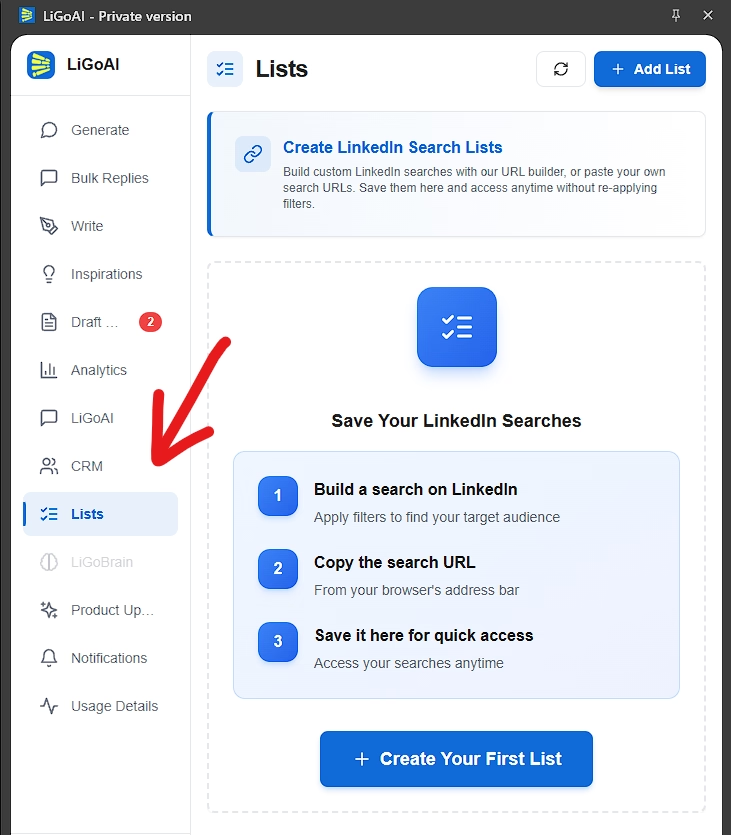
The LiGo Chrome Extension has a feature called LinkedIn Lists that lets you save any search. For content searches specifically, you can build them directly inside the extension using the URL Builder.
Here's how to create your Idea Generator list:
Step 1: Open the Lists Feature
Click the LiGo extension icon in your browser and navigate to the Lists tab in the sidebar.
Step 2: Click "Add List" and Select "Build URL"
The Build URL tab gives you an interactive form to construct content searches without leaving the extension.
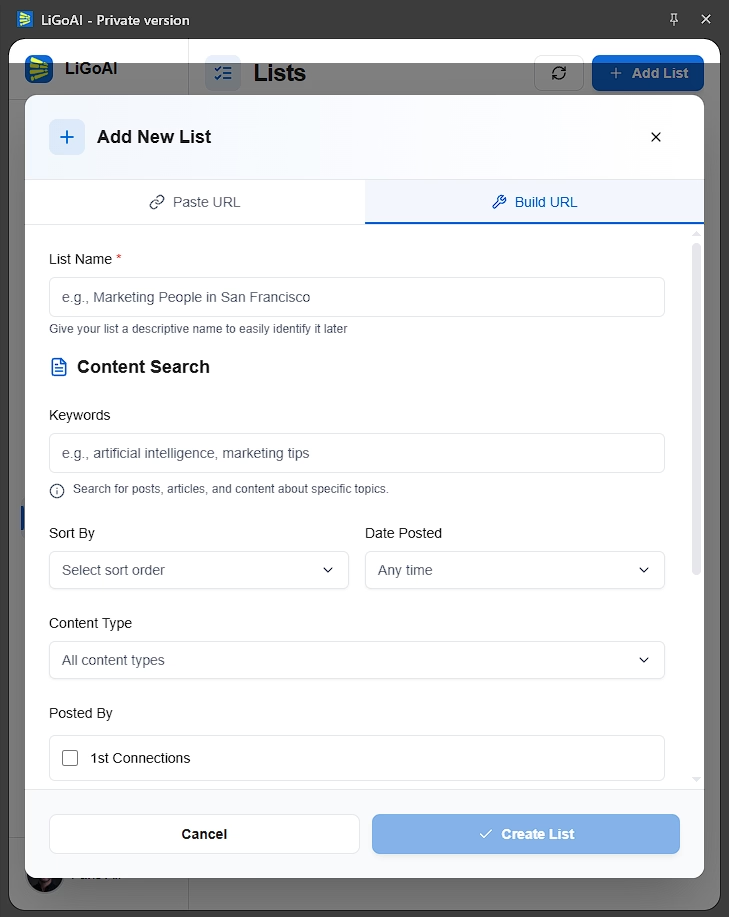
Step 3: Configure Your Filters
Keywords: Enter the main topic of your niche. If you write about fintech, type "fintech". If you write about leadership, type "leadership". If you write about SaaS marketing, type "SaaS marketing".
Keep it focused. One core keyword or phrase that defines your content area.
Sort By: Select "Most Relevant"
This is important. "Most Relevant" shows you content that LinkedIn's algorithm has already validated - posts that are getting engagement. These are proven topics that resonate with people. Perfect for finding ideas that will work for your audience too.
Date Posted: Leave this blank for now (we'll create a separate list for recent content later)
Content Type: Leave as default unless you specifically want videos, documents, or other formats
Posted By: Optional - you can filter to only see content from your 1st connections or people you follow if you want a more curated view
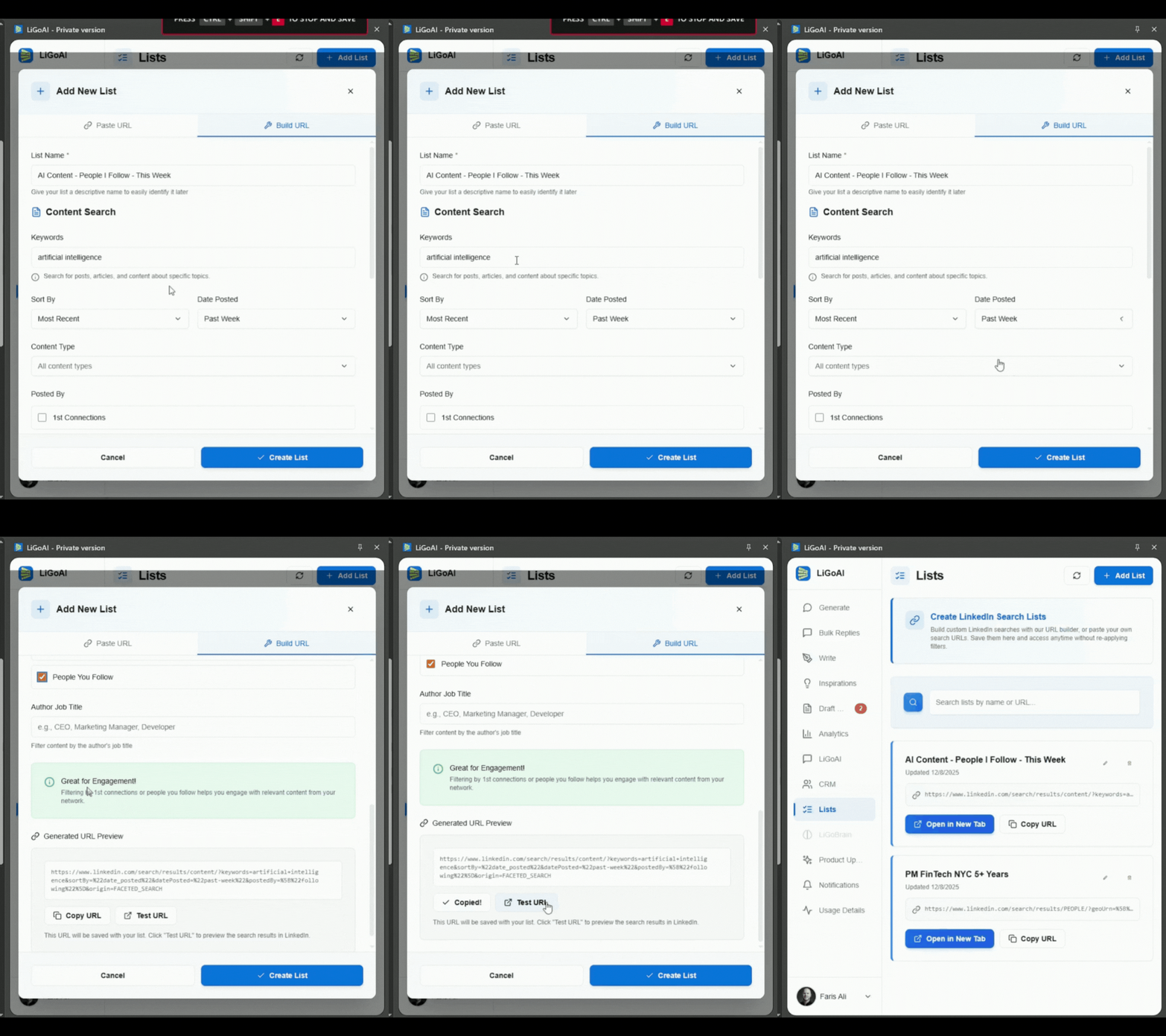
Step 4: Preview and Test
Watch the URL preview update as you select options. Click "Test URL" to open LinkedIn and see what results you get.
Scroll through. Do these posts look like the kind of content that would spark ideas for you? If not, adjust your keywords.
Step 5: Name and Save
Give it a clear name like "Fintech Ideas" or "Leadership Inspiration" or "[Your Niche] Content Sparks"
Click Save.
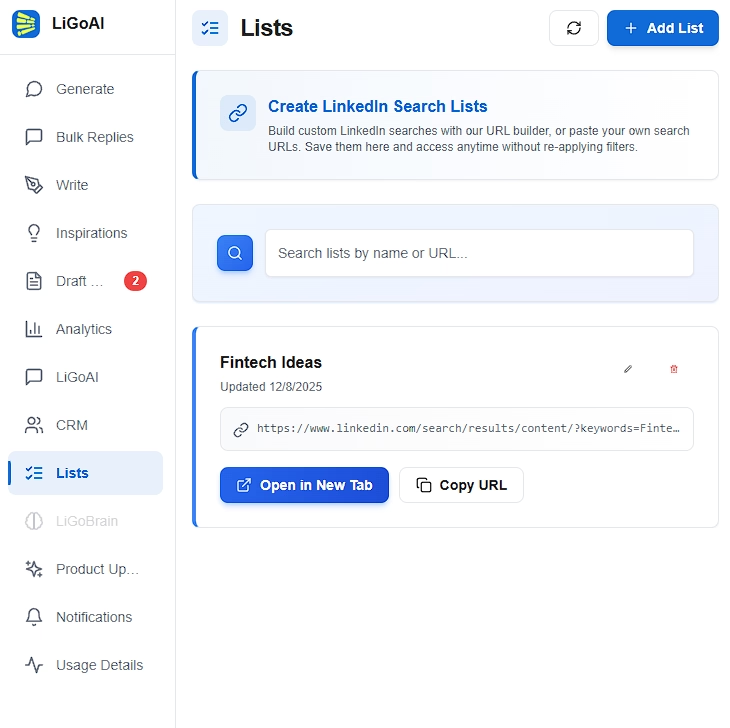
Done. You now have one-click access to proven content in your niche whenever you need inspiration.
The First Mover Advantage (Why "Past 24 Hours" Changes Everything)
There's another way to use saved content searches. Not for inspiration when you're stuck - but for catching trends as they're breaking.
Here's the problem with most people's approach to trends:
By the time a topic shows up in your feed organically, it's already been circulating for days. The original post went viral. Dozens of people have already commented. Multiple creators have already written their own takes.
You see it and think "I should write about this." But you're late. The conversation is winding down. Your post feels like an afterthought.
The first mover advantage is real on LinkedIn.
The people who comment early on breaking topics get more visibility. The people who write their own posts while a topic is still fresh get more engagement. They're seen as leaders - plugged in, ahead of the curve.
The people who show up three days later? Followers.
The "Past 24 Hours" filter changes this equation completely.
When you save a content search filtered to the last 24 hours, you're not seeing what's already viral. You're seeing what's emerging right now. Posts that were published this morning. Debates that started yesterday.
You're catching the wave as it forms, not after it crests.
How to Set Up a Trend-Catching List
Here's how to build a list specifically for catching emerging trends:
Step 1: Open LinkedIn Lists and Click "Add List"
Same process as before. Select "Build URL."
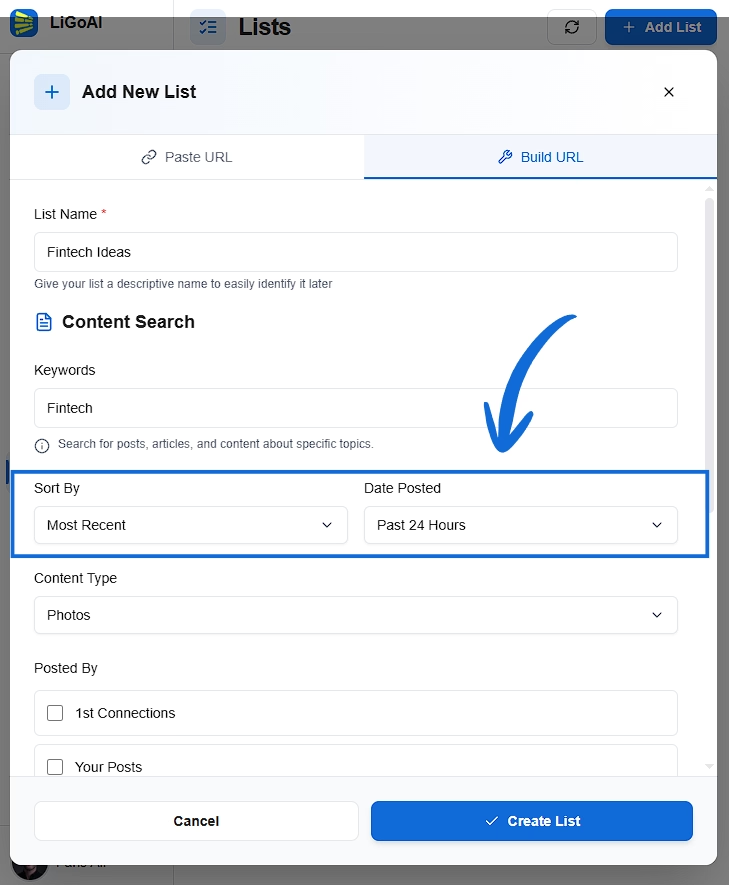
Step 2: Configure for Freshness
Keywords: Same niche keyword as your Idea Generator list
Sort By: Select "Most Recent"
This is the key difference. Instead of showing you what's most popular (which tends to be older, already-viral content), "Most Recent" shows you what's newest.
Date Posted: Select "Past 24 Hours"
This filters to only content published in the last day. Combined with "Most Recent" sorting, you're seeing the freshest possible content in your niche.
Posted By: Consider filtering to "People You Follow" or "1st Connections"
This can help you catch trends from creators you already respect, rather than random posts.
Step 3: Test and Save
Preview the results. You should see recent posts, many with lower engagement (because they're new). That's exactly what you want.
Name it something like "Fintech Trends Today" or "[Your Niche] - Last 24h"
Save it.
How to Use Your Trend-Catching List
Check this list every morning as part of your routine.
Open it. Scan for:
- Emerging debates: Two or more people arguing about the same topic
- Hot takes: Controversial opinions that are generating reactions
- News reactions: People responding to industry news or announcements
- Questions being asked: Problems people are trying to solve right now
When you spot something early, you have options:
- Comment on the original post while it's still getting traction
- Write your own post on the same topic before everyone else does
- Quote or reference the emerging conversation in your content
You're no longer reacting to trends days late. You're part of them from the start.
The Two-List System for Content Creators
If you're serious about LinkedIn content, you need both types of lists.
List 1: Evergreen Inspiration
Purpose: Solve writer's block on demand
Settings:
- Keywords: Your niche
- Sort By: Most Relevant
- Date Posted: None (all time)
When to use it: You're stuck. You don't know what to write about. You need to see what topics resonate with your audience.
What you're looking for: Proven ideas, popular angles, content patterns that work
List 2: Breaking Trends
Purpose: Catch emerging topics early
Settings:
- Keywords: Your niche
- Sort By: Most Recent
- Date Posted: Past 24 Hours
When to use it: Every morning. Part of your daily routine.
What you're looking for: Fresh conversations, emerging debates, news reactions, opportunities to be first
The Daily Workflow
Morning (5-10 minutes):
- Open LiGo extension → Lists
- Click your Breaking Trends list
- Scan for anything worth jumping on
- If you spot a trend, either comment immediately or note it for a post
When writing (as needed):
- Open LiGo extension → Lists
- Click your Evergreen Inspiration list
- Scroll until something sparks a feeling
- Use that spark to write your post
Two lists. Two purposes. Complete coverage.
Turning Sparks Into Posts
Finding inspiration is step one. Turning it into your own content is step two.
Here's how to transform what you see into posts that are authentically yours:
The Contrarian Take
You see a post with an opinion you disagree with.
Your post: "I keep seeing people say [popular opinion]. Here's why I think that's wrong..."
This works because disagreement is engaging. You're not attacking anyone - you're offering a different perspective. And the topic is already proven to be interesting (someone else's post got traction on it).
The "Yes, And..." Build
You see a post making a good point that's incomplete.
Your post: "I loved [person]'s post about [topic]. I'd add one thing they didn't mention..."
This works because you're building on existing momentum. You're joining a conversation, not starting from scratch. And you're adding value by expanding the idea.
The Personal Story
You see a post that reminds you of something from your own experience.
Your post: "Reading [topic] posts today reminded me of when I [your experience]..."
This works because personal stories are unique to you. No one else can tell your story. And connecting your experience to a trending topic makes it timely.
The Data Challenge
You see a post making claims you know are incomplete or misleading.
Your post: "Everyone's talking about [topic]. But here's what the data actually shows..."
This works because facts cut through noise. If you have real experience or data that contradicts popular opinion, that's valuable content.
The Question Flip
You see someone asking a question that your audience probably has too.
Your post: "I've been asked this a lot lately: [question]. Here's my answer..."
This works because you're addressing proven demand. Someone already asked the question publicly. Others are wondering the same thing silently.
Final Takeaway
Writer's block isn't a creativity problem. It's a systems problem.
When you rely on the algorithm to show you inspiration, you're leaving your content to chance. Some days it works. Most days it doesn't.
Saved content searches flip this dynamic. You decide what you see. You summon inspiration when you need it. You catch trends as they emerge, not days later.
Two lists are all you need:
- Evergreen Inspiration (Most Relevant, no date filter) - for when you're stuck
- Breaking Trends (Most Recent, Past 24 Hours) - for catching waves early
Build them once in LinkedIn Lists. Use them forever.
The blank page doesn't have to be scary. One click, and you have a screen full of sparks waiting to become your next post.
Next Resources
Want to go deeper on LinkedIn content creation? Check these out:
- Fix Your LinkedIn Feed: A Saved Search Strategy That Works - Full documentation on saved searches and the Lists feature
- LiGo Chrome Extension Features - Everything the extension can do
- 101 Content Creation Ideas for LinkedIn That Drive Engagement - More ways to never run out of ideas
- How to Create Engaging LinkedIn Posts That Drive Results - Turn your ideas into high-performing content
- LinkedIn Content Repurposing: Turn One Idea Into a Month's Worth of Posts - Maximize every spark you find
LinkedIn Lists is available now in the LiGo Chrome Extension. Start building your inspiration system today.