
Last updated: October 22, 2025
I got tired of staring at a blank page and trying to invent "content" from thin air.
What changed everything for me was a simple idea: most of the work I do already lives on my calendar. Meetings, demos, internal reviews, client calls - each one can become a short, useful LinkedIn post if I give it a tiny, repeatable workflow.
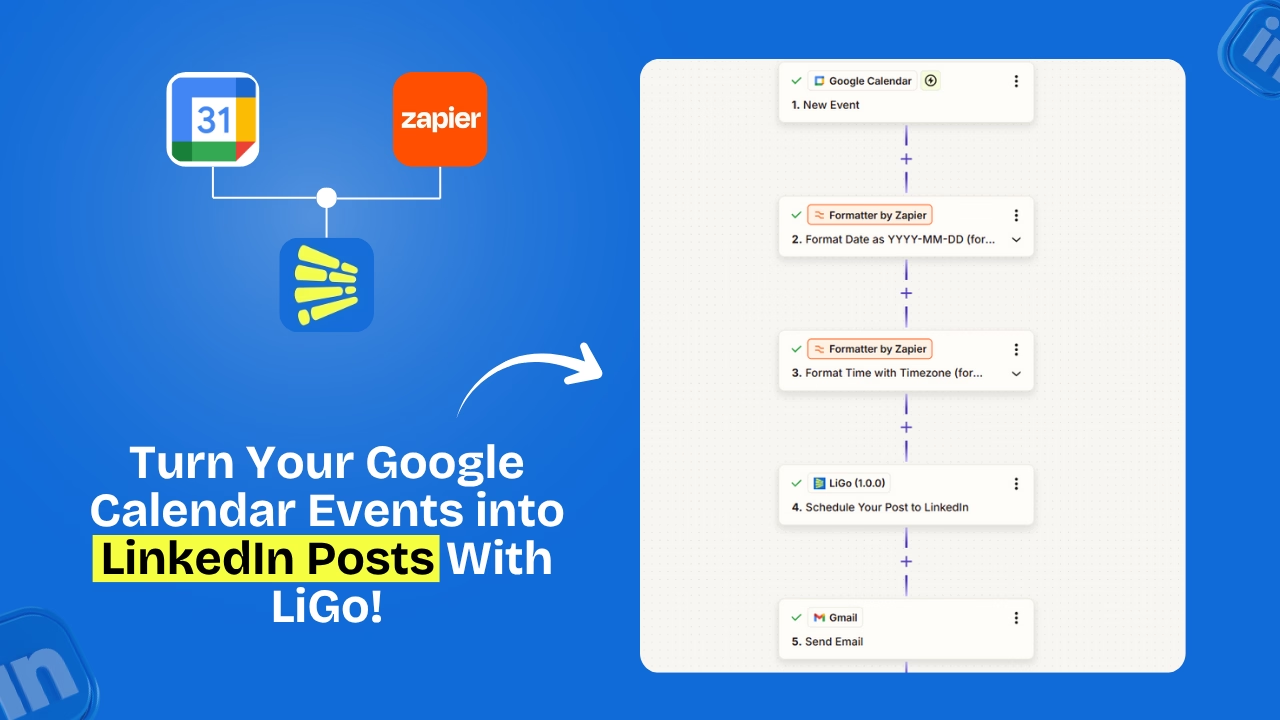
In this guide I'll show you exactly how I set up a Google Calendar → Zapier → LigoSocial workflow that turns real meetings into ready-to-post LinkedIn drafts. I'll give the naming patterns I use, the Zap setup, prompt templates you can paste into calendar events, troubleshooting tips, privacy cautions, and real examples that prove this works.
This is for people who want LinkedIn to be a byproduct of their business life - not another thing on the to-do list.
Why This Works: LinkedIn As a Byproduct of Your Business Life
Here's the idea in one line: you don't need to invent new topics - your calendar already contains them.
When I started tagging events on my calendar with a tiny prompt, I stopped wasting time brainstorming.
Instead I spent 60 seconds adding the right prompt to meetings that already mattered. After the meeting, Zapier picked up the event, sent the prompt to LigoSocial, and LigoSocial produced a post draft I could quickly review and publish.
Two quick examples:
- Internal Q3 Strategy Meeting (LigoSocial Prompt: 3 key takeaways from this meeting) → becomes a short post that shares the three takeaways.
- Client Success Call - Acme Co (LigoSocial Prompt: 1 client lesson learned) → becomes a client-focused post that highlights a real lesson.
Why Google Calendar + Zapier + LigoSocial
This trio is the easiest way I've found to turn real work into social content:
- No extra idea work. Meetings are the ideas.
- High relevance. Posts reflect what you actually do.
- Consistency with low fuss. A small admin step makes content consistent.
- Easy automation. Zapier handles the trigger and mapping. LigoSocial crafts the language.
Before You Start: What You'll Need
Make sure you have the basics in place:
- LigoSocial access. The API key of a paid LigoSocial account (You can get it here) along with Zapier access
- Zapier account. Free plan may work for simple tests, but for reliable uptime you may want a paid Zapier tier depending on volume.
- Google Calendar. The calendar you use for daily meetings (not a separate test calendar).
- A naming/tagging convention. This is the most important part: consistent event titles with a LigoSocial prompt snippet.
How the Workflow Works
At a glance, the workflow is simple:
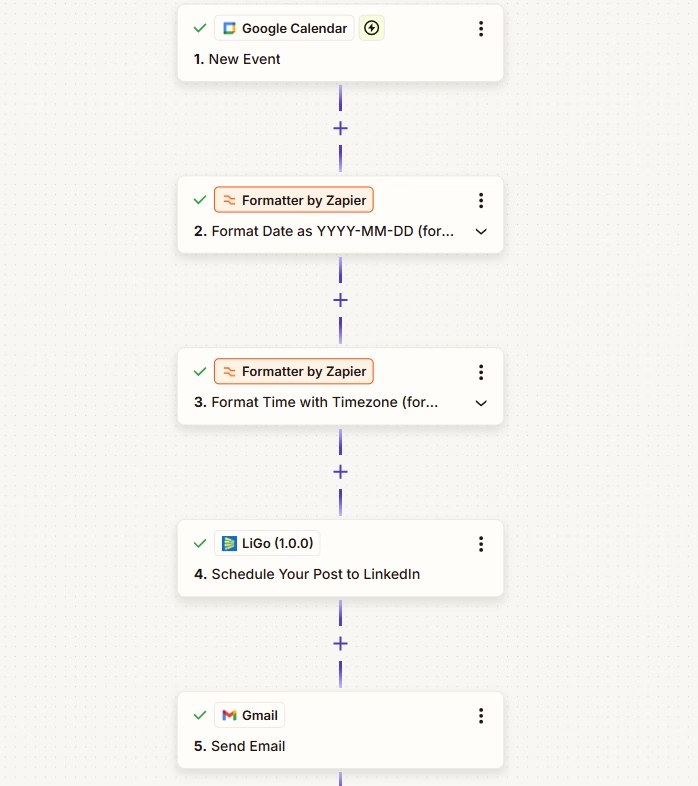
- Trigger: Google Calendar - New Event (or Event Updated)
- Filter: Only events with your tag, e.g., (LigoSocial Prompt:) or a calendar name LigoSocial Posts
- Formatter: Extract the prompt and any custom fields (client name, meeting notes)
- Action: LigoSocial - Create Draft Post (map fields to post title, body, tags)
- Optional: Send the draft to Slack/Email for review or directly schedule to LinkedIn
Step-by-step: Build the Google Calendar → Zapier → LigoSocial Zap
Below is the step-by-step I used. The exact Zap names in Zapier may differ over time, but the building blocks are the same.
Step 1 - Create the Trigger
- App: Google Calendar
- Event: New Event (or New Event Matching Search if your Zapier account supports it)
- Choose the calendar that you actually use for meetings.
Step 2 - Filter the Events
- Add a Filter step in Zapier to only continue if the event title contains a token like LigoSocial Prompt: or if the event description contains a specific keyword.
- This prevents every calendar item from firing the Zap - only tagged events do.
Step 3 - Extract Fields with Formatter
- Use Formatter by Zapier (Text > Extract) to split the event title and pull out the prompt text inside parentheses or after your token.
- Pull attendee names or the event description if you want to personalize posts.
Step 4 - Send to LigoSocial (Action)
- App: LigoSocial (Click here to get your Zapier invitation link)
- Action: Create Post / Draft Post / Schedule Post
- Map fields:
- Event title → Post opening line or headline
- Extracted LigoSocial Prompt → Prompt template for the AI
- Event description → Context or extra detail
- Start time → "When this happened: [date]" or schedule time
- Choose whether you want LigoSocial to auto-publish or create a draft for human review.
Step 5 - Optional Confirmations
- Add a Slack or Email action to notify you or a team member that a draft is ready.
- Or push the draft to Notion/ClickUp for editorial review.
How to Tag Calendar Events so They Become Ready-to-Post
The simplest thing I did was adopt clear naming templates. I add the prompt directly in the event title or at the top of the event description. Keep it short and predictable.
Example Naming Templates
- Internal Q3 Strategy Meeting (LigoSocial Prompt: 3 key takeaways from this meeting)
- Client Success Call - [ClientName] (LigoSocial Prompt: 1 lesson learned)
- Product Demo - Feature X (LigoSocial Prompt: short demo highlight + CTA)
Event Description Usage
- Put context or bullets in the description: attendees, three quick notes, a slide link. This gives LigoSocial more to work with for a richer post.
Field Mapping Examples (Exact Zap → LigoSocial Fields)
Here's a mapping that worked for me:
- Event title → Post headline / opening line
- Extracted prompt → LigoSocial prompt (how to shape the post)
- Event description → Post body / context
- Start time → Publish date or "happened on" line
- Attendee list → Tag people or personalization
Workflow Narratives - Real Examples
I find narratives useful, so here are three short workflows I use regularly.
Example A: Sales Demo → 1 Lesson → Post
Title: Sales Demo - Acme Co (LigoSocial Prompt: 1 lesson from this demo)
After the demo, I paste one bullet into the description: Lesson: buyers care about implementation speed
Zapier fires, LigoSocial drafts a post: "Today we demoed X for Acme Co. Main lesson: buyers care about implementation speed. Here's how we help…"
I review, add a short CTA, and publish.
Example B: Internal Planning → 3 Takeaways → Post + Team Notification
Title: Internal Q3 Planning (LigoSocial Prompt: 3 takeaways)
Team adds notes to description.
Zap creates draft and posts to a Slack channel for a quick review.
Example C: Conference Session → Quote + Slide Snapshot → Post
Title: Panel: Product-Led Growth (LigoSocial Prompt: 1 quote + slide highlight)
After the panel, I upload the slide link in description.
LigoSocial drafts a LinkedIn post with the quote and a link to the slide. I edit and publish.
Testing, Validating, & Iterating Your Zap
When you first build the Zap, test it with sample events. Zapier provides sample data. Use a private test calendar item and run the Zap to see the draft LigoSocial creates.
Common Test Failures & Quick Fixes
- No sample data - Confirm the event exists on the selected calendar and has the tag/token.
- Formatter fails to extract - Use simpler prompt formats; move the prompt into the description and extract from there.
- LigoSocial returns an error - Check the API key or Zapier app connection; re-authorize if needed.
Security & Privacy: What to Watch For
This is important. Meetings often contain client-sensitive information.
- Treat API keys like passwords. Don't paste them into shared documents.
- Avoid exposing client secrets. If the event includes sensitive details, remove them before tagging it to auto-post.
- Use private calendars for confidential meetings. Only tag events you're comfortable posting publicly.
- Add a review step for client-facing posts - don't auto-publish anything that names clients without permission.
Best Practices to Keep Posts Human & Useful
Automation is powerful, but you want the final posts to read human.
- Never auto-publish without a review step for client or sensitive content.
- Keep prompts short and specific. The better the prompt, the better the draft.
- Add a one-line personal insight before you publish to avoid robotic tone.
- Space posts out. Avoid posting from every meeting - choose the highest-value events.
- Use the draft step if you want editorial control.
Analytics: Measuring the Workflow's Impact
Track whether this workflow actually helps. I measure:
- Engagement per post (likes, comments, shares)
- Profile views after a series of posts
- Lead activity (messages or demo requests linked to posts)
- Time saved compared to old content routines
A/B test prompts by running the same meeting type with slightly different prompts (e.g., "3 takeaways" vs "1 lesson") and compare engagement.
Advanced Ideas & Multi-app Workflows
- Add Slack approval: before LigoSocial publishes, send drafts to a Slack channel for a quick OK.
- Add Notion/ClickUp: archive drafts as editorial pieces for repurposing.
- Combine with Otter or transcript tools: use meeting transcripts as input to LigoSocial for richer posts.
Top 10 Short Prompts for Calendar-to-Post Automation
- LigoSocial Prompt: 3 key takeaways from this meeting
- LigoSocial Prompt: One lesson learned from this client call
- LigoSocial Prompt: Short demo highlight + CTA
- LigoSocial Prompt: 1 surprising question and answer
- LigoSocial Prompt: Why this update matters to customers
- LigoSocial Prompt: Bad assumption we fixed
- LigoSocial Prompt: Quick 'how we did it' micro case study
- LigoSocial Prompt: 1 tip based on today's conversation
- LigoSocial Prompt: Quote + 1 line commentary
- LigoSocial Prompt: Slide highlight with one-sentence takeaway
Example Zap Templates You Can Copy (Summary)
- Minimal Zap (auto-draft): Trigger (Google Calendar) → Formatter → LigoSocial Create Draft. Good for solo founders who like speed.
- Draft + Human Review Zap: Trigger → Formatter → LigoSocial Draft → Slack notification to editor → Manual publish. Best for teams.
- Auto-publish Zap (use with caution): Trigger → Formatter → LigoSocial Publish. Only for safe, non-sensitive posts.
Pricing & Access (Short Note)
This workflow uses Zapier automations and LigoSocial. LigoSocial has plans to fit most users - check the pricing page for the latest plan details (Standard and Pro tiers are available). Zapier has free and paid tiers; choose the one that suits your task volume.
Final Checklist Before You Go Live
- Decide your tagging token (e.g., LigoSocial Prompt:)
- Setup the test calendar and a test Zap
- Create and test formatter steps to extract prompts
- Map fields to LigoSocial and test a draft creation
- Add review notification for client-facing content
- Run at least 3 test posts and review tone
- Monitor initial engagement and adjust prompts
Next Resources
If you want to read more on related topics, check these LigoSocial posts that pair well with this workflow:
- LigoSocial Integrations Overview - explore all available LigoSocial integrations and what each one connects with.
- LigoSocial + Zapier Integration Page - full details, setup instructions, and support for connecting LigoSocial with Zapier.
- How to Publish LinkedIn Posts Instantly from ChatGPT Using LigoSocial - a walkthrough on using LigoSocial with ChatGPT for instant publishing.
- How to Post on LinkedIn Directly from Claude (Step-by-Step Guide) - learn how to set up LinkedIn posting automations using Claude and LigoSocial.