
LinkedIn post scheduler
Schedule LinkedIn posts a month ahead, and see every one on a calendar.
Draft posts in your voice, fill the next four or eight weeks in one go, and check what goes out on which day. Change a post or its image without deleting it. You approve every post before it is scheduled.
- Content calendar
- Bulk scheduling
- Claude and ChatGPT
- Company pages
Content calendar
See every scheduled LinkedIn post on one content calendar
LinkedIn's own scheduler keeps your queue in a list behind the clock icon. LigoSocial puts it on a month view, so a gap on Thursday or two posts on the same morning is obvious at a glance.
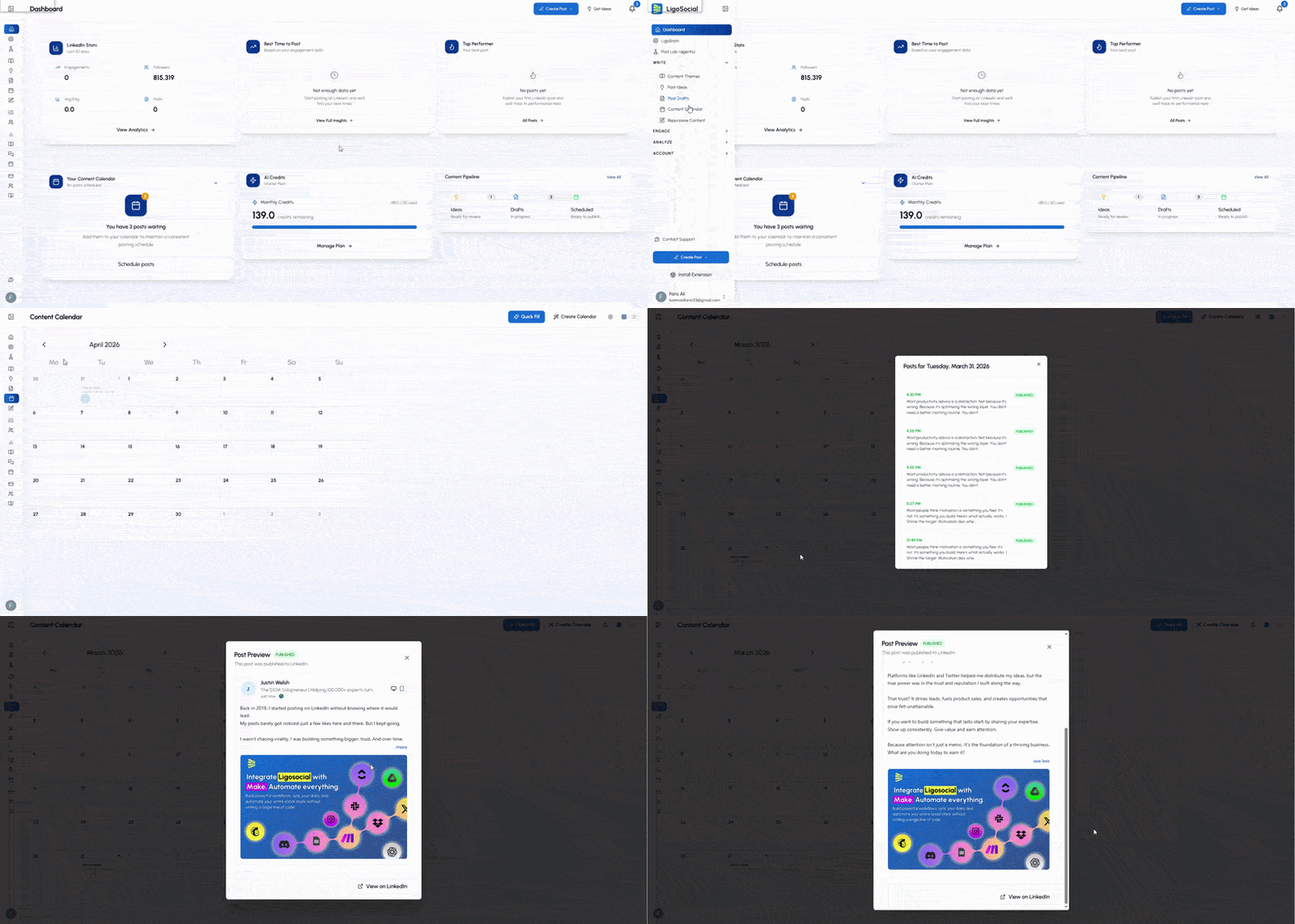
The real Content Calendar in LigoSocial.
Calendar View and List View
See the month at a glance, or switch to a list to read every scheduled post in order.
Open any day
Click a day to see each post with its time and status, then open the full preview.
Move a post to another day
Pick a new date and time in the reschedule window. The rest of the week stays as it was.
Three ways to schedule
One post, a full month, or a whole year from a spreadsheet
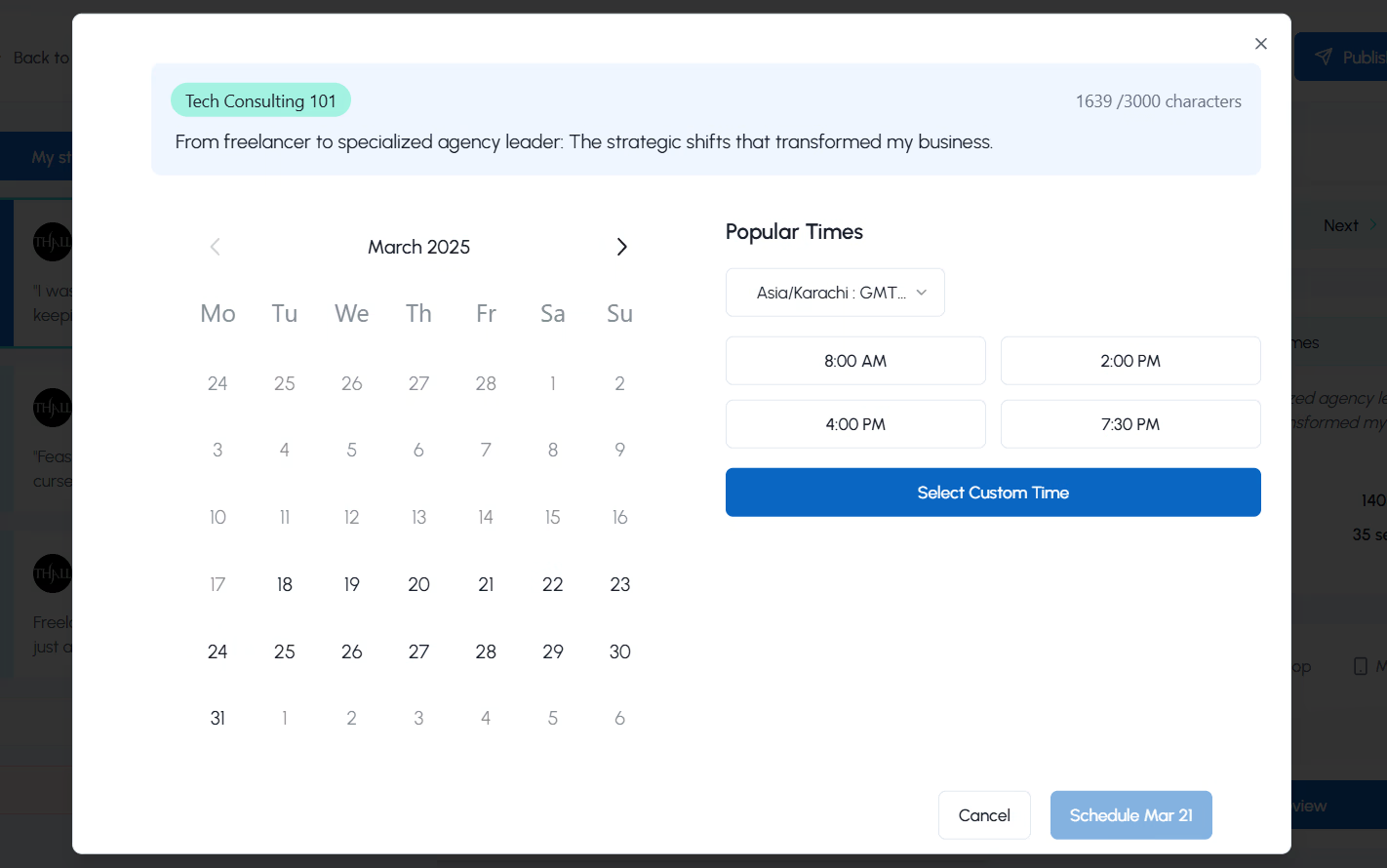
Pick a date and time
Write or open a post, choose Schedule for later, set the day, time and time zone. Images, multi-image posts, videos and documents go out with it.
Quick Fill the calendar
Choose Next 4 Weeks or Next 8 Weeks, how many posts per week, which days and what times. Quick Fill places the drafts you liked, then you click Approve & Schedule.
Import a CSV
Upload up to 50 posts at once with the columns content, scheduled_date, scheduled_time and timezone, placed up to 12 months ahead.
Schedule from your AI assistant
Schedule LinkedIn posts from Claude, ChatGPT and Grok Bot
Connect LigoSocial once and plan your week in the chat you already use. Claude reads your recent posts, writes drafts in your style and saves them. When you ask it to schedule, it asks you to confirm first.
 CLAUDE WITH LIGOSOCIAL
Read my last 20 posts and draft three for next week. Schedule them Tuesday to Thursday at 8:30.
I read your recent posts and saved 3 drafts in your style. Ready to schedule:
Tue 8:30 How we cut onboarding to one call
Wed 8:30 The client who said no
Thu 8:30 Stop posting daily
ConfirmChange a time
Example conversation. Nothing is scheduled until you confirm.



See every supported app on the LigoSocial integrations page, or let Post Lab email you fresh drafts every morning.
After you schedule
Change a scheduled post without deleting it
Swap the image, keep the time
Edit the text or attach an image to a post that is already scheduled. It stays in its slot, so there is nothing to delete and set up again.
Company pages too
Add a LinkedIn company page you admin as its own profile, switch to it, and schedule posts that go out as the page.
Carousels in the queue
Turn a post into a carousel with the LinkedIn carousel generator and schedule it like any other post.
Copy this
A weekly LinkedIn scheduling routine you can copy
About an hour a week keeps three posts a week on the calendar. Paste the routine into your notes and the prompt into Claude.
The weekly routine
FRIDAY, 25 MINUTES: PLAN NEXT WEEK
1. Open last week's posts in analytics. Note the one with the most comments and why people replied.
2. Pick 3 topics for next week: one teaches, one tells a story from your week, one shares an opinion.
3. Draft the 3 posts yourself, or paste the Claude prompt.
4. Like the drafts you want to keep.
5. Quick Fill: Next 4 Weeks, 3 posts per week, Tue / Wed / Thu, the same morning time each day.
6. Approve & Schedule, then check the Content Calendar.

MONDAY, 5 MINUTES: CHECK THE WEEK
7. Open List View. Swap an image, fix a line, or move a post to another day if the week has changed.

EVERY POSTING DAY, 15 MINUTES
8. Be online when the post goes out. Reply to every comment in the first hour.
The Claude prompt
Read my last 20 LinkedIn posts in LigoSocial.

Draft 3 posts for next week in my voice:
1. A how-to from my work, with numbered steps.
2. A short story from this week, ending with a question.
3. An opinion my audience might push back on.

Keep each under 1,300 characters, no hashtags in the body. Save all 3 as drafts.

Then suggest a date and time for each between Tuesday and Thursday next week, and wait for me to confirm each one before you schedule anything.
Short on ideas for the three topics? Set your pillars once with content themes, or start a draft in the free LinkedIn post generator.
LinkedIn scheduler compared
LinkedIn's built-in scheduler vs LigoSocial
The native scheduler is fine for a single post. Here is where a LinkedIn post scheduler with a calendar earns its place.
| What you need | LinkedIn scheduler | LigoSocial |
|---|---|---|
| Schedule a single post | Yes, up to three months ahead | Yes, about two months ahead from the editor or Claude |
| See every scheduled post on a calendar | No calendar view. Scheduled posts sit in a separate list | Content Calendar with Calendar View and List View |
| Schedule many posts at once | One post at a time | Quick Fill for 4 or 8 weeks, or CSV import of up to 50 posts, up to 12 months ahead |
| Edit the text of a scheduled post | Yes | Yes, and it stays scheduled |
| Add or change an image on a scheduled post | Delete the post and schedule it again | Attach it to the scheduled post, which keeps its time |
| Schedule from Claude, ChatGPT or Grok Bot | Not available | Yes, through the LigoSocial connector and GPT, with a confirm step |
| Company pages | Yes, for pages you admin | Yes, each page is its own profile |
FAQ
Scheduling LinkedIn posts, answered
On LinkedIn, click Start a post, write it, click the clock icon, pick a date and time, then click Next and Schedule. In LigoSocial, write or open a post, choose Schedule for later, pick the date and time, and it appears on your Content Calendar.
Yes. LinkedIn's built-in scheduler costs nothing and works well for one post at a time. A LinkedIn post scheduler like LigoSocial adds what the native one does not have: a content calendar, scheduling in bulk, AI drafting in your voice and scheduling from Claude or ChatGPT.
LinkedIn's own scheduler lets you pick a time up to three months ahead. In LigoSocial you can schedule about two months ahead from the editor or from Claude, Quick Fill covers the next 4 or 8 weeks, and a CSV import can place posts up to 12 months ahead.
On LinkedIn you can edit the text of a scheduled post, but adding or changing an image means deleting the post and scheduling it again. In LigoSocial you can edit the text and attach an image to a scheduled post, and it stays scheduled for the same time.
On LinkedIn, click Start a post, then the clock icon, then View all scheduled posts to get a list. In LigoSocial, open the Content Calendar and switch between Calendar View and List View. Click any day to see each post and its time.
Reach comes from the post itself and the conversation under it, so schedule for a time when you can be around to reply to the first comments. Posts you schedule in LigoSocial are published through LinkedIn's official API.
Yes. In LigoSocial a company page is its own profile. Switch to it and every post you schedule goes out as the page. You need to be an admin of the page to connect it.
The hours your audience is at work, in their time zone, and a time you can reply to comments. Pick two time slots, use each for four weeks, then compare the posts in your LinkedIn analytics and keep the one that wins. See how LigoSocial analytics compares your posts.
Yes, with LigoSocial connected. Claude can read your recent posts, write drafts in your style, save them and schedule them, and it asks you to confirm each date and time before anything is scheduled. ChatGPT works through the LigoSocial GPT, and Grok Bot and Perplexity through the LigoSocial connector. Set up the Claude connector.
Next month, already on the calendar
Draft in your voice, fill the weeks, approve, and see every post before it goes out.
Plan your month