Yes, you can give someone access to your LinkedIn without handing over your password, but how you do it depends on what they need to touch. For a Company Page, a Super admin adds them as a Content admin inside LinkedIn. For a personal profile, LinkedIn has no admin or delegate role, so the compliant route is a scheduling tool that you, the account owner, authorize through LinkedIn's official sign-in (OAuth). The other person then drafts, schedules and reports without ever seeing your login.
This guide is for both sides of that conversation: the founder or executive whose profile is being managed, and the agency, ghostwriter or VA who has to publish on a client's behalf. You will get the rules, the exact steps, a comparison of every option, and three templates you can copy today.
Key takeaways
- Never share your LinkedIn password. LinkedIn's User Agreement says you will keep your password a secret and will not share your account with anyone else.
- Company Pages have built-in roles. A Super admin can add a Content admin who posts as the Page, with no password involved.
- Personal profiles have no delegate role. The safe path is an OAuth tool: the profile owner clicks "Connect LinkedIn", signs in on LinkedIn's own screen, and can revoke access at any time.
- Agencies need more than access. They need per-client drafts, a way to show the client a post before it goes live, a calendar, and reports. Password sharing gives you none of that.
- Approval is a pipeline, not a message thread. Draft, share a preview link, collect a yes, schedule, report. Templates for each step are below.
Why sharing your LinkedIn password is the wrong answer
Most people asking this question are halfway to the bad answer already: "just send me your login." It feels fast. It is the one option LinkedIn explicitly forbids.
The LinkedIn User Agreement is direct about it. Section 2.2 says "You will keep your password a secret" and "You will not share your account with anyone else." Section 8.2, the list of things members agree not to do, includes "use or attempt to use another's account (such as sharing log-in credentials or copying cookies)."
The rule is not just paperwork. LinkedIn's help page on account restrictions says that if it finds "signs that your account has been compromised or taken over by another person or entity," it may restrict the account proactively. A login from an agency office in another city, at odd hours, on a new device, is exactly what that looks like from LinkedIn's side.
The practical problems are just as bad:
- Two-step verification breaks the handoff. Every new login triggers a code to the owner's phone, so the "fast" option turns into daily texts asking for codes.
- Your inbox comes with it. Whoever has the password can read every DM, every recruiter conversation, every private message.
- You cannot revoke it cleanly. Ending the arrangement means changing your password and hoping nobody saved a session.
- There is no audit trail. If a post goes out that you did not approve, you cannot tell who wrote it.
For the wider picture of what LinkedIn tolerates and what gets accounts restricted, see our guide to safe LinkedIn automation.
Personal profile vs Company Page: what LinkedIn actually lets you share
This is the distinction almost every answer online skips, and it decides everything else.
| Personal profile | Company Page | |
|---|---|---|
| Who owns it | One member, you | The organization |
| Built-in way to add another person | None | Page admin roles |
| Who can post as it | Only you, or an app you authorize | Super admins and Content admins |
| Password needed by helper | No, if you use OAuth | No, admins use their own login |
| How to remove access | Revoke the app | Remove the admin role |
LinkedIn's help page on Page admin access confirms that "Admin roles are assigned directly to personal LinkedIn profiles." In other words, admin roles let a person act on a Page with their own account. Nothing equivalent exists for handing someone the keys to your personal profile, which is why the personal-profile route runs through an authorized app instead.
Your options compared (and which one to pick)
Here is every realistic way to let someone else publish for you, side by side.
| Method | Works for | Password shared? | Client can revoke? | Scheduling and reports | Verdict |
|---|---|---|---|---|---|
| Sharing your login | Anything, in theory | Yes | Only by changing password | None built in | Breaks the User Agreement. Never. |
| Company Page admin role | Company Pages only | No | Yes, remove the role | LinkedIn's native Page tools | Use it for every Page. |
| OAuth scheduling tool | Personal profiles and Pages | No | Yes, at any time | Yes, depends on the tool | Use it for personal profiles. |
| Draft and copy-paste | Personal profiles | No | Nothing to revoke | None | Safe, but the owner does all the posting. |
The pick, by reader type:
- You run one Company Page with a helper: use Page admin roles. Free, native, done in two minutes.
- You are an executive or founder with a ghostwriter: use an OAuth tool so they can schedule, and keep the right to approve.
- You are an agency with several clients: use an OAuth tool built for multiple client accounts, and add Page admin roles for any client Company Pages.
- You only need help once a month: draft and copy-paste is fine. Anything more frequent and the owner becomes the bottleneck.
How to add someone as an admin on a LinkedIn Company Page
If the account in question is a Company Page, you do not need a tool at all. LinkedIn's own steps for adding admins to your Page:
- Go to your Page's super admin view.
- Click Settings in the left menu and select Manage admins.
- Open the Page admins tab.
- Click Add admin. If you do not see the button, you need a Super admin to grant you higher access.
- Search for the member's name and select them.
- Choose the role, then click Save.
Pick the role carefully. LinkedIn's Page admin roles page defines them:
| Role | What it allows | Give it to |
|---|---|---|
| Super admin | Every Page permission, including adding and removing admins | Owners and one trusted backup |
| Content admin | "Create and manage Page content, including posts (as well as boosting posts), and events" | Your agency, ghostwriter or social media manager |
| Analyst | "Monitor the Page's performance through analytics" | A stakeholder who only needs reports |
Why can't I add an admin to my LinkedIn Page? LinkedIn only lets you add someone if all of these are true:
- You are a Super admin of the Page. Content admins and Analysts cannot add anyone.
- The person is a 1st, 2nd or 3rd-degree connection of yours.
- The person follows the Page you are adding them to.
- Neither side has blocked the other.
If all four check out and LinkedIn still shows an error, LinkedIn suggests verifying your own account and asking the other person to verify theirs, then trying again.
How to let someone post on your personal profile without your password
For a personal profile, the owner authorizes an app once, through LinkedIn's own sign-in screen. Microsoft's LinkedIn developer documentation for sharing on LinkedIn describes this model: an app can only create a post on a member's behalf after that member authenticates and grants permission through OAuth 2.0.
In plain English, here is what that means for you as the profile owner:
- You get an invite link from the person or agency managing your content.
- You create your own account in their tool. Your agency never gets your LinkedIn login.
- You click "Connect LinkedIn". LinkedIn's own sign-in page opens. You type your password there, into LinkedIn, not into an email or a shared doc.
- You approve the permission screen. It tells you the app wants to post on your behalf.
- You keep the off switch. You can revoke the connection whenever you want, and your password never changed hands, so there is nothing to reset.
LinkedIn authorizations do expire periodically, so expect to click "Connect LinkedIn" again every so often. A good tool reminds you before posts start failing.
If you are the agency: publish, schedule and report for every client in one place
This is where most "just use a scheduler" advice falls short. An agency does not need access to one account. It needs a clean system across ten or forty of them, where every client's posts sound like that client and every client can see what is going out.
Here is how that works in LiGo's Agency Dashboard:
- Invite each client by email. From Invite Clients, you add the client's email and LinkedIn handle and mark it as a personal profile or a Company Page. The invite link stays valid for 14 days.
- The client connects their own LinkedIn. They land on an onboarding screen that says "Connect your LinkedIn so [your agency] can post on your behalf," sign in on LinkedIn's official screen, and see that they "can revoke this anytime from Settings." LiGo uses LinkedIn's official OAuth API, so you never see or store a password. That is the difference between a co-pilot and a bot: nothing logs in as your client, scrapes their feed or fires off automated activity, and every post goes out because someone on your team scheduled it. For a Company Page, the connected person needs to be a Super admin or Content admin of that Page.
- Open any client's workspace. The Agency Dashboard lists every client. Open workspace drops you into that client's calendar, drafts and analytics.
- Draft in the client's voice, not yours. LiGo Brain trains a separate voice model for each client profile, with no cross-contamination between clients. The post you draft for a CFO does not drift into the tone of the founder you wrote for an hour earlier.
- Schedule on the client's calendar. Pick a date and time in the content calendar, or bulk import a month of posts with dates and times from a spreadsheet.
- Report without screenshots. Each client has their own analytics and a monthly report, which can carry your agency's name and logo. Group Analytics rolls posts, engagement and followers up across all your personal-profile clients so you can see who is growing and who is stalling. The analytics feature page shows what is tracked.
Your own team gets roles too: Admin, Editor or Viewer, so a junior writer can draft and schedule without touching billing. If a client runs their own LiGo account instead of being invited, the Delegate Access guide covers that setup.
This short walkthrough shows how a delegated LinkedIn workflow runs day to day:
The client approval workflow: from draft to published
Access solves the password problem. It does not solve the "I never approved that post" problem. For that you need a pipeline everyone can see.
The infographic below compares the four access methods and lays out the five-step approval pipeline most agencies settle on.
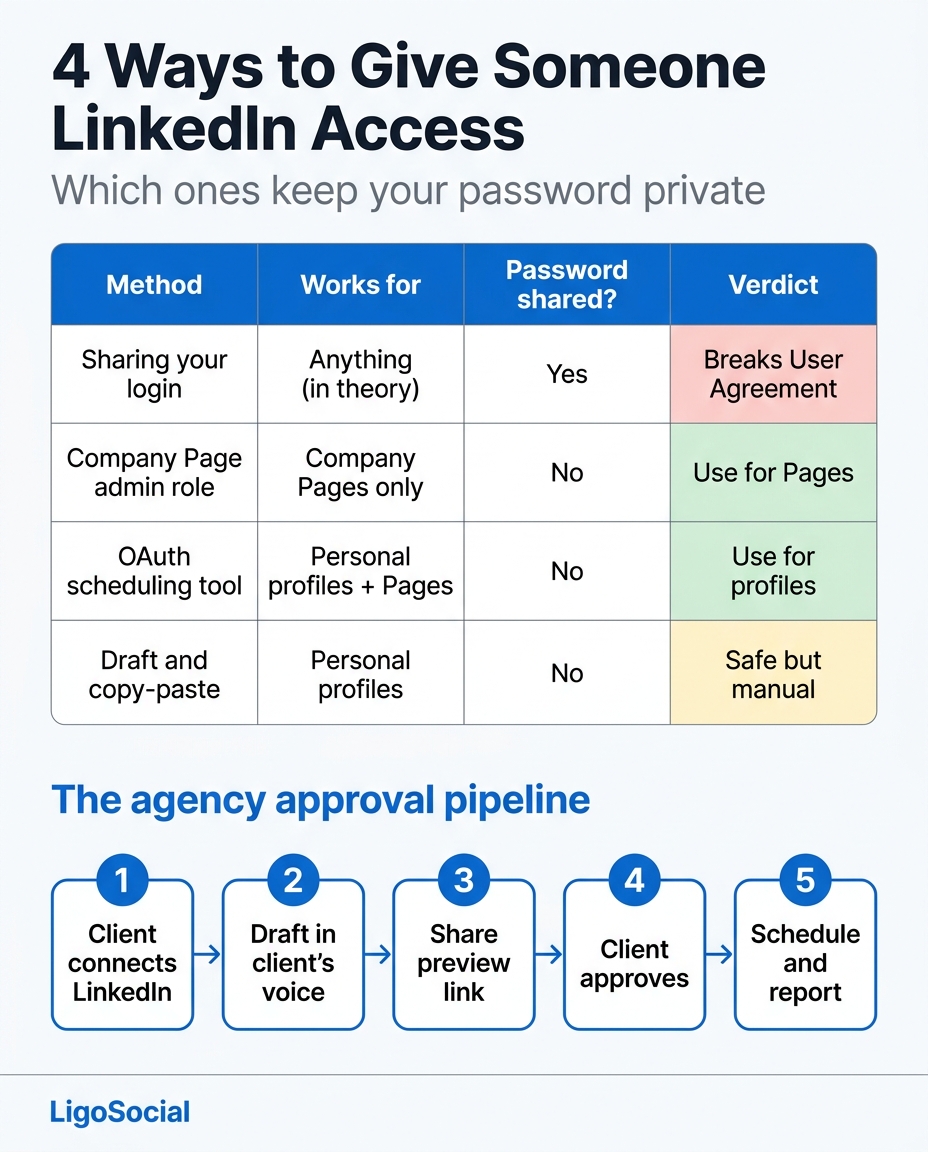
| Stage | Who acts | What happens | Target time |
|---|---|---|---|
| 1. Connect | Client | Accepts the invite, connects LinkedIn via OAuth | Once |
| 2. Draft | Agency | Writes the week's posts in the client's trained voice | Monday |
| 3. Share | Agency | Sends a preview link for the batch | Monday afternoon |
| 4. Approve | Client | Replies "approved" or lists changes | Within 48 hours |
| 5. Schedule and report | Agency | Schedules approved posts, reports monthly | Same day |
How the preview step works in LiGo: from the post editor, Share Post creates a link to a single draft or a whole batch. The client opens it with no login, sees the post the way it will read, and replies with their decision by email or chat. Links expire after 30 days and you can revoke or extend them. The page is view-only by design, so nothing can be edited or published from it. Before sending, run a draft through the free LinkedIn post previewer to check where the "see more" cut falls, because that cut is usually the first thing a client comments on.
Three rules keep the pipeline honest:
- Silence is not approval. If the client has not replied by the deadline, the post waits. Say this in your contract.
- Batch, do not drip. One link with five posts gets a reply. Five separate messages get ignored.
- Keep the yes. Save the client's approval reply with the post. If anyone asks later, you know who signed off.
The password should never leave the client's hands. Access goes through LinkedIn's own sign-in, approval goes through a preview link, and both can be switched off in one click.
Copy these: onboarding email, approval request and access checklist
1. Client onboarding email (send with the invite)
Subject: Connecting your LinkedIn (2 minutes, no password needed)

Hi [Name],

You'll get an invite from us in a separate email. Here's what happens:

1. Click the link and create your own login (we never see it).
2. Click "Connect LinkedIn" and sign in on LinkedIn's own screen.
3. Approve the permission so we can publish the posts you sign off on.

Please don't send us your LinkedIn password, now or ever. You can
disconnect us at any time from your settings.

Every week we'll send you a preview link of the drafts. Nothing
goes live until you reply "approved".

The invite expires in 14 days, so please do this by [date].

[Your name]
2. Weekly approval request
Subject: This week's LinkedIn posts for approval ([date range])

Hi [Name],

Here are [number] posts for next week: [preview link]

Proposed schedule:
- [Day, time]: [first line of post 1]
- [Day, time]: [first line of post 2]
- [Day, time]: [first line of post 3]

Reply "approved" to schedule all of them, or tell us which ones
to change. If we haven't heard back by [day, time], we'll hold
them until we do.
3. Access checklist (for anyone who already shared a password)
- [ ] Change your LinkedIn password.
- [ ] In LinkedIn's Sign in & security settings, sign out of every session you do not recognize.
- [ ] Turn on two-step verification.
- [ ] Reconnect through an OAuth tool or a Page admin role instead.
- [ ] Write down who has which role, and review the list every quarter.
FAQ
How do I publish or schedule LinkedIn posts on my client's behalf without their password?
Have the client connect their LinkedIn to a scheduling tool through LinkedIn's official sign-in (OAuth), then draft and schedule from inside the tool. The client types their password only into LinkedIn and can revoke the connection at any time. For a client's Company Page, ask a Super admin to add you as a Content admin instead.
Can someone else post on my LinkedIn profile?
Only through an app you authorize or by you pasting their draft yourself. LinkedIn has no admin or delegate role for personal profiles, and letting someone log in as you breaks the User Agreement. An OAuth tool lets them schedule posts while you keep control.
How do I add someone as an admin on my LinkedIn Page?
From the Page's super admin view, go to Settings, then Manage admins, click Add admin, search for the member, choose a role such as Content admin, and save. You must be a Super admin yourself to add other admins.
Why can't I add an admin to my LinkedIn Page?
You must be a Super admin of the Page, and the person must be a 1st, 2nd or 3rd-degree connection who follows the Page, with no block on either side. If those are met and it still fails, verify both LinkedIn accounts and try again.
Can I give my assistant access to my LinkedIn messages?
Not safely. Messages sit inside your personal account, and the only way to hand them over is sharing your login, which LinkedIn's User Agreement prohibits. Let your assistant draft replies for you to send, or move sales conversations into a tool your team can see.
Will using a scheduling tool get my LinkedIn account restricted?
A tool that posts through LinkedIn's official OAuth API, after you authorize it, is the method LinkedIn itself provides for apps. The risk comes from tools that log in as you, scrape, or automate activity like mass connection requests. Check how a tool connects before you sign up.
Can my client approve posts without logging into anything?
Yes. In LiGo, a shared preview link opens without a login, shows the draft as it will read, and expires after 30 days. The client replies with approval or changes by email or chat, and the agency schedules the approved posts.
The short answer, and where to start
Give access, never the password. Company Pages get admin roles. Personal profiles get an app the owner authorizes through LinkedIn's official sign-in. Agencies get a system on top: per-client voice, preview links, a calendar and reports.
That system is what we built the LigoSocial Agency Dashboard around. Your clients connect their own LinkedIn, you draft in each client's trained voice, and every post goes out through LinkedIn's official OAuth API. Agency Management is part of the higher-tier plans. See pricing for the current options.
What does your approval step look like today: a preview link, a shared doc, or a screenshot in Slack?