You want someone out of your network and you do not want a scene. Good news: removing a LinkedIn connection takes four clicks and the person is never notified. The part almost nobody tells you is what silently disappears when you do it, and whether removing is even the right move for the problem you actually have. This guide covers both, for anyone who has looked at a bloated connections list and thought "half of these people should not be here."
Key takeaways
- Removing a connection takes four clicks on desktop or three taps on mobile, and LinkedIn sends the other person no notification at all.
- Any recommendations or endorsements between you two are withdrawn permanently, and LinkedIn confirms they are not restored if you reconnect later.
- Removing also ends the follow relationship, so they stop seeing your posts. If you only want to stop seeing theirs, unfollow instead and stay connected.
- LinkedIn caps every account at 30,000 first-degree connections, and once you hit it, Follow becomes the default button on your profile.
- Bulk-removal tools that click through your connections list for you are the automation pattern that puts accounts at risk. There is a slower, safer way to the same outcome.
- The real fix for a noisy network is usually not deletion. It is controlling which slice of LinkedIn you look at each day.
How to remove a LinkedIn connection in four clicks
There are two paths on desktop.
From their profile:
- Open the person's profile.
- Click More in the introduction section, next to their name and photo.
- Select Remove Connection.
- Click Remove in the pop-up to confirm.
From your connections list (better when working through several people at once):
- Click the My Network icon at the top of your LinkedIn homepage.
- Click the link showing your connection count to open the full list.
- Click the More icon (the three dots) next to the person's name.
- Select Remove connection, then confirm in the pop-up.
On the mobile app it is three taps: go to the member's profile, tap More, then tap Remove connection and confirm.
That is the whole mechanic. The interesting questions start after the click.
No, they are not notified. Here is what they can still notice.
LinkedIn's help page on removing a connection is unambiguous on this: "When you remove a connection, they won't be notified." No alert, no email, no entry in their activity feed. Your name simply stops appearing in their connections list.
But "not notified" is not the same as "undetectable." Three things change on their side:
- Your degree changes. You go from 1st to 2nd (or further). Anyone who opens your profile sees a Connect button where Message used to be.
- Your posts leave their feed. LinkedIn treats removal as ending the follow relationship in both directions, so your content stops surfacing for them.
- Direct messaging gets harder. Your existing thread stays, but new outreach from them now depends on your messaging settings rather than a connection.
None of that pings them. In practice, the people you are most likely to remove are the least likely to notice.
The follower question, and why every answer online contradicts the next
Ask whether a removed connection stays a follower and you will find flatly opposite answers, because LinkedIn changed this behaviour twice and never documented it on the removal help page.
Around May 2023, LinkedIn quietly decoupled the two: removing a connection left the follow relationship intact, so your posts kept reaching them. That was reversed in 2024. The current behaviour, documented by the connection-management tools that sync this data and reported by LinkedIn practitioners at the time of the change, is that removing a connection also ends the follow in both directions. They stop seeing your posts, and you stop seeing theirs.
Two practical consequences. Removing someone while keeping your content in front of them is no longer possible. And if your follower count dips after a cleanup session, that is why, not the algorithm. Since LinkedIn does not document it, verify before working a long list: note your follower count, remove one person, check again the next day.
The part that surprises people: your recommendations vanish
This is the single most important sentence in that same help page, and it is buried at the bottom of it:
"After removing a connection, any recommendations or endorsements between you and that person will be withdrawn. They will not be restored if the connection is reestablished."
Read that twice. If a former client wrote you a glowing recommendation two years ago and you remove them in a tidying spree, that recommendation is gone for good. Reconnecting does not bring it back. They have to write it again from scratch, which means you have to ask them to.
So before any purge: open your profile, scroll to Recommendations and Skills, and note who wrote what and who endorsed you. Those names come off the removal list. Everything else is fair game.
Remove, unfollow, withdraw, or block: pick the smallest action that solves it
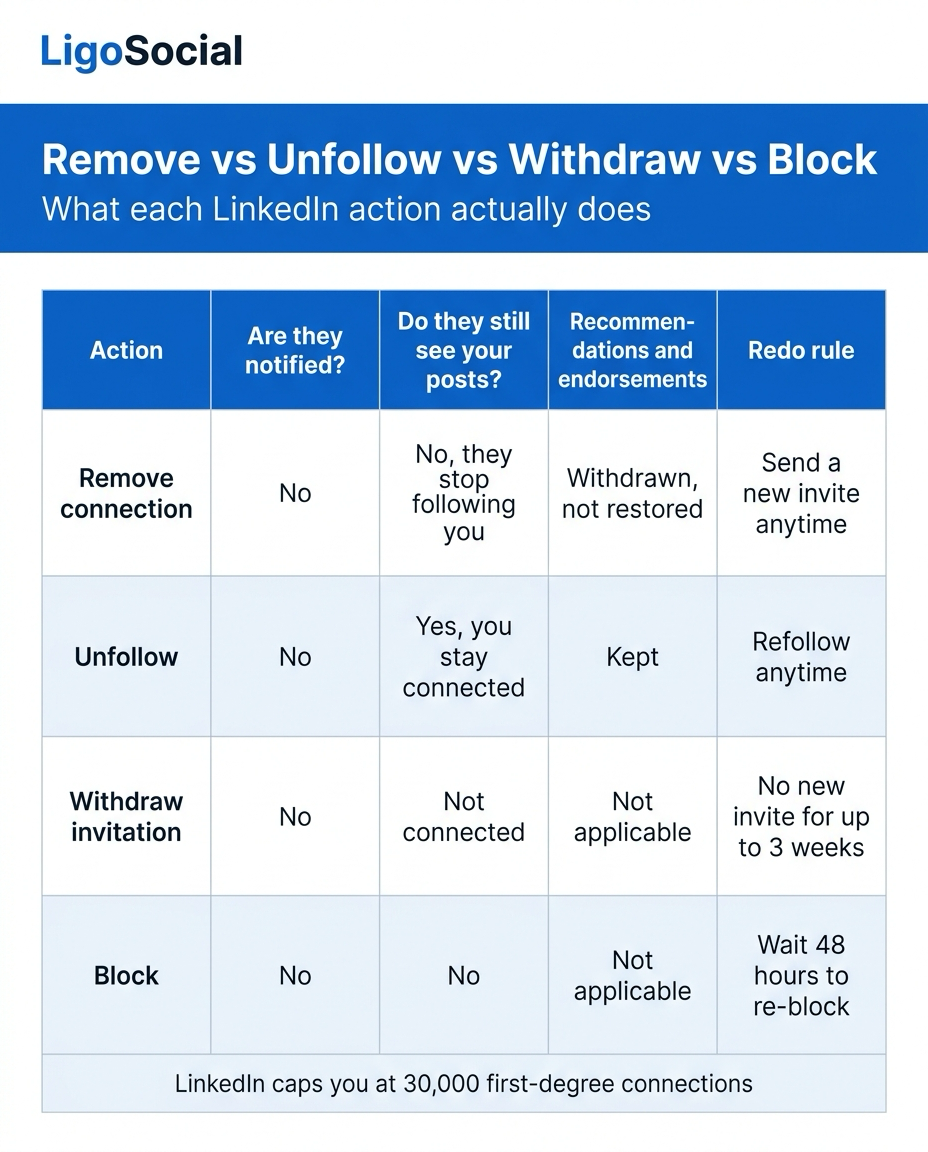
Most people reach for "remove" when a lighter action would do the job with fewer side effects. LinkedIn gives you four distinct tools and they are not interchangeable.
| Action | Are they notified? | Do they still see your posts? | Recommendations and endorsements | Redo rule |
|---|---|---|---|---|
| Remove connection | No | No, they stop following you | Withdrawn, not restored | Send a new invite anytime |
| Unfollow | No | Yes, you stay connected | Kept | Refollow anytime |
| Withdraw invitation | No | Not connected | Not applicable | No new invite for up to 3 weeks |
| Block | No | No | Not applicable | Wait 48 hours to re-block |
A few notes on the fine print, all from LinkedIn's own help pages:
- Unfollow is the most underused button on LinkedIn. You stay connected, they keep seeing your posts, their content leaves your feed. If your actual complaint is "this person posts too much," this is the answer, not removal.
- Withdrawing a pending invitation does not notify the recipient either, but it carries a real cost. LinkedIn's withdraw an invitation page states that "you won't be able to send a new invitation to the same member for up to three weeks." If you are cleaning out a long list of unanswered requests, our guide to mass withdrawing LinkedIn connection requests oldest first covers the sequencing.
- Blocking is the nuclear option and is also silent. Per LinkedIn's block or unblock a member page, "the blocked member won't receive any notification of this action." It removes the connection, hides you from each other, and stops LinkedIn suggesting you in People You May Know. Unblock later and "you'll have to wait 48 hours before re-blocking the same member."
Reserve blocking for harassment and genuine bad actors. Use removal for people who should not have first-degree access to your network. Use unfollow for everything that is merely annoying.
Here is the same comparison as a single reference card, if you want to save it.
The five connections actually worth removing
"Clean up your network" is advice everyone gives and nobody defines. Here is a usable filter. Remove someone if they hit one of these five, and leave them alone otherwise.
- Fake or impersonating accounts. A headline that does not match the listed skills, a generic photo, a company that has never heard of them. These removals genuinely protect you, because a first-degree connection gets a fuller view of your network.
- Anyone who has pitched you three times in a thread you never replied to. Not one annoying pitch. A pattern.
- Accounts you cannot place at all AND who have never engaged with you. No recognition, zero interaction in two years, the connection is doing nothing for either of you.
- People you connected with for one specific thing, like a job posting or an event attendee list, where that purpose ended long ago.
- Anyone whose presence creates a genuine conflict, such as a competitor who joined specifically to watch your client list.
Now the people who should NOT be removed, even though tidying-spree logic says otherwise: anyone who has written you a recommendation or endorsed a skill you care about, quiet lurkers in your target market (silence is not disinterest), and old colleagues who might become clients. A connection that costs you nothing to keep is not a problem worth solving.
If your network is genuinely bloated at the top end, the number that matters is 30,000. LinkedIn's network size limit page states that "LinkedIn members can have up to 30,000 1st-degree connections," and once you hit that ceiling, Follow becomes the default option on your profile. Below that number, the size of your connections list is not the thing holding you back.
Why bulk-removal tools are the wrong fix
The most common follow-up here is some version of "how do I remove all my connections at once." LinkedIn does not offer it natively, which is why a whole category of tools exists to do it for you by driving your browser through the connections list.
Think about what that actually is. A script logged into your account, clicking through hundreds of profile actions in sequence, at machine speed, from your IP. That pattern looks a lot like what LinkedIn's automated defences are built to catch, which is presumably why the tools offering it cap themselves at a few dozen removals a day. You are risking a restriction on the account to save an afternoon of clicking.
The safer sequencing, if you really do need to remove dozens of people:
- Sort your connections list by Recently added and work backwards. The junk clusters in the periods when you were accepting everything.
- Do it in short sessions across several days, by hand, at human pace.
- Check your Recommendations section first, per the earlier warning.
- Stop when you hit the list of five criteria above and nothing else qualifies.
If the reason you want a bulk tool is that LinkedIn housekeeping eats your week, the honest answer is that deletion was never the bottleneck. Our LinkedIn automation guide walks through which parts of LinkedIn can safely be automated and which parts cannot, and connection pruning sits firmly in the second category.
What to do instead: curate what you see, not who you know
Here is the contrarian bit, and it is the reason this article exists rather than being four screenshots.
Your connections list is a permissions list. It decides who can message you and who sees your posts. It is not your feed, it is not your reputation, and deleting rows from it does almost nothing to your results. What actually determines those is narrower and more boring: which twenty or thirty people you show up for, consistently, in the comments.
That is a memory problem, not a willpower problem. You know who your best-fit prospects are. You just cannot hold thirty names in your head every morning, so you open the main feed instead and spend forty minutes commenting on people who will never buy from you. Then you blame your connections list.
The fix is to build a small number of saved, filtered views and only work inside them. LinkedIn lets you filter a search precisely and then hands you a URL. Save that URL, name it, and you have a reusable list. We wrote a full walkthrough on how to save LinkedIn search results so you never rebuild the filters twice.
This is exactly the job LiGo Lists does inside the LiGo Chrome Extension. Paste any LinkedIn search URL, name it, and it becomes a one-click list in the sidebar with every filter preserved. You can also build a content search from six filter dropdowns, share a list by copying its URL, sync across devices, and comment on posts from inside the list without losing your scroll position. LiGo's own user-reported figure, ours rather than an independently audited one, is that people save four or more hours a month by opening saved searches instead of rebuilding filters. The extension stores no LinkedIn data.
The other half is the commenting, which is where the compounding actually happens. LiGo's AI Comments gives you six suggestions on any post: three written in your own voice from what LiGo Brain has learned about how you write, and three in optimised styles. You pick one, edit it if you want, and post it. It does not comment for you or engage on your behalf. LiGo is a co-pilot, not a bot. It posts through LinkedIn's official OAuth API, and with the Chrome extension you review before anything goes out. That distinction is the whole difference between the safe version of this and the bulk-removal scripts above.
Your connections list is a permissions list. Your attention is the thing that actually compounds.
I run LigoSocial, and I have watched a lot of people spend a Sunday deleting 400 connections and report exactly zero pipeline change the following month. The ones who did see a change did something less satisfying: they picked thirty accounts that mattered, showed up in those comment sections four days a week, and let the network sort itself out. Our LinkedIn engagement strategy guide lays that system out end to end, and the connection message templates that actually work cover the other side of it: being deliberate about who you let in, so you have less to remove later.
FAQ
Will someone know if I remove a connection on LinkedIn?
No. LinkedIn's help documentation states plainly that "when you remove a connection, they won't be notified." There is no alert, no email, and nothing in their activity feed. The only way they would find out is by noticing that you no longer appear in their connections list, or by visiting your profile and seeing a Connect button where Message used to be.
Does removing a connection on LinkedIn also remove them as a follower?
Yes, under the current behaviour. This is the most contradicted answer online because LinkedIn changed it twice: around May 2023 removal stopped affecting the follow relationship, and that was reversed in 2024. Today, removing a connection ends the follow in both directions. LinkedIn's help page still does not document it either way, so test it on one connection and watch your follower count before working a longer list.
What is the difference between unfollow and remove connection on LinkedIn?
Unfollow keeps the connection and only changes your feed: you stop seeing their posts, they stay connected to you, and they keep seeing yours. Removing ends the relationship in both directions and withdraws any recommendations or endorsements between you. Neither action sends a notification. If your complaint is "this person posts too much," unfollow is the correct tool.
Can you tell if someone removed you as a connection on LinkedIn?
Not directly. LinkedIn never notifies you when someone disconnects. You can only infer it: open their profile and check whether it shows 1st degree next to their name. If the badge is gone and a Connect button has appeared where Message used to be, the connection has ended. Note that a disappeared connection can also mean the account was closed or restricted, so it is not always deliberate.
How do I quietly remove someone from LinkedIn without them knowing?
The standard removal flow is already silent. Open their profile, click More, select Remove Connection, and confirm. No notification is sent at any point. If you want to be extra careful, do it from your My Network connections list rather than their profile, since visiting their profile can register as a profile view depending on your privacy settings.
Is it rude to remove LinkedIn connections?
It is invisible, so the etiquette question is mostly theoretical. LinkedIn itself recommends connecting with people you know personally and trust professionally, and following everyone else. Removing an inactive or unknown connection costs nobody anything. Removing a client or a close colleague you still work with is a different call, mostly because of the recommendations and endorsements you lose along with them.
The takeaway
Remove the accounts that genuinely should not be there, check your recommendations first, and use unfollow for everything that is merely noisy. Then stop tidying and build the small, deliberate list of people whose comment sections you show up in every week.
What is actually on your removal list right now, and how much of it would unfollow have solved? I would like to know, because most people find the honest answer is "most of it."
If you want the saved-lists-and-comment-in-your-voice half of this handled, the LiGo Chrome Extension is where it lives. Try it at ligosocial.com.