To add a link to a LinkedIn post, you paste the full URL (including the https://) into the post box and LinkedIn makes that raw URL clickable on its own. What LinkedIn will not do is let you hyperlink words: you cannot turn "read the guide" into a clickable link inside a normal feed post, only Articles and newsletters allow that. And because an external link sends people off the platform, a link in the post body usually costs you reach, which is why most experienced posters put the link in the first comment and say so in the post. This guide covers the exact steps, how to remove the preview card, and where to place a link so it still gets seen.
If you want the post itself to carry the reach, draft it with the LigoSocial post generator and put the link where it belongs.
Key takeaways
- You cannot hyperlink custom anchor text in a normal LinkedIn post. Paste a full URL and LinkedIn auto-links the raw URL. For clickable words, use a LinkedIn Article or newsletter.
- To add a link: paste the URL, wait for the preview card, then either keep it or click the X to remove it. The URL text stays clickable either way.
- A link in the post body usually reduces reach. Industry analyses put the drop at roughly 20 to 35%, and some report 40 to 50%, because clicks pull readers off-platform and lower engagement.
- The first-comment method keeps your post distributing normally while still giving people a click path. Add one line of context in the comment and signpost it in the post.
- In 2026 the first-comment trick is softer than it was. LinkedIn appears to dampen posts that clearly exist only to funnel to a comment, so relevance matters more than any single workaround.
- Put evergreen links in your profile (Featured section or website field), not in every post.
Can you hyperlink text inside a LinkedIn post?
No. Outside of Articles and newsletters, the LinkedIn post composer does not support custom anchor-text hyperlinks. You cannot select the words "free template" and attach a URL to them the way you would in a document or a web page. The only thing that becomes clickable in a feed post is a raw URL you paste in full, and LinkedIn detects and links it automatically.
This trips people up because almost every other writing surface they use supports anchor text. On LinkedIn, a post is closer to a plain-text box with URL detection bolted on. If you genuinely need multiple links or clickable words like "book a call," you have two clean options: write a LinkedIn Article or newsletter, which use a rich-text editor that lets you link any words, or keep the post itself link-light and route readers to one URL. If your posts also keep getting cut off or losing formatting, the reasons are related, and the fix for that side of things is in our guide on why your LinkedIn posts look invisible.
How to add a link to a LinkedIn post, step by step
There are two native ways to get a link into a post, plus the option to remove the preview afterward.
Method 1: Paste the URL directly
- Start a new post from your feed or profile.
- Paste the full URL, including
https://, anywhere in the text. - Wait a few seconds. LinkedIn fetches the title, description, and image from the page's Open Graph tags and builds a preview card.
- Write your copy around it and publish. The raw URL stays clickable even if you delete the visible URL text once the card has loaded.
Method 2: Attach an image and drop the link in
If you want an image post rather than a link card, add your image first. Attaching an image usually stops the auto-generated preview card from appearing, so you can paste a URL as plain clickable text without the big card competing with your visual. This is handy when the image is the hook and the link is a secondary resource.
How to remove the link preview (and keep the link clickable)
The preview card and the URL text are two separate things, which is the whole trick. To add a link to a LinkedIn post without a preview:
- Paste the full URL and wait for the preview card to load.
- Click the small X on the top corner of the card to dismiss it.
- The card disappears, and the URL text remains fully clickable in your post.
If the bare URL looks messy, add UTM parameters or a branded short link before you paste, so it stays clean and you can still track clicks. When the preview card shows a blank image or wrong text instead of dismissing it, the page's metadata needs fixing, and our LinkedIn post preview guide walks through how to make it render correctly. Keep total length in mind too, since long link-heavy posts get truncated fast: the exact ceilings are in our LinkedIn post character limit guide.
Do links reduce your reach on LinkedIn?
Usually, yes, though the reason is more behavioral than a hard penalty. When someone taps an external link, they leave LinkedIn, and people who click away rarely come back to like or comment. Less engagement in the critical early window means the algorithm shows the post to fewer people. So your post is not being punished for containing a link so much as it is generating less of the engagement that drives distribution.
The measured effect is real either way. Industry analyses commonly report that a link in the post body attracts around 20 to 35% less reach than the same post without one, with some reporting drops of 40 to 50%. I treat those as directional rather than gospel, because they vary by account and audience, but the direction has held true in my own posting for years: a resource in the body reliably underperforms the same idea posted clean.
The practical takeaway is not "never link." It is "do not make the link the whole point of the post." Lead with something genuinely useful, then offer the link to the people who want more. Links your audience actually cares about recover a lot of that gap through clicks and dwell time.
Where to put your link: post body, first comment, or profile
Placement is the real decision. Here is how the three options compare, so you can pick per post instead of guessing.
| Where the link goes | Typical reach impact | How it behaves | Best for |
|---|---|---|---|
| Post body (raw URL) | Analyses report 20 to 35% less reach, some 40 to 50% | Raw URL is clickable, no custom anchor text, big preview card unless removed | Rare cases where the link IS the post and reach matters less |
| First comment (signposted) | Post body distributes normally; historically a modest visibility lift versus a body link | URL in the comment is clickable; needs a "link in comments" signpost | Most posts where you want reach and a click path |
| Profile (Featured or website) | No per-post reach cost | Clickable and permanent, found by profile visitors | Evergreen links: lead magnet, booking page, portfolio |
For a one-off resource tied to a specific post, the first comment is the default. For a link you want people to find every time they check you out, your profile is the better home. The body is the option I reach for least.
The first-comment method I actually use (and how to make it convert)
When I have a link to share, it goes in the first comment, and I tell people it is there. That is it. The post earns its own reach on the strength of the idea, and anyone who wants the resource has a one-tap path to it. I spend about 30 minutes every working day in LinkedIn comments anyway, so treating my own first comment as prime real estate is second nature rather than a hack I have to remember.
Two details make it convert instead of getting ignored:
- Signpost it in the post. End with a plain line like "Full guide in the first comment" or "Dropping the link below." Without the signpost, most readers never think to look.
- Add context to the comment, not a naked URL. A bare link reads as spam. One sentence on why it is worth the click does the work.
Here is the shape I use, copyable:
Post body (last line):
I wrote up the exact 3-step version of this. Link in the first comment.

First comment:
Here's the full breakdown, including the template I mentioned:
https://yoursite.com/guide?utm_source=linkedin&utm_medium=comment
Two honest caveats. First, in 2026 this is softer than it used to be. Some analyses now report that LinkedIn dampens posts that obviously exist only to funnel people to a comment, so treat the first comment as a sensible default, not a guaranteed loophole. Second, and more important, tricks fade and relevance does not. I have watched enough algorithm cycles to trust the durable play over the clever one: if the post stands on its own and the link genuinely serves the reader, you recover most of the reach gap regardless of where the URL sits. Random gaming does not compound. Useful content does.
The part people underestimate is voice. A first comment written in a hurry usually sounds like a bot pasting a URL, which is exactly the impression you do not want on your own post. This is where LigoSocial Brain earns its keep: it learns your tone from your past posts, so the post and the one-line first comment both read like you wrote them, not like a template. Inside the LigoSocial Chrome Extension you get suggested comment options in the style you choose, you pick one, and you post it yourself. Nothing goes out automatically. LigoSocial runs on LinkedIn's official OAuth API and keeps you as the one who hits publish, which matters when the comment is attached to your name. If your whole strategy leans on the comment section (mine does), the deeper case for that is in our complete guide to LinkedIn comments, and you can draft first comments with the LinkedIn comment generator.

Where your link belongs depends on the job: reach, a one-off click path, or an evergreen destination.
How LigoSocial drafts a link post that keeps its reach
Everything above comes down to one rule: the post has to stand on its own before the link does any work. LigoSocial drafts that post in your voice from the page you want to share, so the link becomes a bonus for readers who finish it.
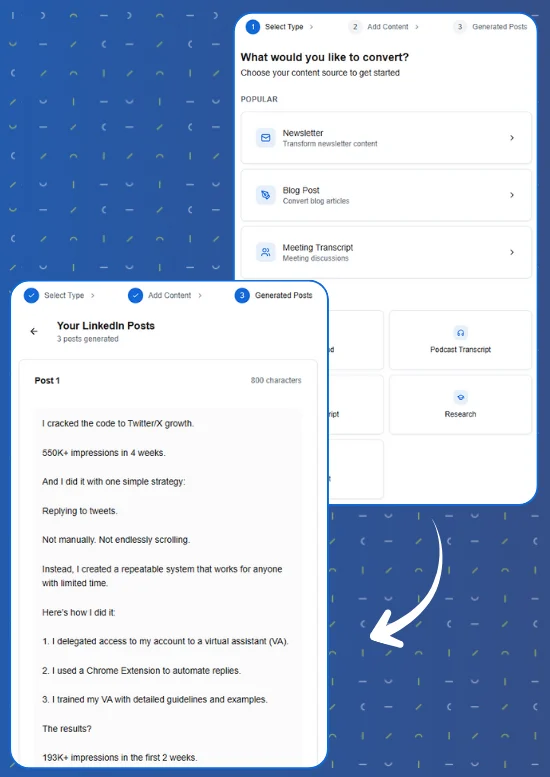
- In LigoSocial, pick your source under Select Type, such as Blog Post or Newsletter, and paste it under Add Content.
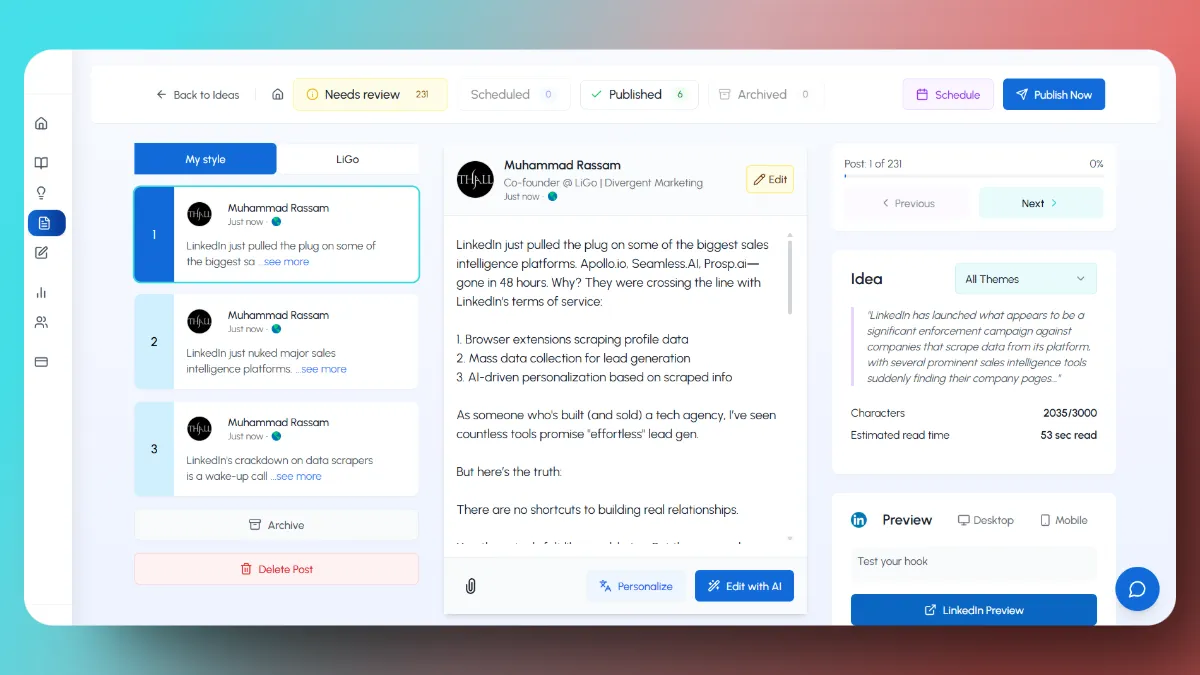
- LigoSocial writes Generated Posts in your voice, with short lines and a clear structure that hold up without the link.
- Edit the draft, check the desktop and mobile preview, then schedule it or publish it to LinkedIn and add your link as the first comment.
Try it at ligosocial.com and turn your next link into a post worth reading.
FAQ
Can you hyperlink text in a LinkedIn post?
No. A normal feed post cannot turn words into a clickable link. You paste a full URL and LinkedIn makes that raw URL clickable on its own. If you need hyperlinked anchor text or several links, write a LinkedIn Article or newsletter, both of which use a rich-text editor that lets you link any words.
Do links reduce reach on LinkedIn?
Usually. A link in the post body tends to attract roughly 20 to 35% less reach, and some analyses report 40 to 50%, because readers who click away stop engaging with the post. It is a behavioral effect more than a fixed penalty, and relevant links your audience wants recover much of the gap through clicks and dwell time.
How do I remove the link preview from a LinkedIn post?
Paste the full URL, wait for the preview card to appear, then click the X on the card to dismiss it. The card disappears and the URL text stays clickable. Attaching an image before you paste also stops the preview card from generating in the first place.
Is it better to put the link in the post or in the first comment?
For most posts where reach matters, the first comment wins: the post distributes normally and people who want the resource still have a one-tap path. Add a line of context in the comment and signpost it in the post. Keep in mind that in 2026 LinkedIn appears to soften obvious funnel-to-comment posts, so make the post worth reading on its own.
How do I add a clickable link to my LinkedIn profile?
Use your profile itself, not a post. Add evergreen links in the Featured section or the website field of your intro so profile visitors always find them. This carries no per-post reach cost and suits links you want available every day, like a booking page or lead magnet.
Can I track clicks on a LinkedIn link?
Yes. Since you cannot restyle the URL, add UTM parameters before you paste it, and those tagged visits show up in your analytics by source or campaign. A branded short link does the same job with a cleaner look, though some readers hesitate to click shortened links from unfamiliar domains.
Put the link where it earns its keep
Adding a link to a LinkedIn post is the easy part. The decision that actually moves the needle is placement: the body when the link is the point, the first comment when you want reach and a click path, and your profile for anything evergreen. Write the post so it stands on its own, then point to the link for the people who want more.
If the friction is that your first comment never quite sounds like you, that is exactly what LigoSocial Brain and the LigoSocial Chrome Extension are built for: posts and comments in your own voice, with you reviewing before anything goes out. Try LigoSocial and see how much easier the "link in comments" habit gets when the words already sound like yours.
So here is the question worth sitting with: is your next link the whole reason for the post, or a resource for the readers who finish it? Your answer decides where it goes.