Let's cut to the chase.
You sent a LinkedIn connection request and now need to withdraw it. Maybe you forgot to personalize it. Maybe they're just not responding. Maybe you hit the wrong profile entirely.
The burning question: Can you actually resend a LinkedIn invitation after withdrawing it?
Here's your answer: Yes, but you'll need to wait 3 weeks after withdrawing it.
That's an eternity in business time. By then, that hot lead might have gone cold, or that potential client might have found someone else.
Let me walk you through what's actually happening, what your options are, and how to avoid this problem entirely.
Use the wait to warm them up. Comment on their posts so your name is familiar when you invite them again. The free LigoSocial comment generator drafts a thoughtful comment for any post in seconds.
The 3-Week LinkedIn Invitation Cooldown: What's Really Going On
According to research from OctopusCRM, LinkedIn enforces a mandatory ~3-week waiting period before you can resend an invitation to the same person.
Why? LinkedIn wants to prevent connection spam and protect its users, as discussed by LinkedIn invitation management experts.
This cooldown period is hidden information-LinkedIn doesn't advertise it in their help center or documentation, but it's absolutely real and impacts your networking strategy.
What Actually Happens When You Withdraw an Invitation
Here's what goes on behind the scenes when you hit "withdraw":
-
The invitation instantly disappears from the recipient's notifications and pending connections list
-
No notification is sent to the recipient (they won't know you withdrew it)
-
Your account enters a 3-week cooldown for that specific person
-
The invitation is gone forever - there's no "undo" button
This page is about getting back in touch afterwards. For the full breakdown of what the other person sees and what changes on your side, read what happens if you withdraw a LinkedIn invitation.
Need to Connect During the 3-Week Waiting Period? Here Are Your Options
Don't have 3 weeks to wait? Here are your actual options:
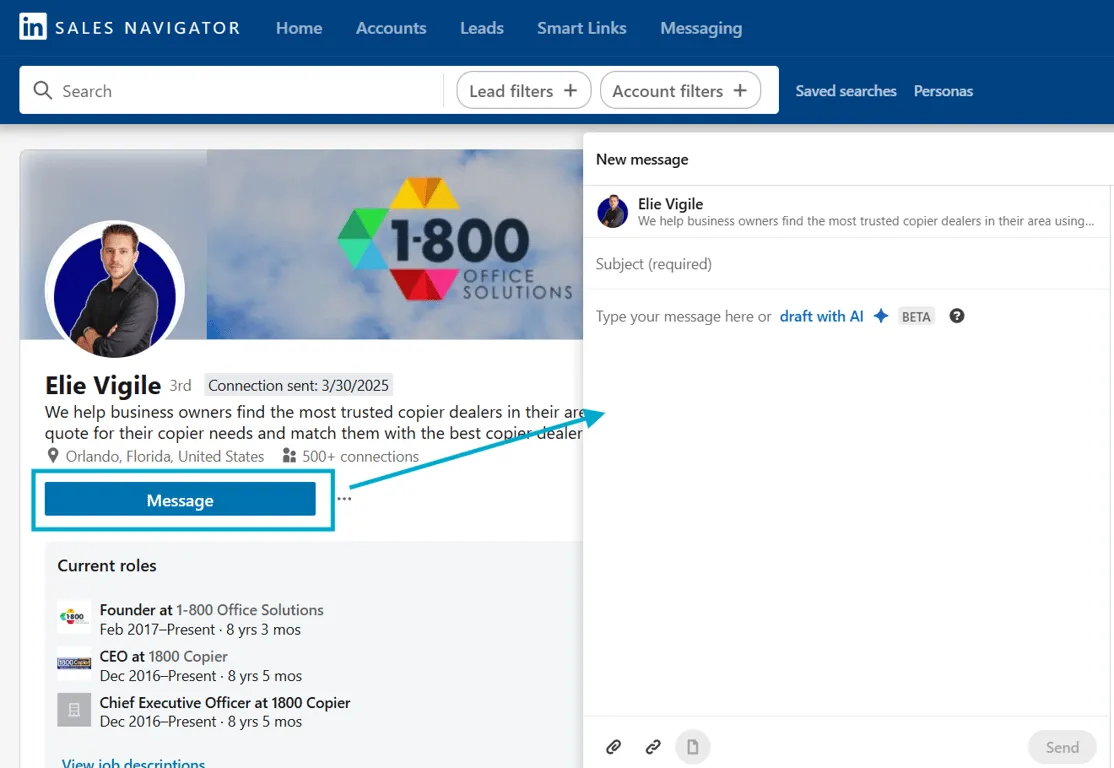
Option 1: Send an InMail Instead (If You Have Premium)
If you have LinkedIn Premium, you can bypass the connection requirement entirely:
-
Go to their profile
-
Click the "Message" button instead of "Connect"
-
Send a direct InMail explaining your situation
Don't have Premium? Their profile might show an "Open Profile" badge (a gold icon), meaning they accept messages from anyone.
Option 2: Find Them in a Shared Group
LinkedIn still allows messaging between group members without being connected:
-
Check if you share any LinkedIn Groups (at the bottom of their profile)
-
Join the same group if you haven't already
-
Use the group member list to find and message them
Option 3: Try Alternative Contact Methods
Many professionals list their contact info on their profiles:
-
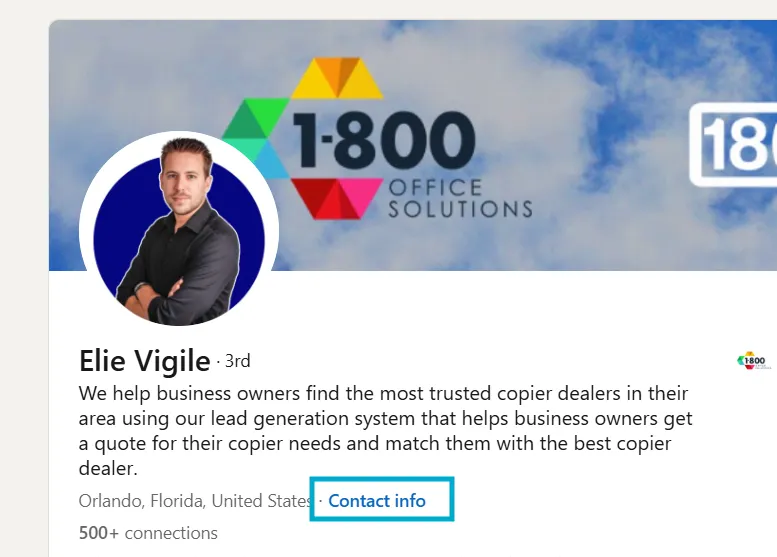
Check their "Contact Info" section for email addresses
-
Look at their profile headline or about section for contact details
-
Visit their website if linked from their profile
Option 4: Request an Introduction
If you have mutual connections:
-
Find a shared connection you have a good relationship with
-
Ask for a direct introduction
-
This carries more weight than a cold connection anyway
How to Check and Withdraw Your Pending LinkedIn Invitations
Before we discuss bulk management, here's how to check your pending invitations:
-
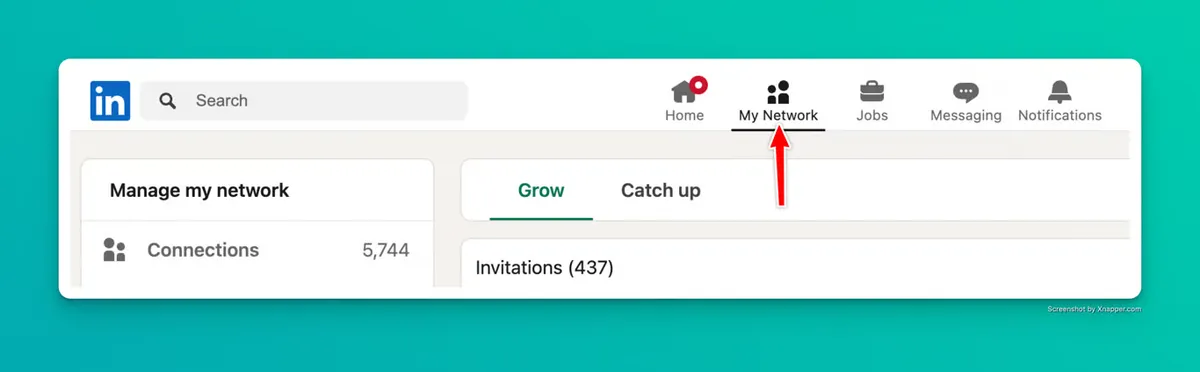
Click "My Network" in the top navigation
-
Click "See all" next to "Invitations"
-
Click the "Sent" tab
-
Review your pending invitations
-
Click "Withdraw" next to any you want to cancel
Remember: LinkedIn limits you to 500 outstanding invitations, so regular clean-up is essential. For screenshots of every step on desktop and mobile, see how to see your sent invitations on LinkedIn, and check how many invitations you can send before your next batch.
Too Many Pending Invitations? Here's How to Mass Withdraw Them
Manually withdrawing invitations one by one is painfully time-consuming. If you have dozens or hundreds of pending requests, check out our detailed guide on how to mass withdraw LinkedIn connection requests.
This guide shows you:
-
How to prioritize which invitations to withdraw
-
Tools to help automate the process
-
Best practices to avoid LinkedIn's automated flags
Common Questions About LinkedIn Invitation Management
Does LinkedIn notify people when you withdraw an invitation?
No. When you withdraw a connection request, LinkedIn doesn't send any notification to the recipient. The invitation simply disappears from their pending list.
How long do LinkedIn invitations last if not withdrawn?
LinkedIn invitations typically expire after 6 months if not accepted or withdrawn. However, they still count against your pending invitation limit during this time.
Is there a limit to how many invitations I can withdraw per day?
LinkedIn doesn't officially state a daily withdrawal limit, but we suggest keeping it under 100 per day to avoid triggering automated restriction systems.
Can I see which invitations I've withdrawn previously?
No, LinkedIn doesn't provide a log or history of withdrawn invitations. Once withdrawn, there's no record in the LinkedIn interface.
Why LinkedIn Invitation Management Actually Matters
Think invitation management is a minor issue? Think again:
-
Hit the 500 pending invitation cap: LinkedIn's pending invitation limit will prevent you from sending new connection requests
-
Waste opportunities with high-value contacts: Burning a connection request on a key prospect can set your networking back weeks
-
Risk LinkedIn restrictions: Excessive invitation activity can trigger LinkedIn's automated systems to limit your account
3 Smart LinkedIn Invitation Strategies for Busy Professionals
Forget spreadsheets and manual tracking. Here are practical approaches that actually work:
1. Use Personalized Templates (Not Generic Requests)
Create 3-5 templates for different connection scenarios:
-
Industry peers
-
Potential clients
-
Service providers
-
Event follow-ups
Personalize each template with:
-
Recipient's name
-
A specific reference to their work/content
-
Clear reason for connecting
A better note gets more invites accepted the first time, so you rarely need to withdraw. Start from these connection message templates.
If you manage client accounts in healthcare, use our MSP IT Healthcare template to jumpstart personalized templates (industry-safe intros, compliance-aware phrasing, and follow-up cadences) so your outreach stays both effective and compliant
2. Implement a "Connect and Engage" Approach
Instead of just connecting and forgetting:
-
Send a connection request
-
Immediately engage with their recent content
-
Follow up with a message 24-48 hours after connection
This approach builds real relationships, not just network numbers.
3. Set Up a Periodic Clean-Up Routine
Use calendar reminders to:
-
Review pending invitations every 30 days
-
Withdraw requests older than 60 days
-
Focus on quality connections, not quantity
The Complete LinkedIn Management Solution
For busy agency owners and founders, managing LinkedIn connections is just one of many tasks competing for your limited time. That's where LigoSocial makes all the difference.
LigoSocial helps you:
-
Generate personalized LinkedIn content based on your expertise
-
Create engaging comments that spark meaningful conversations
-
Analyze your LinkedIn performance to optimize your strategy
-
Maintain a consistent presence without the daily time investment
Related Resources
Want more help optimizing your LinkedIn strategy? Check out these guides:
-
Are There Any Limits on the Number of LinkedIn Invitations I Can Send?
-
The Ultimate Guide to LinkedIn Analytics: What Actually Drives Results (With Examples)
Last updated: April 1, 2025
Want to automate your entire LinkedIn workflow and never worry about these issues again? Try LigoSocial and take your LinkedIn strategy to the next level.