By Junaid Khalid, LigoSocial · Updated October 8, 2026
Quick answer: On LinkedIn itself, custom lists are a Sales Navigator feature: you save leads or accounts into named lead lists and account lists. Without Sales Navigator, the practical way to build LinkedIn lists for prospecting is to save LinkedIn searches as named lists, one for prospects, one for competitors, one for creators, and open each one daily to read and comment on their latest posts. LiGo's LinkedIn Lists does this with 15 ready-made lists, a URL builder and People lists.
People who search "LinkedIn lists" usually want one of two things: a place to keep the right people together, and a habit that turns those people into conversations. This guide covers both. You will see what each kind of LinkedIn list does, how to create Sales Navigator lists, how to build prospect lists without it, five list recipes you can copy, and a ten-minute daily routine to work them.
Key takeaways
- LinkedIn's help center documents custom lists as part of Sales Navigator: lead lists for people, account lists for companies.
- A saved search list is different from a saved people list: it refreshes itself with new matches every time you open it.
- Prospecting runs on memory: the hard part is seeing the same 30 people every week until they recognise your name.
- LiGo's LinkedIn Lists has 3 tabs (Recommended, All Pre-built, My Lists) and 15 pre-built lists: 8 identity lists and 7 topic lists.
- Every list opens on LinkedIn in a new tab, where you comment as yourself. LiGo never runs your searches in the background.
- Pick Sales Navigator lists for account alerts and CSV uploads; pick saved search lists for daily post engagement. Many teams run both.
What are LinkedIn lists?
LinkedIn lists are named collections of people, companies or searches that you return to instead of starting from scratch. The term covers several different tools, and they solve different problems.
| List type | Where it lives | What it holds | Best for |
|---|---|---|---|
| Lead list | Sales Navigator | Saved people (leads) | Tracking named prospects |
| Account list | Sales Navigator | Saved companies, including CSV uploads | Account-based selling |
| Uploaded audience list | LinkedIn Campaign Manager (Matched Audiences) | Contacts or companies for ad targeting | Paid ads |
| Saved search list | A saved LinkedIn search URL | A query that returns new matches each time | Fresh prospects and posts |
| People list (post feed) | LiGo | Posts from specific people you choose | Engaging with named prospects |
LinkedIn's own help article on lists opens with: "Use Sales Navigator's custom lists to better organize and prioritize your saved leads and saved accounts" (LinkedIn Help). For ads, LinkedIn's Sales Navigator help explains that Matched Audiences let you "create custom audiences by uploading a list, retargeting, or through third-party data integration" (LinkedIn Help).
The saved-search and people-list rows are the ones most guides skip, and they are the two that keep prospecting alive day to day.
How do you create lists on LinkedIn Sales Navigator?
From the Sales Navigator homepage, click Lists, choose Lead Lists or Account Lists, then click Create lead/account list. LinkedIn's help page gives the steps:
- From the Sales Navigator homepage, click Lists and select Lead Lists or Account Lists.
- Click Create lead/account list.
- Enter a List name and List description, then click Create.
You can also save straight from results. LinkedIn notes: "You can create a new lead or account list from within your search results by clicking Save. Also, you can create an account list by uploading account information using a CSV file" (LinkedIn Help). Lists can be sorted by columns such as Name, Date Added, Account and Outreach Activity, and account lists flag saved accounts that raised money in the past 12 months.
Sales Navigator is a paid LinkedIn product (LinkedIn Sales Solutions). If you are deciding whether you need it, the explainer on what Sales Navigator includes walks through the features.
How do you build LinkedIn prospecting lists without Sales Navigator?
Save each LinkedIn search that finds your prospects as a named list, then open the list instead of rebuilding the search. LinkedIn prospecting, as ZoomInfo defines it, is "the practice of using LinkedIn to find and connect with potential clients, build relationships, and spark meaningful conversations that lead to sales opportunities" (ZoomInfo). A saved search covers the "find" part every day without extra effort.
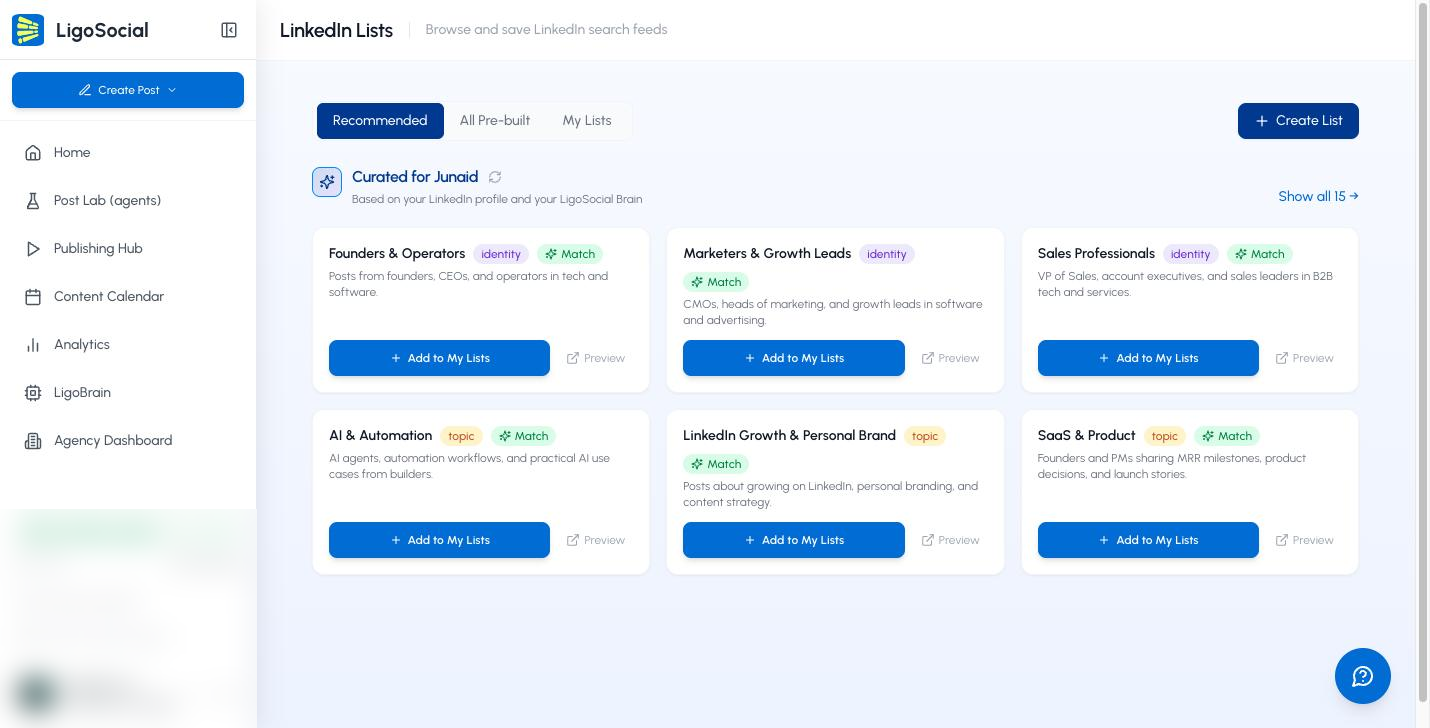
LiGo's LinkedIn Lists page ("Browse and save LinkedIn search feeds") is built for this. Open it at app.ligosocial.com/linkedin-lists. It also sits in the sidebar as LinkedIn Lists, in both the default Focus layout and the Classic layout (under ENGAGE).
The three tabs
- Recommended: "Curated for" your first name, "Based on your LinkedIn profile and your LigoSocial Brain". LiGo compares your LinkedIn headline and your LigoBrain memories with the ready-made lists and shows up to 3 identity lists and up to 3 topic lists, with a Match badge where something matched.
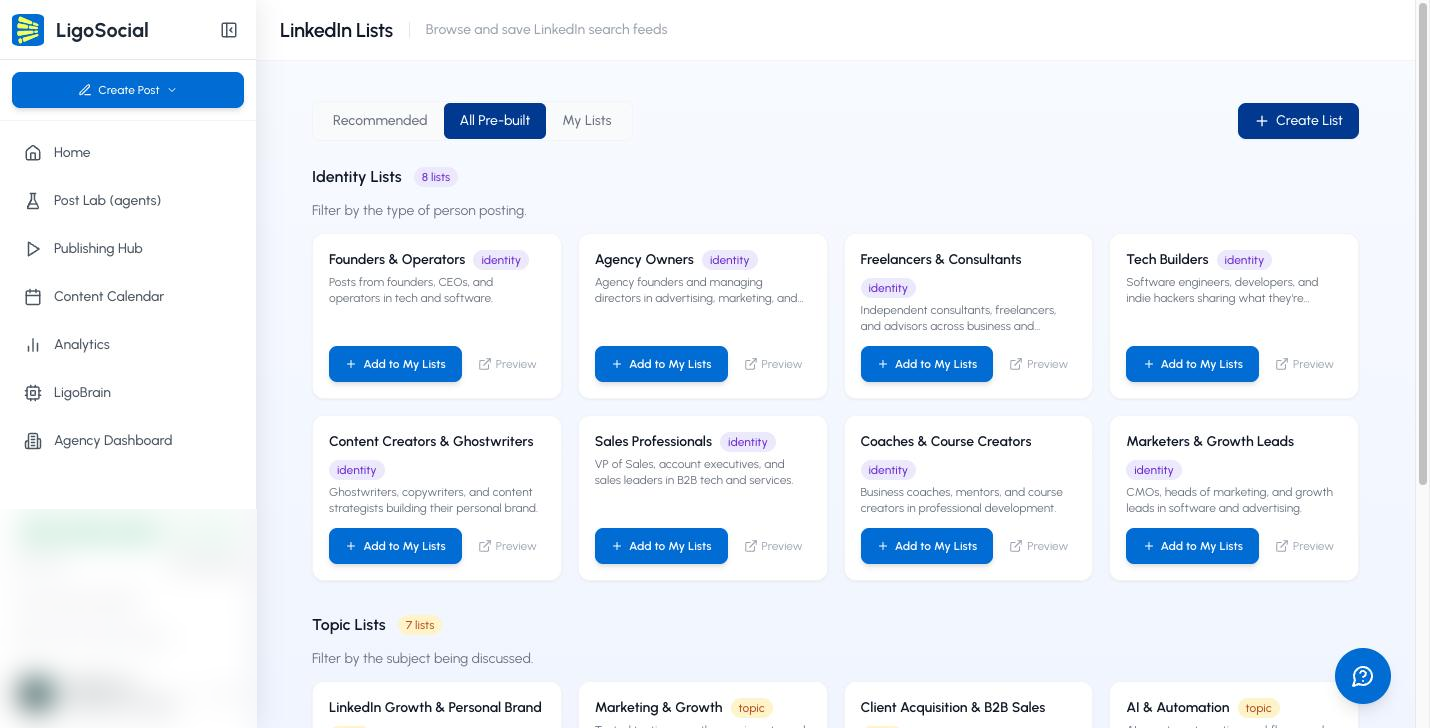
- All Pre-built: all 15 ready-made lists.
- My Lists: the lists you saved, filterable by All, Searches and People.
The 15 pre-built LinkedIn lists
| Identity lists (who is posting) | Topic lists (what they post about) |
|---|---|
| Founders & Operators | LinkedIn Growth & Personal Brand |
| Agency Owners | Marketing & Growth |
| Freelancers & Consultants | Client Acquisition & B2B Sales |
| Tech Builders | AI & Automation |
| Content Creators & Ghostwriters | Content Strategy & Copywriting |
| Sales Professionals | Cold Outreach & Email Marketing |
| Coaches & Course Creators | SaaS & Product |
| Marketers & Growth Leads |
Every pre-built list is a LinkedIn post search for the past week, newest first, narrowed by author job titles and industries. The identity lists also exclude posts containing "hiring", "open to work", "looking for", "apply now" or "join our team", so the feed shows conversations rather than job ads. Click Preview to see a list on LinkedIn, then Add to My Lists to keep your own copy.
Three ways to make your own list
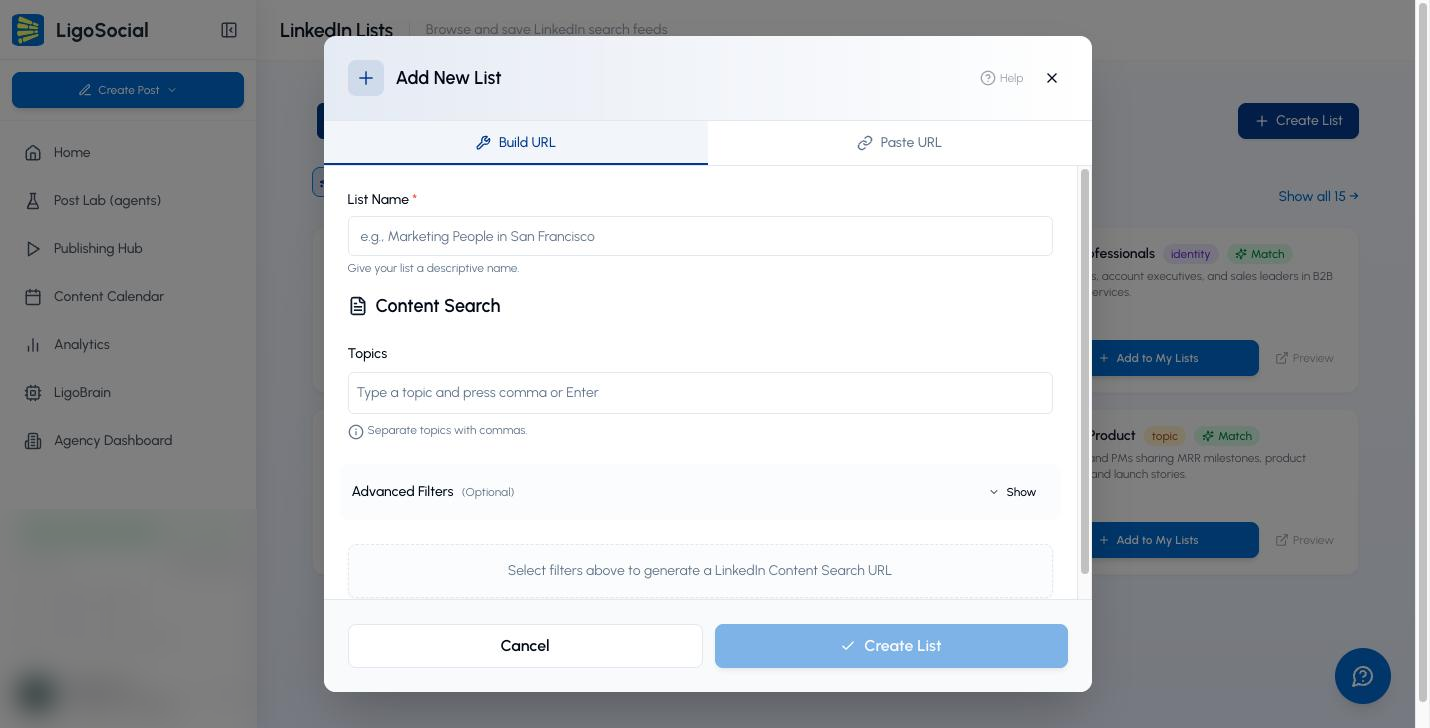
- Build URL: click Create List, enter a List Name, type Topics (each becomes a tag, searched as "any of these"), and set Advanced Filters such as Date Posted, Posted By and Show Posts From (job titles). Click Test URL, then Create List.
- Paste URL: run any search on LinkedIn, including people, company and jobs searches, copy the address bar and paste it into LinkedIn Search URL. The link must be a linkedin.com search results page or jobs search; Sales Navigator search links are not accepted.
- People list: in the LiGo Chrome extension, open someone's LinkedIn profile, right-click the page, choose Add to Feed, and pick a list or New feed…. In the web app you can rename it, set Show posts from (Past 24 hours, Past week, Past month or Any time) and remove people.
For hard filters, write a Boolean string first. The LinkedIn Boolean search guide has 20 copyable strings, and the guide to saving LinkedIn searches covers the Chrome extension's Lists tab, which reads the same lists as the web app.
Which LinkedIn lists should you build first?
Start with four lists: prospects, competitors, creators and one topic. Each recipe below uses the exact fields in LiGo's Create List window.
| List | How to build it | Settings | What you do with it |
|---|---|---|---|
| Founders hiring (prospects) | Build URL | Topics: hiring, first hire. Show Posts From: Founder, CEO. Date Posted: Past Week. Sort By: Most Recent | Comment, then save promising people as leads |
| Competitors I watch | People list | Add each competitor founder with Add to Feed. Show posts from: Past week | Learn their angles and the objections buyers raise |
| Daily comments (creators) | Build URL | Topics: LinkedIn growth, personal brand. Posted By: 1st Connections, People You Follow. Date Posted: Past 24 Hours | Comment early on posts your network already sees |
| AI agents this week (topic) | Build URL or pre-built AI & Automation | Topics: AI agents, automation. Date Posted: Past Week. Sort By: Most Relevant | Collect ideas and data points for your own posts |
| Named target accounts | People list | Add the 10 to 30 decision makers you most want to meet | Show up in their comments every week |
Name each list by purpose and time window, such as "Agency owners, past week", so you know at a glance what it is for. Click Test URL before saving; if LinkedIn shows few results, remove a filter or add a broader topic.
How do you work your LinkedIn lists every day?
Give your lists ten minutes a day: open one, comment on three to five posts, save anyone who engages back. Prospecting on LinkedIn fails on memory far more often than on effort. A list remembers who matters so you can spend the ten minutes on the conversation.
| Minute | Action | Tool |
|---|---|---|
| 0 to 1 | Open today's list from My Lists | LiGo LinkedIn Lists |
| 1 to 4 | Scan the newest posts, pick 3 to 5 you can add to | |
| 4 to 9 | Write a specific comment on each | LiGo comment co-pilot or the LinkedIn comment generator |
| 9 to 10 | Save people who reply or fit your ideal client | LiGo CRM lead capture |
Comments are the 80/20 of this routine. A thoughtful comment lands in front of the prospect and their audience, while a connection request with no history lands cold. LiGo's comment co-pilot drafts in your own voice because LiGo Brain learns from your past posts, and you review every comment before it goes out. The guide to commenting to get noticed by a prospect shows what a strong first comment looks like, and the curated-feed engagement strategy covers how many lists to rotate.
Here is the feature in action (also on YouTube):
Keep the routine within LinkedIn's rules
LinkedIn is explicit about automation: it does not permit "browser plug-ins, or browser extensions that scrape, modify the appearance of, or automate activity on LinkedIn's website" (LinkedIn Help, Prohibited software and extensions). LiGo Lists never runs your searches in the background: Open and Preview send you to LinkedIn in a new tab, where you browse and comment as yourself. When LiGo publishes posts for you, it uses LinkedIn's official OAuth API.
Basic accounts also have a monthly commercial use limit on profile searching, which LinkedIn says applies when "your activity on LinkedIn indicates that you're likely using LinkedIn for commercial use, like hiring or prospecting." Post-feed lists keep most of your daily routine on posts rather than profile searches.
Sales Navigator lists or saved search lists: which should you use?
Use Sales Navigator lists to track named accounts and leads with alerts; use saved search lists to find and engage with people through their posts every day. The two answer different questions: "who is on my list?" and "what are they saying this week?"
| Need | Sales Navigator lead and account lists | LiGo LinkedIn Lists | Browser bookmarks |
|---|---|---|---|
| Save named people | Yes | Yes, as People lists | One link per search |
| Save companies | Yes, plus CSV upload | Via a pasted company search | Link only |
| Refresh with new matches | Lists hold the leads you saved | Yes, LinkedIn reruns the search on Open | Yes |
| Ready-made lists | Build your own | 15 pre-built | No |
| Alerts on account changes | Yes, funding and job-posting growth | Not offered | No |
| Share with a teammate | Yes, with View or Edit permissions | Copy the link | Copy the link |
| Comment co-pilot in your voice | Not part of lists | Yes, with the LiGo Chrome extension | No |
Our pick: if you sell into a fixed set of accounts and need alerts, keep Sales Navigator lead and account lists. If your growth comes from showing up in the right people's comments, run three to five LiGo Lists and work one a day. Agencies running this for several clients can keep separate voice profiles per client in LiGo, so each client's comments sound like that client.
A list remembers who matters. Ten minutes in their comments every day does the rest.
FAQ
How do I create lists on LinkedIn?
In Sales Navigator, click Lists, choose Lead Lists or Account Lists, then Create lead/account list, or click Save on a search result. Without Sales Navigator, save the LinkedIn search URL as a named list, for example with LiGo's Create List button.
Does LinkedIn have a lists feature without Sales Navigator?
LinkedIn's help center documents custom lead and account lists as a Sales Navigator feature. Without it, you can keep searches as bookmarks or as named lists in a tool such as LiGo, which opens each search on LinkedIn.
What is the difference between a lead list and a saved search?
A lead list holds the specific people you saved. A saved search is a query, so it returns new matching people or posts every time you run it.
Can I add Sales Navigator searches to LiGo Lists?
No. LiGo's Paste URL accepts linkedin.com search results and jobs search links. Keep Sales Navigator searches in Sales Navigator and use LiGo for post feeds and people lists.
How many LinkedIn lists should I run?
Three to five is enough for most solo founders and consultants: one prospect list, one competitor list, one creator list and one topic list. Work one or two each day.
Is LinkedIn prospecting with lists safe for my account?
Opening saved searches and commenting by hand is normal LinkedIn use. Avoid tools that scrape profiles or automate actions, which LinkedIn's help center lists as prohibited.
Build your first list today
Pick the people you most want to work with, save them as one LinkedIn list, and give that list ten minutes tomorrow morning. Add a second list next week. Try it at ligosocial.com.