By Junaid Khalid, LigoSocial · Updated October 8, 2026
Quick answer: LinkedIn Boolean search lets you combine keywords with five operators: AND, OR, NOT, "quotation marks" for exact phrases and (parentheses) for grouping. Type the string straight into LinkedIn's main search bar, with AND, OR and NOT in capital letters. LinkedIn ignores wildcards (
*), brackets and braces. Example:("head of marketing" OR CMO) AND SaaS NOT intern. Every string below also works as a link you can save and reopen in one click.
LinkedIn's own help page confirms the method: "You can run a Boolean search on LinkedIn.com by entering your Boolean string directly into the main search bar at the top of the page" (LinkedIn Help). This guide gives you the operator rules, 20 copyable strings for prospecting, hiring, job hunting and post monitoring, the exact search URLs, and a way to keep every string one click away instead of retyping it.
Key takeaways
- LinkedIn supports 5 Boolean elements: AND, OR, NOT, quotes and parentheses. Operators must be uppercase.
- LinkedIn evaluates in a fixed order: quotes, parentheses, NOT, AND, then OR. Use parentheses whenever you mix AND with OR.
- Boolean works in the main search bar, so it runs on people, posts and jobs, not only on profiles.
- The
NOTblock is the most underused part. LiGo's pre-built lists strip out 5 hiring phrases from every identity feed with one NOT clause. - A Boolean string becomes a reusable link once you put it in the
keywords=parameter of a LinkedIn search URL. - Save the URL in LiGo Lists and the search becomes a one-click daily feed.
What is LinkedIn Boolean search?
LinkedIn Boolean search is a way to write one precise query by joining keywords with logical operators. Instead of searching "marketing director" and wading through assistants and recruiters, you tell LinkedIn which words must appear, which may appear, and which must not.
The method comes from Boolean algebra, the logic of true and false values described by George Boole in the 1800s (Wikipedia). On LinkedIn it does three jobs:
- Narrows results with AND and NOT.
- Widens results with OR, so synonyms and job-title variants all count.
- Locks phrases with quotes, so "product manager" does not match a profile that mentions "product" in one job and "manager" in another.
One 2026 change makes Boolean more relevant, not less. LinkedIn's people search now accepts plain-language queries, and its help page warns: "Don't use any quotes in your search query, because natural language search does not support quotes. If you prefer exact keyword matching, you can use Boolean search instead" (LinkedIn Help). Conversational search is good for exploring. Boolean is what you use when you need the same precise result every morning.
Which Boolean operators does LinkedIn support?
LinkedIn supports AND, OR, NOT, quotation marks and parentheses, and nothing else. Here is each one with the effect it has on your result count.
| Operator | What it does | Example | Effect on results |
|---|---|---|---|
AND |
Every term must appear | accountant AND finance AND CPA |
Fewer, tighter |
OR |
Any one term may appear | sales OR marketing OR advertising |
More, broader |
NOT |
Removes the term that follows | programmer NOT manager |
Fewer, cleaner |
" " |
Matches the exact phrase | "product manager" |
Fewer, exact |
( ) |
Groups logic so it runs first | VP NOT (assistant OR SVP) |
Controls the order |
All five examples above come straight from LinkedIn's help article. The same page lists what does not work:
"LinkedIn does not support braces { }, brackets [ ], angle brackets < >, or wildcards like asterisks * in Boolean searches. While the + and - operators may appear to work in some cases, they are not officially supported." (LinkedIn Help, Use Boolean search on LinkedIn)
The order LinkedIn reads your string in
LinkedIn applies a fixed precedence, documented on the same help page:
- Quotes: phrase matching happens before any Boolean logic.
- Parentheses: grouped expressions run before ungrouped ones.
- NOT
- AND: evaluated after NOT but before OR.
- OR: lowest precedence.
That order is why marketing AND director OR VP misbehaves. LinkedIn reads it as (marketing AND director) OR VP, so every VP of anything comes back. Write marketing AND (director OR VP) instead.
Where does Boolean search work on LinkedIn?
Boolean works anywhere you type into LinkedIn's main search bar, then in the paid search tools that sit on top of it. The category tab you pick after searching decides what the string runs against.
| Where | Boolean? | What the string matches | Best for |
|---|---|---|---|
| Main search bar, People tab | Yes | Profile text (headline, roles, about) | Prospects, candidates |
| Main search bar, Posts tab | Yes | Post text | Buying signals, creators, topics |
| Main search bar, Jobs tab | Yes | Job listings | Job seekers |
| Sales Navigator and Recruiter | Yes, with extra field-level filters | Leads, accounts, candidates | Heavy prospecting and sourcing |
| Google ("X-ray" search) | Google's own operators | Public profile pages | Searching outside LinkedIn |
For X-ray search, Google's operator page explains the key rule: "To search for results from a specific site: Enter site: in front of a site or domain" (Google Search Help). A typical X-ray string is site:linkedin.com/in ("head of marketing" OR CMO) "Austin". It finds public profiles only, and Google's index lags behind LinkedIn's.
The Posts tab is where most guides stop. The top-ranking Boolean guides cover people and jobs in depth and skip post search entirely, yet post search is where you find people who are talking about a problem right now. The strings in the next section cover both.
How do you build a Boolean string that works?
Build every string from three blocks: who, what, and what to exclude. A template that rarely fails:
(role A OR role B OR role C) AND (topic A OR topic B) NOT (noise A OR noise B)
Five steps to get from template to a clean result:
- List the job-title variants your target actually uses. "Head of Growth", "Growth Lead" and "VP Growth" are three different strings to LinkedIn.
- Quote every multi-word title.
"head of growth"stays together;head of growthmatches any profile with those three words anywhere. - Add the topic block with AND. Keep it to 2 to 4 terms.
- Run it, then read the first 20 results. Every wrong person tells you a word for the NOT block.
- Trim before it grows long. LinkedIn does not publish a length limit. Evaboot's testing puts the practical ceiling at "around 2,000 characters" on free and Premium accounts (Evaboot).
Mistakes that silently break a string
| Mistake | What happens | Fix |
|---|---|---|
or in lowercase |
Treated as the word "or" | Type OR |
| Curly quotes (" ") pasted from a doc | Phrase match can fail | Retype straight quotes " " |
[ ] or { } for grouping |
Treated as plain characters | Use ( ) only |
market* wildcard |
Ignored | Write out marketing OR marketer |
| Mixing AND and OR with no parentheses | OR swallows the logic | Group the OR terms |
| Stop words like "in", "by", "with" in phrases | LinkedIn drops them | Leave them out |
20 copyable LinkedIn Boolean search strings by use case
These 20 strings cover the four jobs people use LinkedIn search for most: prospecting, hiring, job hunting and spotting buying signals in posts. Copy one, paste it into LinkedIn's search bar, then pick the tab shown in the heading. Swap the industry terms for your own.
Prospecting: People tab
- B2B SaaS founders
(founder OR "co-founder" OR CEO) AND (SaaS OR "B2B software") NOT (intern OR student) - Marketing decision makers
("head of marketing" OR CMO OR "VP marketing" OR "marketing director") NOT (assistant OR intern OR coordinator) - Agency owners
("agency owner" OR "agency founder" OR "managing director") AND (marketing OR creative OR digital) - Sales leaders
("VP sales" OR "head of sales" OR "sales director" OR CRO) NOT (SDR OR BDR OR intern) - Fractional executives
(fractional OR interim) AND (CFO OR CMO OR COO OR CTO) - MSP owners
("managed service provider" OR MSP OR "IT services") AND (owner OR founder OR CEO) - Investors in a niche
("angel investor" OR "venture partner" OR "general partner") AND (fintech OR "climate tech")
Hiring and sourcing: People tab
- Product designers
("product designer" OR "UX designer") AND Figma NOT (junior OR intern) - Backend engineers
(python OR golang) AND ("backend engineer" OR "software engineer") NOT (manager OR recruiter) - SaaS account executives
("account executive" OR AE) AND (SaaS OR "mid-market") NOT (SDR OR BDR) - In-house tech recruiters
("talent acquisition" OR recruiter) AND (tech OR SaaS) NOT (agency OR freelance)
Job hunting: Jobs tab
- Product roles below senior level
("product manager" OR "product owner") NOT (senior OR director) - Content roles
("content marketing" OR "content strategist") NOT (intern OR unpaid)
Buying signals and engagement: Posts tab
- Funding announcements
("just raised" OR "seed round" OR "Series A") NOT (hiring OR job) - Creators worth commenting on
("LinkedIn growth" OR "personal brand") NOT ("hiring" OR "open to work") - People asking for a provider
("can anyone recommend" OR "looking for recommendations") AND (agency OR freelancer OR consultant) - Founders about to hire their first marketer
("first marketing hire" OR "hiring our first") AND (founder OR startup) - Outbound pain points
("cold email" OR outbound) AND ("not working" OR "reply rate") - Tool switchers in your category
HubSpot AND ("switching from" OR "alternative to") - Event attendees and speakers
("see you at" OR "speaking at") AND ("SaaStr" OR "Web Summit")
The exclusion block LiGo uses in its own lists
LiGo's 8 pre-built identity lists all start from the same NOT clause, which removes recruitment noise from a feed of founders, agency owners or sales leaders:
NOT ("hiring" OR "open to work" OR "looking for" OR "apply now" OR "join our team")
Add it to any Posts-tab string where you want conversations rather than job ads.
How the 15 pre-built lists are built, read straight from their search URLs:
| Pattern | Identity lists (8) | Topic lists (7) |
|---|---|---|
| Keyword block | The NOT clause above | 6 quoted phrases joined with OR |
| Date posted | Past week | Past week |
| Sort | Newest first | Newest first |
| Author job titles | 6 titles joined with OR | 6 titles joined with OR |
| Author industries | 3 to 4 industry IDs | 3 to 4 industry IDs |
The pattern is worth copying: one text block for meaning, then structured filters for recency and author, so the feed stays fresh and on-target.
How do you turn a Boolean string into a LinkedIn search URL?
Put the string in the keywords= parameter of the search URL, percent-encoded. LinkedIn writes every search into the address bar, so a URL is a saved search in its simplest form.
Encoding swaps characters a URL cannot carry for codes: a space becomes %20, a quote becomes %22, and parentheses become %28 and %29. That is standard URI percent-encoding (RFC 3986), and JavaScript's encodeURIComponent does it for you. You rarely need to do it by hand: run the search on LinkedIn and copy the address bar.
Three ready-made links, built from the strings above:
String 1 as a People search:
https://www.linkedin.com/search/results/people/?keywords=%28founder%20OR%20%22co-founder%22%20OR%20CEO%29%20AND%20%28SaaS%20OR%20%22B2B%20software%22%29%20NOT%20%28intern%20OR%20student%29&origin=FACETED_SEARCH
String 15 as a Posts search, newest first, past week:
https://www.linkedin.com/search/results/content/?keywords=%28%22LinkedIn%20growth%22%20OR%20%22personal%20brand%22%29%20NOT%20%28%22hiring%22%20OR%20%22open%20to%20work%22%29&origin=FACETED_SEARCH&sortBy=%22date_posted%22&datePosted=%22past-week%22
String 12 as a Jobs search, past 24 hours, remote:
https://www.linkedin.com/jobs/search/?keywords=%28%22product%20manager%22%20OR%20%22product%20owner%22%29%20NOT%20%28senior%20OR%20director%29&f_TPR=r86400&f_WT=2&sortBy=DD
The extra parameters are filters: sortBy="date_posted" sorts posts newest first, datePosted="past-week" limits the window, and on jobs f_TPR=r86400 means the past 24 hours and f_WT=2 means remote. The LinkedIn advanced search guide lists every post filter parameter.
How do you save a LinkedIn Boolean search so you never retype it?
Save the search URL as a named list in LiGo, then open it in one click whenever you work the feed. A browser bookmark keeps the link but buries it among everything else you have bookmarked. A list keeps your searches named, together and next to the tools you use to act on them.
The hard part of LinkedIn search is running a good string again every single day. Here is the setup, using the Paste URL method because Boolean strings with NOT and parentheses need it:
- Run your Boolean search on LinkedIn and apply any filters.
- Copy the full link from the address bar.
- Open LinkedIn Lists in the LiGo web app. You can also click LinkedIn Lists in the sidebar, in both the default Focus layout and the Classic layout (under ENGAGE).
- Click Create List and switch to the Paste URL tab.
- Enter a List Name such as "SaaS founders, no interns" and paste the link into LinkedIn Search URL.
- Click Create List. It appears under My Lists.
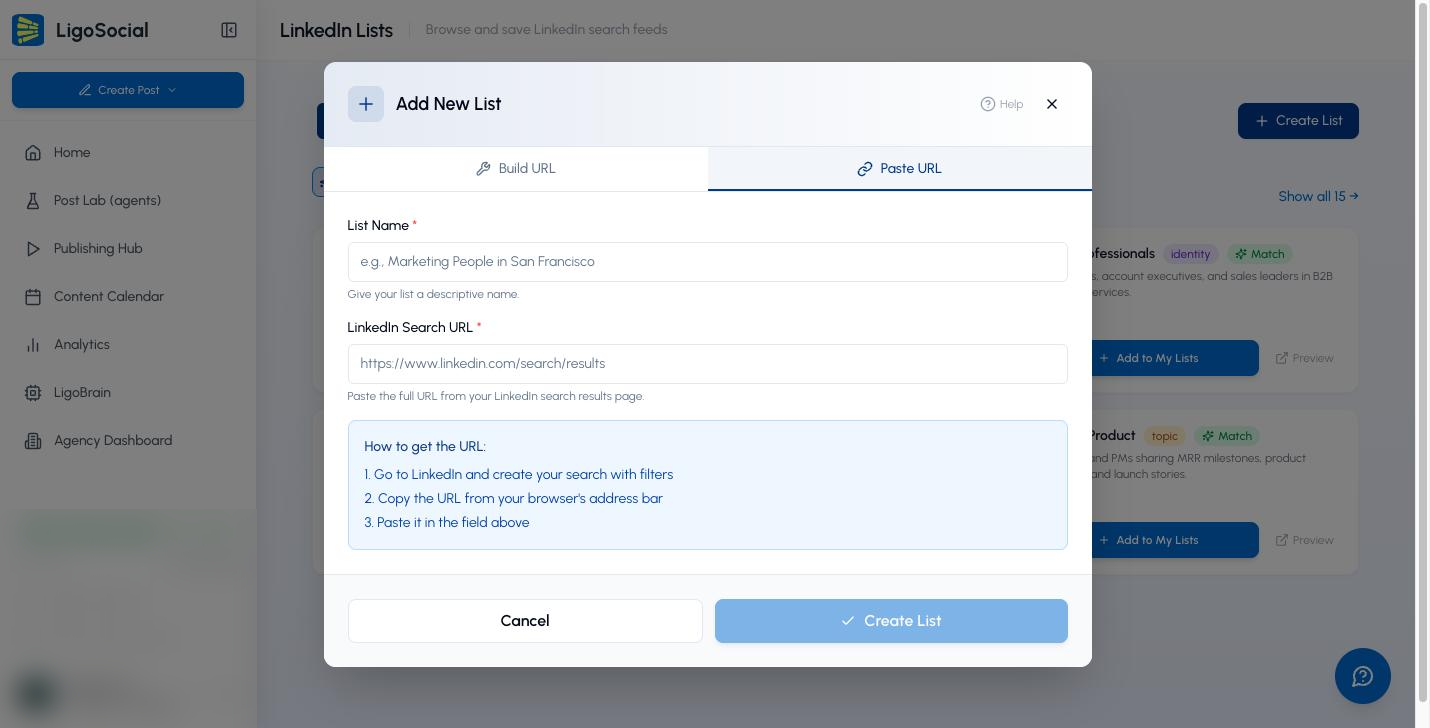
LiGo checks the link before saving. It must be a LinkedIn search results page or a LinkedIn jobs search; a profile or post link is rejected with "URL must be a LinkedIn search results URL".
Simple topic searches can skip LinkedIn entirely. The Build URL tab turns comma-separated Topics into a quoted OR string for you: typing hiring, first hire produces "hiring" OR "first hire". It also writes the Sort By, Date Posted, Content Type, Posted By and Show Posts From filters into the URL. Use Paste URL whenever you need NOT or parentheses.
Each saved list has Open, which runs the search fresh on LinkedIn in a new tab, and Copy, which copies the link for a teammate. The full feature walkthrough is in the LinkedIn Lists help article, and the older guide to saving LinkedIn searches covers the Chrome extension's Lists tab, which reads the same lists.
Here is how a dedicated walkthrough explains the operators on screen:
What do you do with the results once you have them?
Turn a saved search into a short daily routine: open, read, comment, save the right people. A Boolean string finds the right 30 people. Showing up in their comments is what makes them remember you.
The routine that compounds:
| Step | Time | What you do |
|---|---|---|
| Open your list | 10 seconds | One click from My Lists |
| Scan new posts | 3 minutes | Skip anything you cannot add to |
| Comment on 3 to 5 posts | 5 minutes | A specific point, a question or a number |
| Save warm prospects | 1 minute | Note who replied or engaged back |
The same 30 people, seen every week, is what compounds. For comment ideas on a specific post, LiGo's LinkedIn comment generator gives six suggestions with no signup. Inside the LiGo Chrome extension, the comment co-pilot drafts in your own voice, because LiGo Brain learns from your past writing. The guide to commenting to get noticed by a prospect shows what a good prospect comment looks like, and the curated-feed engagement strategy shows how many lists to run.
A note on account safety
LiGo never runs your saved searches in the background. Open sends you to LinkedIn, where you browse as yourself. That matters, because LinkedIn's Sales Navigator help warns that plug-ins and third-party tools "may run searches and view profiles in the background, which can cause you to surpass the limit" (LinkedIn Help). Profile searches on a basic account also count toward LinkedIn's monthly commercial use limit, which "resets at midnight PST on the 1st of each calendar month". When LiGo posts for you, it uses LinkedIn's official OAuth API.
Boolean search or filters: which should you use?
Use filters for facts LinkedIn stores in fields, and Boolean for words people write. The two combine: run the string, then add filters on top.
| Need | Use | Why |
|---|---|---|
| Location, company, connection degree | Filters | LinkedIn stores these as structured fields |
| Job-title variants and synonyms | Boolean OR | Titles are free text |
| Removing recruiters, interns, job ads | Boolean NOT | No filter excludes a word |
| Posts from the past week | Date posted filter | Exact time window |
| Posts on a topic from CEOs only | Boolean + Author filter | Topic is text, author is a field |
A Boolean string is only worth writing once. Save it as a list and spend your time on the comments instead.
FAQ
Can you do a Boolean search on LinkedIn?
Yes. LinkedIn supports AND, OR, NOT, quotation marks and parentheses in the main search bar on desktop and mobile, as documented in its help article on Boolean search. Operators must be typed in uppercase or LinkedIn reads them as ordinary words.
How do I do a Boolean search on LinkedIn step by step?
Type your string, for example ("head of sales" OR "VP sales") NOT intern, into the search bar at the top of LinkedIn. Press Enter, then pick the People, Posts or Jobs tab. Add filters such as location or date posted, then copy the URL if you want to reuse the search.
Does LinkedIn Boolean search support wildcards?
No. LinkedIn states that it does not support asterisk wildcards, square brackets, braces or angle brackets. Write each word form out with OR, for example marketing OR marketer.
Is there a character limit for LinkedIn Boolean search?
LinkedIn does not publish one. Evaboot reports that strings of around 2,000 characters work on free and Premium accounts and that longer ones start returning no results. Shorten long OR lists to the 3 to 5 variants that actually appear in your results.
Does Boolean search work for LinkedIn posts?
Yes. Run the string in the search bar and choose the Posts tab. LiGo's 15 pre-built lists are all post searches, and its identity lists use a NOT clause to remove hiring posts.
Can I save a Boolean search on LinkedIn?
You can bookmark the results URL, or save it as a named list in LiGo with the Paste URL option and reopen it in one click from the web app or the Chrome extension.
Keep your best searches one click away
A good Boolean string takes ten minutes to write and two seconds to lose. Save your strongest three as LiGo Lists, open them each morning, and spend the time you saved on the comments that start conversations. Try it at ligosocial.com.