By Junaid Khalid, LigoSocial · Updated October 8, 2026
Quick answer: To use LinkedIn advanced search, type a keyword into the search bar, press Enter, pick a category tab (People, Posts, Jobs, Companies) and click All filters. To search LinkedIn posts, choose the Posts tab, then filter by Sort by, Date posted, Content type, From member, From company, Posted by, Mentioning member, Mentioning company, Author industry or Author company. Every filter you set is written into the page URL, so you can copy that link and reopen the exact search later.
Most guides to LinkedIn advanced search stop at people and jobs; even Evaboot's detailed filter guide gives posts a short list next to long people and company sections. This one covers those briefly, then goes deep on the part they skip: finding posts, which is where prospects, creators and competitors say what they care about this week. You get every filter, the URL parameter behind each one, copyable search links, and a way to keep them all one click away.
Key takeaways
- LinkedIn advanced search is the All filters panel that appears after you search and pick a category.
- Post search has 10 filters, listed on LinkedIn's help page for member posts.
- Each filter maps to a URL parameter such as
datePosted,sortBy,contentTypeandpostedBy, so a filtered search is a link. - Two useful post filters, author job title and author industry, are easiest to set in the URL.
- Basic-account people searches count toward LinkedIn's monthly commercial use limit; LinkedIn's list of counted activities does not include post searches.
- Save each search URL as a list and you can rerun it in one click instead of rebuilding filters.
How do you do an advanced search on LinkedIn?
Search first, then filter: LinkedIn shows advanced filters only after you run a search and choose a category. LinkedIn's help page puts it this way:
"Once you select a category, the most frequently used search filters are located at the top of your search results page. You can find additional search filters in the All filters section." (LinkedIn Help, Search on LinkedIn)
The steps on desktop:
- Click the Search bar at the top of any LinkedIn page.
- Type a keyword, a Boolean string or a plain-language query, then press Enter.
- Pick a tab: People, Posts, Jobs, Companies, Groups, Events, Schools, Services, Courses or Products.
- Use the quick filters at the top, or click All filters for the full panel.
- Click Show results.
Plain-language queries now work too. LinkedIn's people search accepts questions like "Finance leaders at nonprofits in Boston", but the same help page adds: "Don't use any quotes in your search query, because natural language search does not support quotes. If you prefer exact keyword matching, you can use Boolean search instead" (LinkedIn Help). For exact matching, the LinkedIn Boolean search guide has 20 copyable strings.
Which advanced search filters does LinkedIn offer?
Each category has its own filter set; people and posts are the two most useful for growth and prospecting. Here is what LinkedIn's help pages list for each.
| Category | Filters in All filters | Typical use |
|---|---|---|
| People | Degree of connections, Actively hiring (Premium), Locations, Current company, Connections of, Followers of, Past company, School, Industry, Profile language, Open to volunteering, Service categories, Keywords | Prospect and candidate lists |
| Posts | Sort by, Date posted, Content type, From member, From company, Posted by, Mentioning member, Mentioning company, Author industry, Author company | Buying signals, creators, competitors |
Jobs, Companies and the other tabs have their own sets; the job URL parameters are covered further down. Sources: Search for people on LinkedIn and Search for member posts.
One people-search limit is worth knowing before you build a prospecting routine. LinkedIn's commercial use limit applies to basic accounts and counts "Searching for LinkedIn profiles on LinkedIn.com and mobile". Your "free monthly usage resets at midnight PST on the 1st of each calendar month". Post searches are not in LinkedIn's list of counted activities, which makes the Posts tab the better place for a daily routine.
How do you search LinkedIn posts?
Type a keyword in the search bar, press Enter, click the Posts tab, then open All filters. LinkedIn's help page for post search gives the same five steps for desktop and mobile:
- Enter your keyword in the Search bar at the top of the page.
- Click See all results at the bottom of the dropdown.
- Click the Posts tab.
- Use the filter dropdowns, or All filters, to sort and narrow.
- Open any post from the results.
Two details from LinkedIn's help article save frustration. Deleted posts never appear: "If a member has deleted a post they shared on LinkedIn, you won't be able to find it in search results or the member's profile" (LinkedIn Help). And to see one person's posts, search their name and open their profile Activity section, which "shows posts, comments, articles, and profile activity" (LinkedIn Help).
What each post filter does
| Filter | What it narrows | Best use |
|---|---|---|
| Sort by | Relevance or newest first | Newest first for daily checks |
| Date posted | Past 24 hours, past week, past month | Keep the feed fresh |
| Content type | Videos, images, job posts, live videos, documents | Find carousels to study |
| From member | Posts by specific people | Watch prospects and creators |
| From company | Posts by a Company Page | Track competitors |
| Posted by | 1st connections, people you follow, you | Warm-network engagement |
| Mentioning member | Posts that tag a person | See who talks about a prospect |
| Mentioning company | Posts that tag a company | Brand and competitor mentions |
| Author industry | The poster's industry | Stay inside your market |
| Author company | The poster's employer | Account-based engagement |
What are the LinkedIn search URL parameters for posts?
Every post filter is stored in the address bar of https://www.linkedin.com/search/results/content/, so you can read, edit and reuse it. The parameters below are the ones LiGo's URL builder writes and its 15 pre-built lists use, so each one is in daily use.
| Parameter | Filter | Values | Example |
|---|---|---|---|
keywords |
Search text | Any text, Boolean allowed | keywords=%22cold%20email%22 |
sortBy |
Sort by | "relevance", "date_posted" |
sortBy=%22date_posted%22 |
datePosted |
Date posted | "past-24h", "past-week", "past-month" |
datePosted=%22past-week%22 |
contentType |
Content type | "videos", "photos", "jobs", "liveVideos", "documents" |
contentType=%22documents%22 |
postedBy |
Posted by | ["first"], ["me"], ["following"], combinable |
postedBy=%5B%22first%22%2C%22following%22%5D |
authorJobTitle |
Poster's job title | Titles joined with OR | authorJobTitle=%22Founder%20OR%20CEO%22 |
authorIndustry |
Author industry | LinkedIn industry IDs | authorIndustry=%5B%224%22%2C%2296%22%5D |
fromMember |
From member | LinkedIn member IDs | fromMember=%5B%22ACoAA...%22%5D |
origin |
Marks a filtered search | FACETED_SEARCH |
origin=FACETED_SEARCH |
How to read the encoding: %22 is a quote, %5B and %5D are square brackets, %2C is a comma and %20 is a space. That is standard percent-encoding from RFC 3986, and the browser's URLSearchParams interface reads it back for you if you want to inspect a long link. Values in quotes are single choices; values in square brackets are lists, so postedBy can hold 1st connections and people you follow at once.
The filter that is easier in the URL
LinkedIn's All filters panel, as listed on its help page, has no box for the poster's job title. The authorJobTitle parameter fills that gap, and LiGo's builder writes it from the Show Posts From field. It is how the pre-built Founders & Operators list restricts posts to "Founder OR CEO OR Co-founder OR Owner OR Operator OR Entrepreneur".
The industry IDs those lists use, for reference:
| ID | Industry, as mapped in LiGo's pre-built lists |
|---|---|
4 |
Software |
6 |
Internet |
96 |
IT services |
11 |
Consulting |
80 |
Advertising |
1862 |
Marketing |
Filters to set in LinkedIn, then copy
From company, Mentioning member, Mentioning company and Author company need LinkedIn's own pickers, because they store IDs you cannot guess. Set them in All filters, then copy the finished URL from the address bar.
Copyable LinkedIn post search URLs
A LinkedIn post search URL is the content search address plus your filters as parameters, and the four below are ready to open while signed in. Each was generated with LiGo's Build URL logic, so the format matches what LinkedIn receives from LiGo Lists.
1. Founders talking about hiring, past week, newest first, founders and CEOs only
https://www.linkedin.com/search/results/content/?keywords=%22hiring%22+OR+%22first+hire%22&sortBy=%22date_posted%22&datePosted=%22past-week%22&authorJobTitle=%22Founder%20OR%20CEO%22&origin=FACETED_SEARCH
2. LinkedIn growth posts from your network and people you follow, past 24 hours
https://www.linkedin.com/search/results/content/?keywords=%22LinkedIn+growth%22+OR+%22personal+brand%22&datePosted=%22past-24h%22&postedBy=%5B%22first%22%2C%22following%22%5D&origin=FACETED_SEARCH
3. AI agent posts, most relevant, past week
https://www.linkedin.com/search/results/content/?keywords=%22AI+agents%22+OR+%22automation%22&sortBy=%22relevance%22&datePosted=%22past-week%22&origin=FACETED_SEARCH
4. Cold email carousels and PDFs, past month
https://www.linkedin.com/search/results/content/?keywords=%22cold+email%22&datePosted=%22past-month%22&contentType=%22documents%22&origin=FACETED_SEARCH
Edit the keywords value to change the topic and keep the filters. For harder logic such as excluding words, write a Boolean string and put it in keywords.
Jobs search parameters, for completeness
Job searches live at https://www.linkedin.com/jobs/search/ and use a different set: f_TPR for time posted (r86400 is 24 hours, r604800 a week, r2592000 a month), f_WT for workplace (1 on-site, 2 remote, 3 hybrid), f_E for experience level (1 internship to 6 executive), f_JT for job type, f_AL=true for Easy Apply and sortBy=DD for newest first. Example:
https://www.linkedin.com/jobs/search/?keywords=%22product%20manager%22&f_TPR=r86400&f_WT=2&sortBy=DD
How do you save a LinkedIn advanced search and reopen it in one click?
Save the search URL in LiGo Lists: build it with Build URL or paste one from LinkedIn, then open it from My Lists whenever you need it. Saving the URL means you set six filters once instead of every morning.
Open LinkedIn Lists in the LiGo web app. It also sits in the sidebar as LinkedIn Lists, in both the default Focus layout and the Classic layout (under ENGAGE). Click Create List.
Build URL creates a post search without visiting LinkedIn:
- Enter a List Name, for example "Founders hiring".
- Under Content Search, type Topics and press comma or Enter after each. Several topics are searched as "any of these".
- Click Show next to Advanced Filters (Optional) and set Sort By (Most Relevant or Most Recent), Date Posted (Past 24 Hours, Past Week or Past Month), Content Type (Videos, Photos, Job Posts, Live Videos or Documents), Posted By (1st Connections, Your Posts, People You Follow) and Show Posts From (job titles, comma separated).
- Check the Generated URL Preview, click Test URL to see the results on LinkedIn, then Create List.
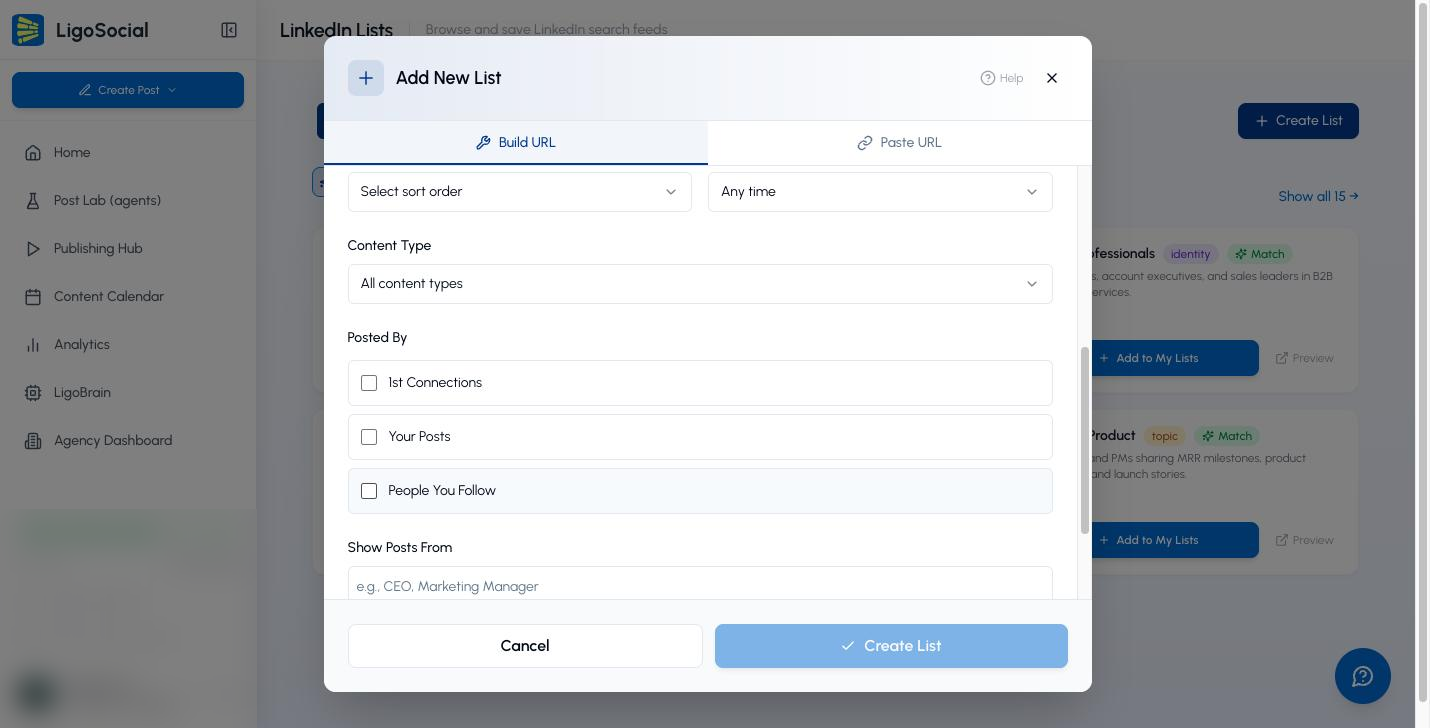
Paste URL keeps anything LinkedIn can do, including people, company and jobs searches and the ID-based post filters: run the search on LinkedIn, copy the address bar, paste it into LinkedIn Search URL and click Create List.
Prefer to start from a ready search? The All Pre-built tab has 15 lists in two groups: 8 Identity Lists ("Filter by the type of person posting") and 7 Topic Lists ("Filter by the subject being discussed"). Click Preview to see one on LinkedIn, then Add to My Lists.
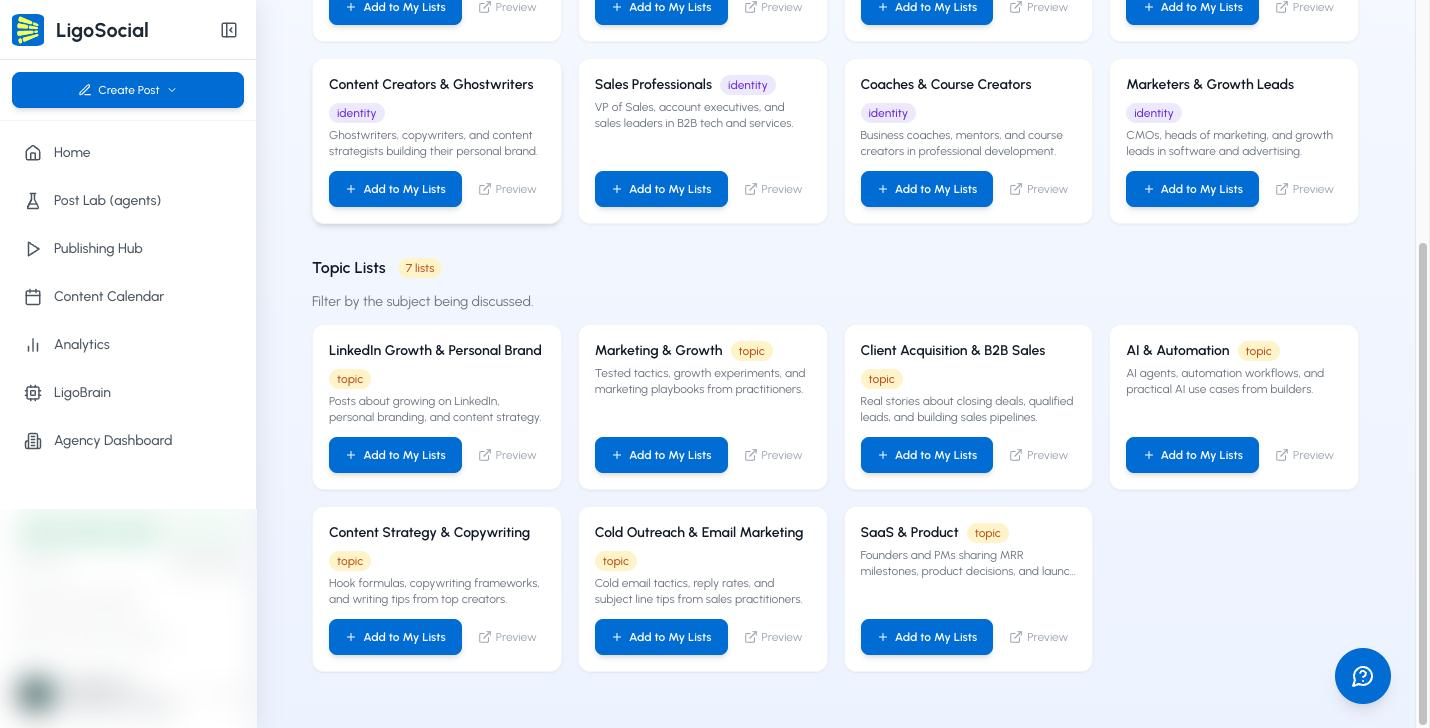
Every saved list has Open, which runs the search fresh on LinkedIn in a new tab, and Copy for sharing. The LinkedIn Lists help article covers editing, People lists and the Chrome extension's Lists tab, and the guide to saving LinkedIn searches explains the extension side in detail.
Here is a short walkthrough of advanced search on LinkedIn itself:
What should you do with a post search once it works?
Engage with it every day for ten minutes, because a saved search only pays off when you act on the posts. The problem is remembering which 30 people to show up for. A saved post search solves the memory part; your comments do the rest.
| List type | Example search | Daily action |
|---|---|---|
| Prospects | Founders posting about hiring, past week | Comment with a specific, useful point |
| Creators | LinkedIn growth posts from your network | Join the conversation early, past 24 hours |
| Competitors | From company: a competitor's Page | Note objections and questions buyers raise |
| Topic | AI agents, most relevant | Collect ideas for your own posts |
Inside the LiGo Chrome extension (listed on the Chrome Web Store), the comment co-pilot drafts replies in your own voice, because LiGo Brain learns from your past writing, and you post only after reviewing. For a single post you found through search, LiGo's LinkedIn comment generator gives six comment suggestions with no signup. LiGo never runs your saved searches in the background; Open sends you to LinkedIn, where you browse as yourself. For the people-first version of this routine, see the saved people search strategy, and for brand monitoring at scale, the LinkedIn social listening guide.
Six filters, set once, saved as a list. That is the difference between checking LinkedIn and working it.
FAQ
How do I do an advanced search on LinkedIn?
Run any search from the bar at the top of LinkedIn, choose a category tab such as People or Posts, then click All filters. LinkedIn only shows the full filter panel after you pick a category.
How do I search for posts on LinkedIn?
Type a keyword in the search bar, press Enter, click See all results, then the Posts tab. Use Sort by, Date posted, Content type and the other filters to narrow results.
How do I search my old LinkedIn posts?
Go to your profile, open the Activity section and choose Posts. You can also search a keyword, pick the Posts tab and set Posted by to your own posts, which is postedBy=["me"] in the URL.
Can I search LinkedIn posts by date?
Yes. The Date posted filter offers past 24 hours, past week and past month, written as datePosted="past-24h", "past-week" or "past-month" in the URL. Combine it with Sort by newest first.
Does LinkedIn advanced search need Premium?
No for most filters. Basic accounts get the full post filter set and most people filters; LinkedIn marks Actively hiring as a Premium feature, and heavy people searching on a basic account can hit the monthly commercial use limit.
Can I save a LinkedIn advanced search?
Copy the results URL. It holds every filter. Bookmark it, or save it as a named list in LiGo with Build URL or Paste URL and reopen it in one click.
Turn your best searches into daily feeds
Advanced search is most useful when you stop treating it as a one-off. Pick three post searches from this page, save them as LiGo Lists, and give each one ten focused minutes a day. Try it at ligosocial.com.