
LinkedIn Lists: Save Searches & Access Them in One Click
LinkedIn Lists lets you save LinkedIn post searches, with all their filters, and reopen them from LiGo whenever you want. It is built for anyone who checks the same kinds of posts every day: prospects, competitors, creators you comment on, or a topic you follow. You can start from a ready-made list or build your own in a few clicks.
Where to find LinkedIn Lists
LinkedIn Lists lives in the LiGo web app. Click LinkedIn Lists in the sidebar, in both the default Focus layout and the Classic layout (under ENGAGE). You can also go straight to the page at https://app.ligosocial.com/linkedin-lists and bookmark it. On a phone, open the menu at the top left and look under ENGAGE.
The page is titled LinkedIn Lists, with the subtitle "Browse and save LinkedIn search feeds".
The three tabs
The page has three tabs, plus a Create List button on the right:
- Recommended: ready-made lists picked for you.
- All Pre-built: all 15 ready-made lists.
- My Lists: the lists you have saved.
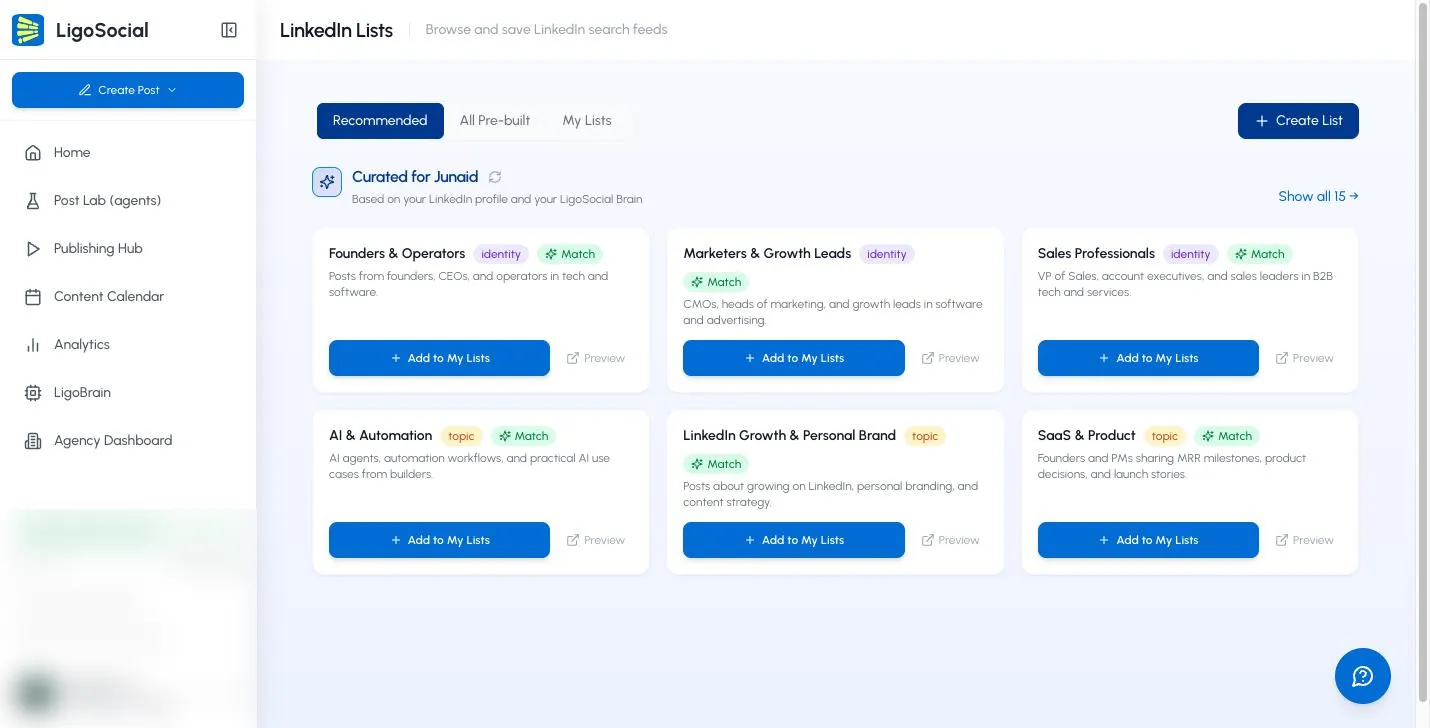
Recommended
At the top, the tab says "Curated for" followed by your first name, and "Based on your LinkedIn profile and your LigoSocial Brain". LiGo compares your LinkedIn headline and your LigoBrain memories with each ready-made list. It then shows up to three identity lists (who is posting) and up to three topic lists (what they are posting about).
- A Match badge means the list matched something in your profile or LigoBrain.
- The small refresh icon next to the heading reruns the matching. Use it after you update your LinkedIn profile or add to LigoBrain.
- Show all 15 takes you to the All Pre-built tab.
If LiGo has no profile or LigoBrain data for you yet, the tab shows "Default suggestions" and a banner that says "Connect LinkedIn for personalized recommendations". Click Connect to open your settings.
All Pre-built
This tab shows every ready-made list in two groups:
- Identity Lists (8 lists): "Filter by the type of person posting." Examples: Founders & Operators, Agency Owners, Tech Builders, Sales Professionals, Marketers & Growth Leads.
- Topic Lists (7 lists): "Filter by the subject being discussed." Examples: LinkedIn Growth & Personal Brand, Client Acquisition & B2B Sales, AI & Automation, Cold Outreach & Email Marketing, SaaS & Product.
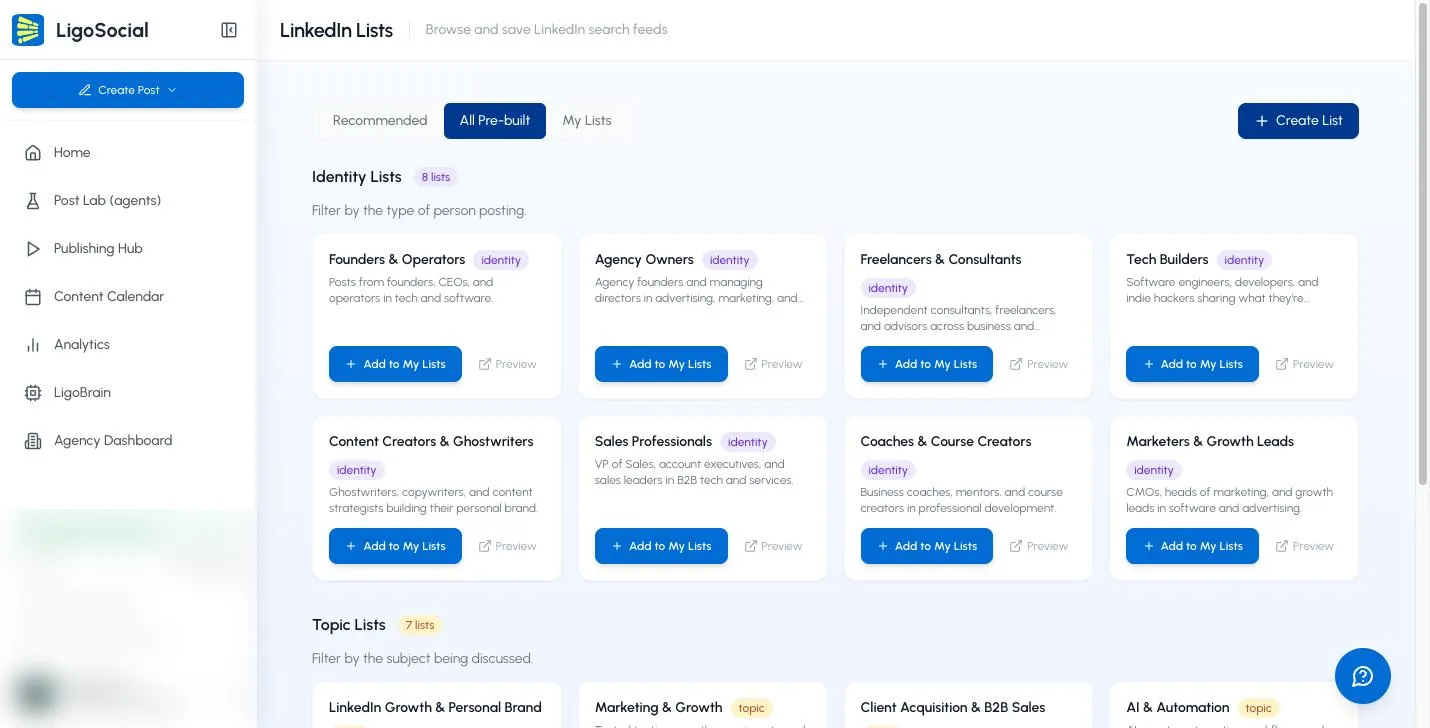
My Lists
This is where your saved lists live. Until you add one, it shows "No lists yet" and a Create your first list button.
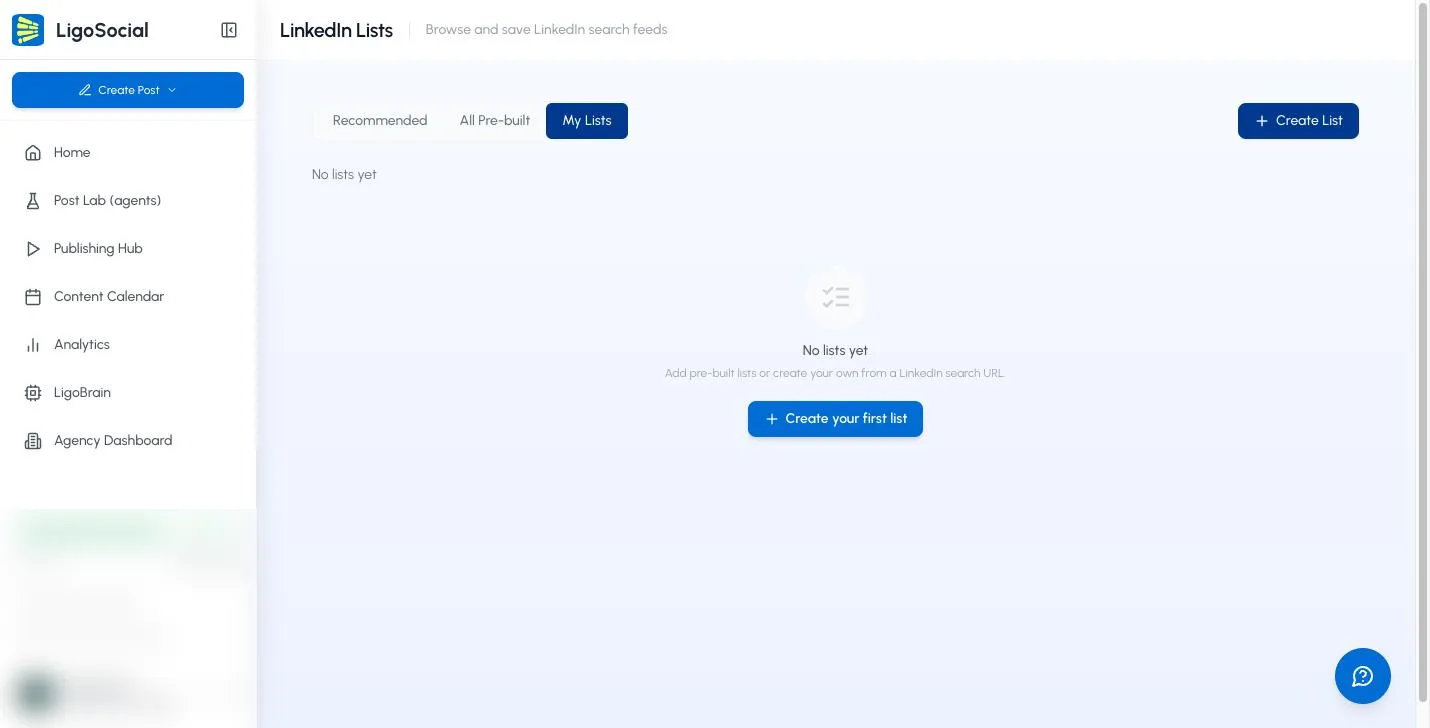
Add a pre-built list
- Open Recommended or All Pre-built.
- Click Preview on a card to see the search on LinkedIn in a new tab. Nothing is saved yet.
- Click Add to My Lists. A confirmation "Added to My Lists" appears and the list is copied to My Lists.
When a list is already saved, its card shows Already in My Lists and the button changes to Add another copy.
Create your own list with Build URL
Build URL creates a LinkedIn post search for you.
- Click Create List. The Add New List window opens on the Build URL tab.
- Enter a List Name, for example "AI agents this week".
- Under Content Search, type into Topics and press comma or Enter after each one. Each topic becomes a tag. Several topics are searched as "any of these" (OR).
- Click Show next to Advanced Filters (Optional) to narrow the search.
- Click Create List. The list appears in My Lists.
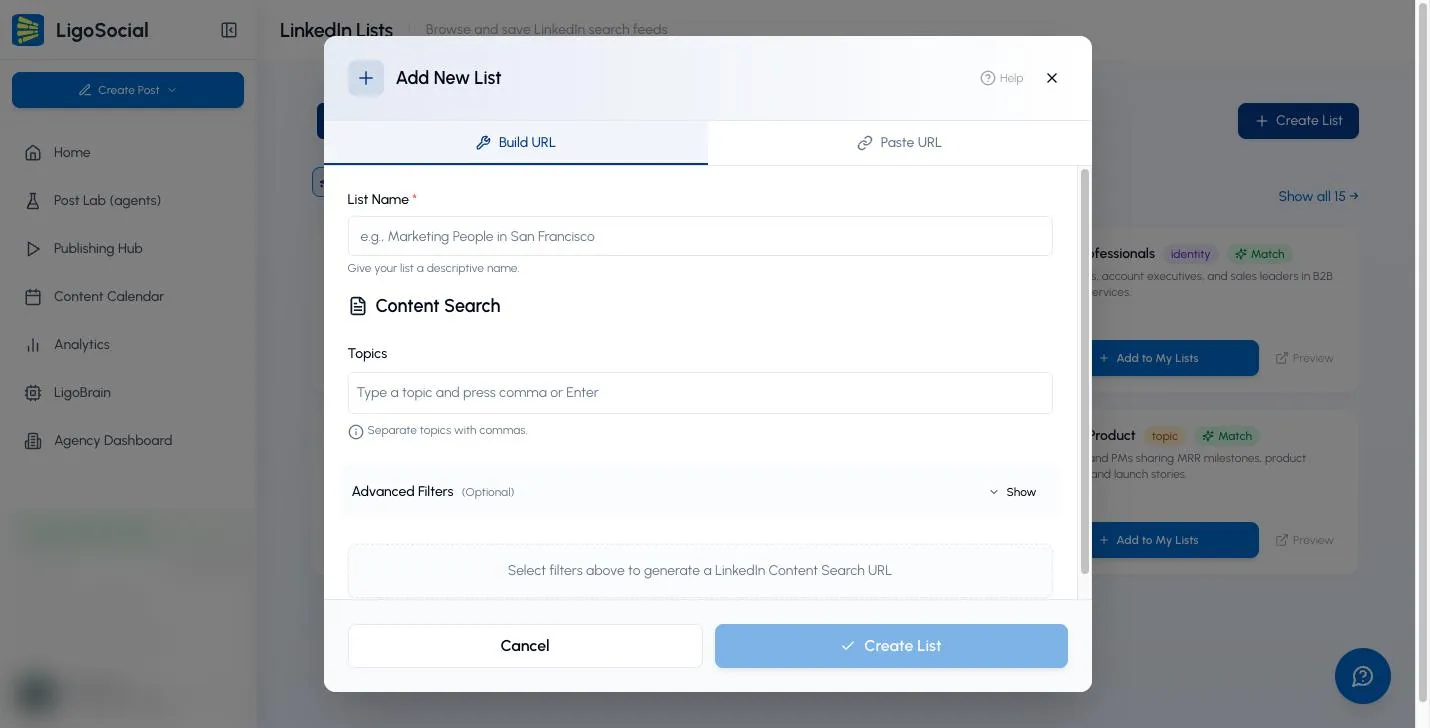
The advanced filters are:
- Sort By: Most Relevant or Most Recent.
- Date Posted: Past 24 Hours, Past Week or Past Month. Leave it on "Any time" for no limit.
- Content Type: Videos, Photos, Job Posts, Live Videos or Documents. Leave it on "All content types" for everything.
- Posted By: tick any of 1st Connections, Your Posts and People You Follow.
- Show Posts From: job titles of the people posting, for example "CEO, Marketing Manager". Separate titles with commas. LiGo trims plurals, so "Founders" becomes "Founder".
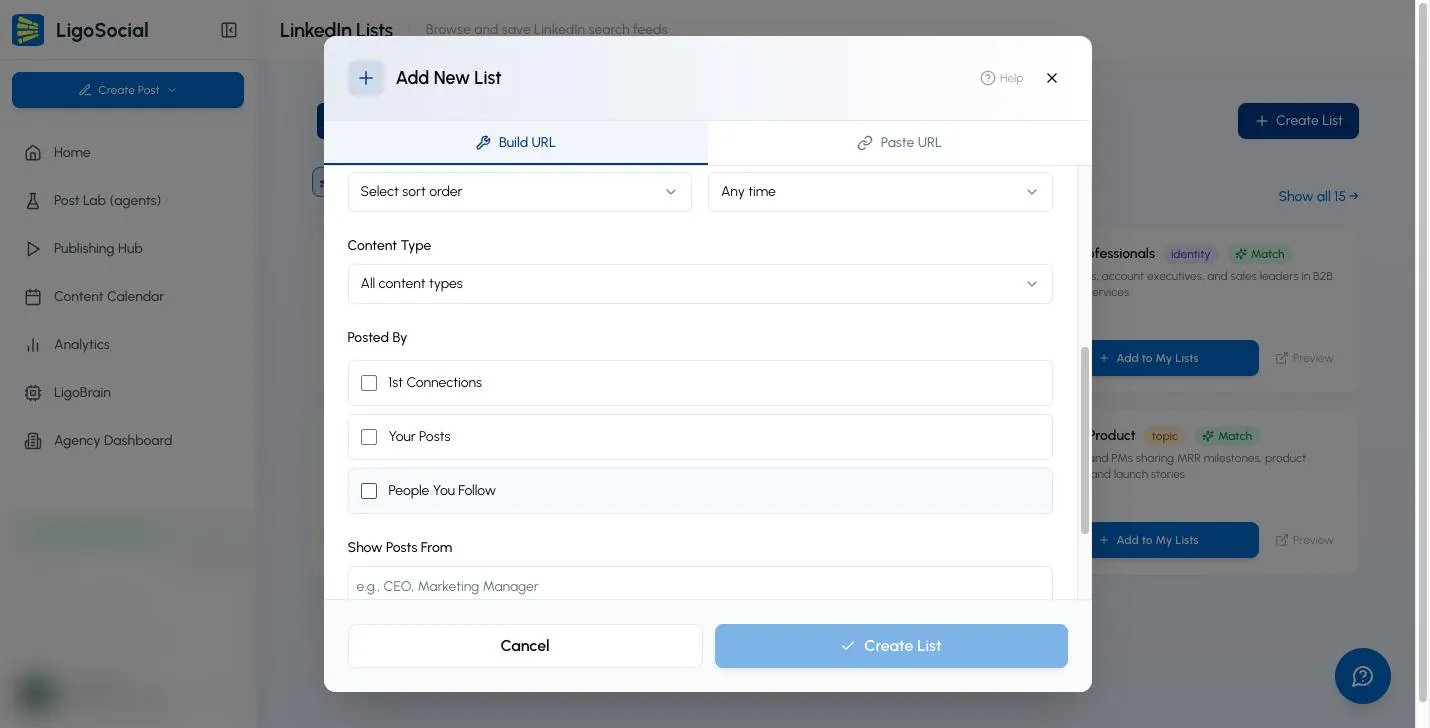
Once you set a topic or filter, a Generated URL Preview box appears. Click Test URL to check the results on LinkedIn before saving, or Copy URL to copy the link.
Create a list with Paste URL
Use Paste URL when you need a LinkedIn filter that Build URL does not offer, such as a search for people, companies or jobs.
- On LinkedIn, run your search and apply the filters you want.
- Copy the full link from your browser's address bar.
- In LiGo, click Create List and switch to Paste URL.
- Enter a List Name and paste the link into LinkedIn Search URL.
- Click Create List.
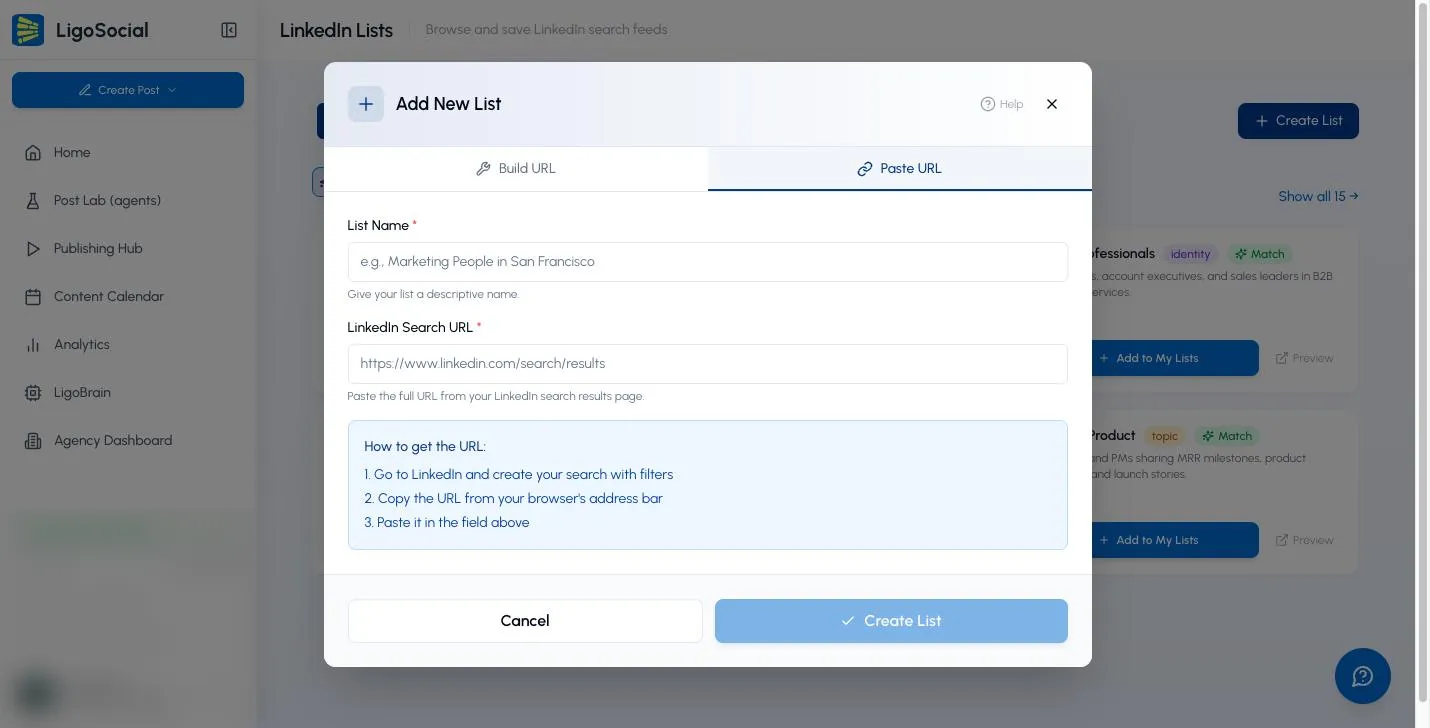
The link must be a LinkedIn search results page (or a LinkedIn jobs search). Profile and post links are rejected with "URL must be a LinkedIn search results URL".
Open and use a saved list
Each card in My Lists shows the list name and its link.
- Open opens the search on LinkedIn in a new tab. LinkedIn runs the search fresh each time, so you always see the latest matching posts.
- Copy copies the link, for example to share with a teammate.
From there, you can read, react and comment on LinkedIn as usual. With the LiGo Chrome extension installed, you can use its comment tools on those posts.
Manage your lists
- Filter: once you have lists, use All, Searches and People at the top of My Lists.
- Edit: click the three-dot menu on a card, then Edit. In Edit List you can change the List Name and the LinkedIn Search URL, then click Update List.
- Delete: click the three-dot menu, then Delete, and confirm. Deleting cannot be undone.
People lists
A People list shows posts from specific people you choose. These cards carry a People badge and show how many people are in the list.
- Create one in the Chrome extension: open someone's LinkedIn profile, right-click the page, choose Add to Feed, then pick an existing list or New feed….
- Edit it in the web app: choose Edit to open Edit People List. You can rename it, change Show posts from (Past 24 hours, Past week, Past month or Any time), or remove people. Click Save.
A pasted LinkedIn search that uses LinkedIn's "From member" filter also shows up as a People list.
Lists in the Chrome extension
The LiGo Chrome extension has its own Lists tab. It reads the same saved lists as the web app, so a list you create, rename or delete in one place shows up in the other.
Example workflows
Prospects
List name: "Founders hiring". Topics: hiring, first hire. Show Posts From: Founder, CEO. Date Posted: Past Week. Sort By: Most Recent. Open it each morning and save promising people with Saving Leads from LinkedIn to LiGo CRM.
Competitors
List name: "Competitors I watch". Open each competitor founder's LinkedIn profile, right-click the page and use Add to Feed. In the web app, set Show posts from to Past week.
Creators to engage with
List name: "Daily comments". Topics: LinkedIn growth, personal brand. Posted By: 1st Connections and People You Follow. Date Posted: Past 24 Hours. Pair it with Creating Comment Style Packs so your comments stay in your voice.
Topic monitoring
List name: "AI agents this week". Topics: AI agents, automation. Date Posted: Past Week. Sort By: Most Relevant. Or add the pre-built AI & Automation list and adjust it.
Tips
- Name lists by purpose and time window, such as "Agency owners, past week", so you know what each one is for.
- Use Test URL before saving. If LinkedIn shows few results, remove a filter or add a broader topic.
- To get better Recommended lists, keep your LinkedIn headline current and add to LigoBrain. See Understanding Your Analytics, Cognitive Dashboard, and LigoBrain.
FAQ
Why can't I see LinkedIn Lists in my sidebar?
The default layout hides it. Click Switch to Classic Layout and look under ENGAGE, or go to https://app.ligosocial.com/linkedin-lists.
Does LiGo show the posts inside the app?
No. Open and Preview open the search on LinkedIn in a new tab, where LinkedIn shows the current results.
Can I change a pre-built list?
Yes. Once you add it, it is your own copy in My Lists. Use Edit to rename it or change its link.
Can I add people to a People list from the web app?
No. Add people with Add to Feed in the Chrome extension. In the web app you can rename the list, change the time range or remove people.
Why does Recommended show "Default suggestions"?
LiGo has no LinkedIn profile or LigoBrain data to match against yet. Click Connect in the banner, then use the refresh icon.
Why was my pasted link rejected?
It must come from linkedin.com and be a search results page. Run the search on LinkedIn first, then copy the link from the address bar.
Was this page helpful?