
Creating Comment Style Packs
Comment styles teach LigoAI how you write comments. You pick or build a style once on the Style Preferences page in the web app, and the Chrome extension uses it every time you generate comments on LinkedIn. This guide is for anyone who wants generated comments to sound like them.
Where to find Style Preferences
- Direct link: https://app.ligosocial.com/style-preferences
- From the extension: open the Comments tab in the side panel and click the + My styles chip at the end of the style row. The page opens in a new tab.
- Classic layout: in the sidebar, open ENGAGE and click Style Preferences. (The default Focus layout has no sidebar item for this page, so use the link or the extension chip.)
The page has two tabs: LiGo Styles (ready-made styles from us) and My Styles (styles you build from your own examples).
Option 1: Turn on ready-made LiGo Styles
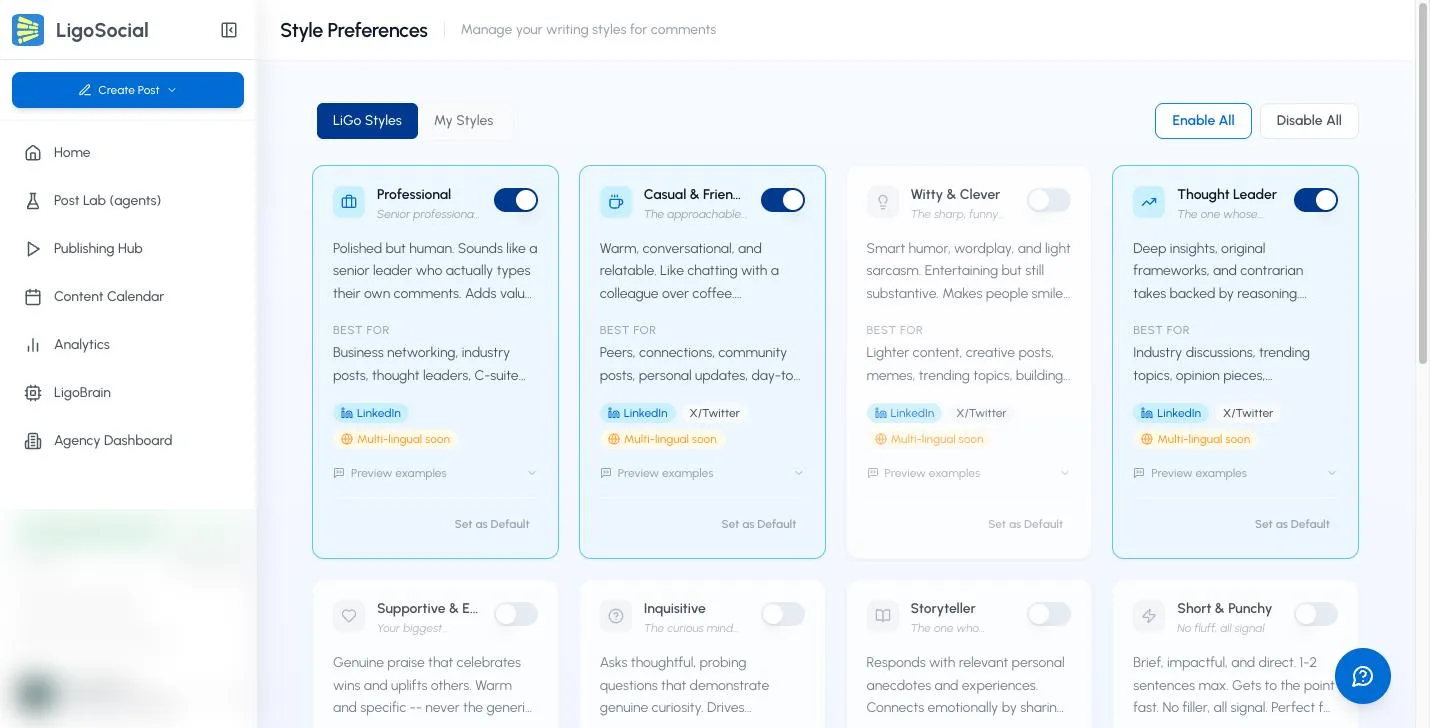
The LiGo Styles tab opens first. It lists built-in styles such as Professional, Casual & Friendly, Witty & Clever, Thought Leader, Supportive & Encouraging, Inquisitive, Storyteller, Short & Punchy, Contrarian, Motivational, Edgy / Bold and Analytical.
- Read the description and the Best for line on each card. Click Preview examples to see sample comments.
- Use the switch on a card to turn that style on or off. Only styles that are on appear in the extension.
- Use Enable All or Disable All to change every card at once.
- Click Set as Default on the style you want preselected in the extension.
Option 2: Create your own style
Your own style learns from example comments, so it can match your phrasing much more closely.
-
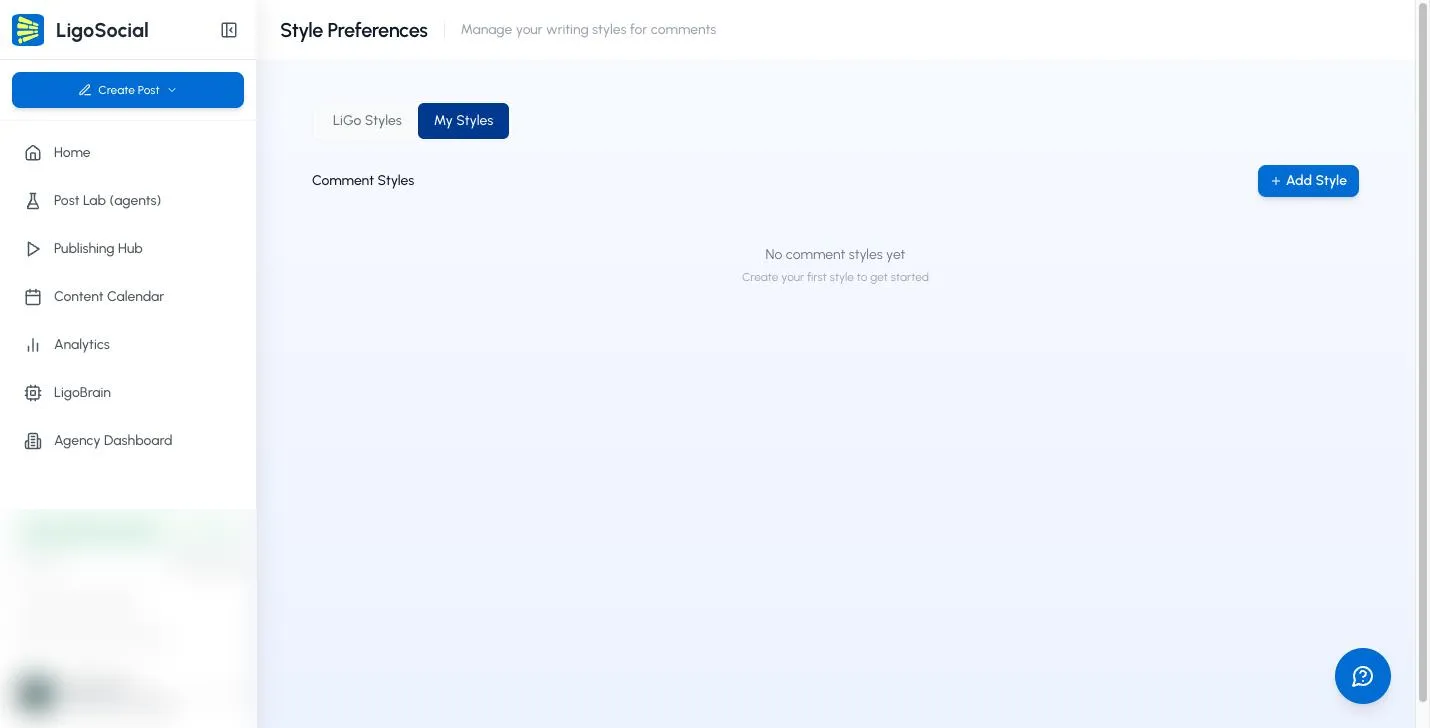
Open the My Styles tab and click + Add Style.
-
On the welcome screen, click Create a Style.

-
On Name Your Style, type a name (for example "Peer comments" or "Industry leaders") and click Next: Add Examples. You can rename it later.

-
On Add Comment Examples, pick up to 10 examples:
- Use the language and category dropdowns to filter our example library (English, German, Spanish, French, Dutch, Italian and Danish).
- Tick the examples that sound like you. They appear under Selected Examples.
- To use a comment you wrote yourself, click Add Custom, paste it into the box and click Add Example.
-
Click Create Style.
Your new style appears under My Styles and as a chip in the extension.
Manage a style
Each card on My Styles gives you these options:
- Add Example opens Add Examples to "