
How to Repurpose Content
Content Repurposing turns something you have already written or said (a newsletter, blog post, meeting notes, a podcast transcript, a voice note) into LinkedIn posts in your voice. Each run gives you three post variants to choose from. It is for anyone who has good material sitting in other formats and wants it on LinkedIn without starting from a blank page.
Repurposing always creates new posts from your source. It is not a LinkedIn repost or quote-share. To react to someone else's article, paste its text, generate a post, then add your own take before publishing.
Open Content Repurposing
- Focus layout (default): click Create Post at the top of the sidebar, then Repurpose content.
- Classic layout: click Repurpose Content under WRITE.
- Direct link: https://app.ligosocial.com/rewrite-post
The page has three steps: Select Source, Add Content and Generated Posts.
Step 1: Select Source

Pick the type of material you have. This tells LigoSocial what kind of structure and tone to expect.
| Source | Use it for |
|---|---|
| Newsletter | Pulling the key insight out of an email newsletter |
| Blog Post | Turning a long-form article into a short post |
| Meeting | Meeting notes or transcripts, shared as lessons or updates |
| Email Thread | A useful email exchange, turned into advice or a behind-the-scenes story |
| Podcast | Quotes and ideas from an episode transcript |
| Video | A video script or transcript |
| Research | A paper or study, explained in plain language |
| Social Post | A tweet, caption or other short post, reshaped for LinkedIn |
| Add Voice Input | Speaking your idea, or uploading an audio file |
Step 2: Add Content
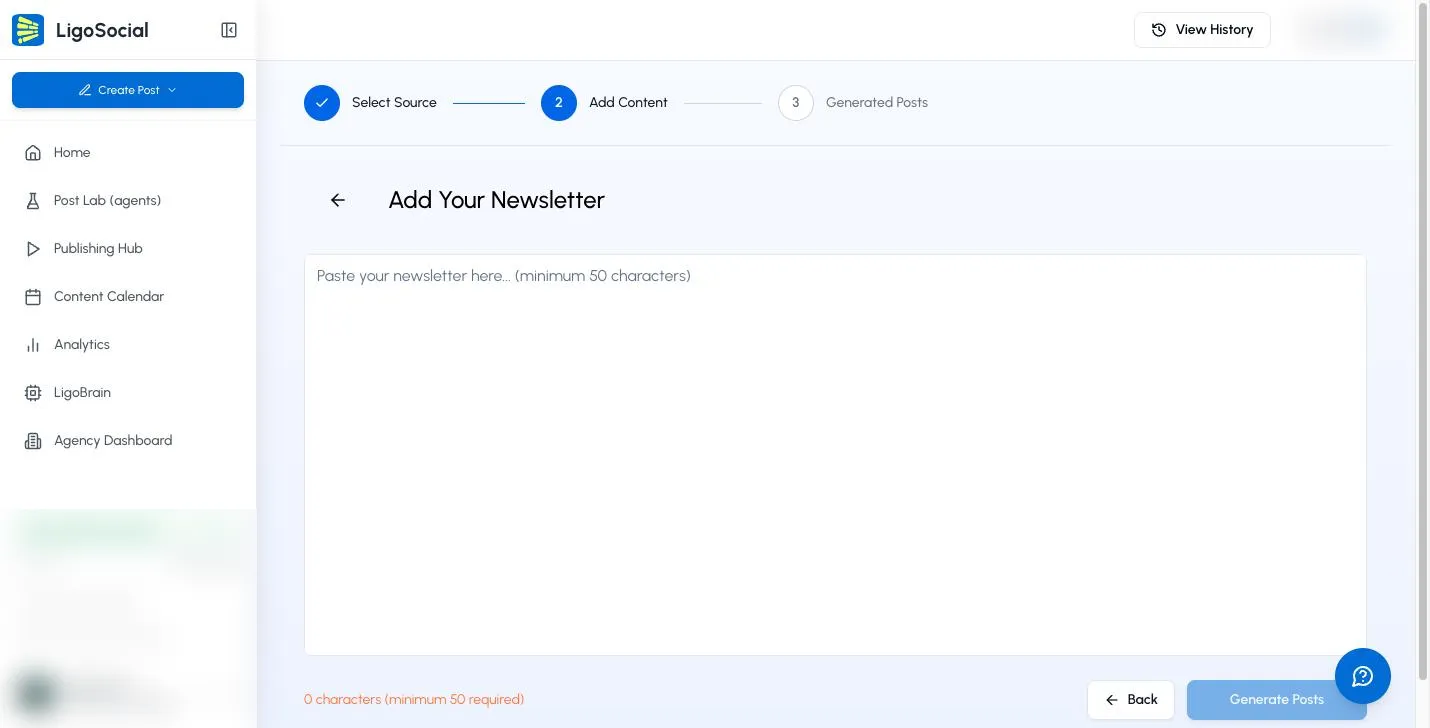
- Paste your text into the box. It must be at least 50 characters. Anything over 10,000 characters is trimmed, and you will see a Content Truncated notice.
- Click Generate Posts.
Use Back or the arrow next to the heading to choose a different source.
Using your voice

- In step 1, choose Add Voice Input.
- In the Voice Input dialog, click Start Recording and speak, then Stop Recording. Or click Upload Audio to transcribe a recording you already have.
- Check the transcription, then click Use Transcription. The text goes into the content box, where you can edit it before generating.
Step 3: Generated Posts
Under Your LinkedIn Posts you get three variants built from the same source.

- Click Add to Drafts on any variant you like. It is saved to Drafts in the Publishing Hub, where you can edit it, add images or video, and schedule it.
- Click the copy icon to copy a variant to your clipboard.
Saving one variant does not discard the others. To come back to them later, click View History at the top of the page. Past Generations lists every earlier run with Copy and Add to Drafts on each post. Click Back to Generator to return.
If you see Post Rewrite Limit Reached, you have used the repurposes your plan includes for now. See Billing in the app for your options.
Tips for better posts
- One idea per run. A focused source gives sharper posts than a whole newsletter with five topics.
- Clean up pasted text. Remove links, navigation text and HTML before generating.
- Speak naturally. Filler words in voice notes are fine; the transcription is cleaned up when the post is written.
- Edit before you publish. Add a personal detail, a number or an example so the post sounds like you.
Ways to use it
- Record a short voice note after a meeting or event and turn it into a lesson-learned post.
- Turn each section of a long blog post into its own post, one run per section.
- Pull one strong quote or insight from a podcast or webinar transcript.
- After finishing a project or course, write down your takeaways and let it shape them into a post.
Repurposing from the Chrome extension
The LigoSocial Chrome extension has its own repurpose tool, which can pick up content straight from Medium, Substack, Reddit and YouTube pages. See Repurpose content with the Chrome extension.
FAQ
Can I edit the generated post? Yes. Add it to your drafts, then edit it in the Publishing Hub before you schedule or publish.
Will I lose the other variants if I save one? No. All variants stay in View History.
My voice recording came out wrong. Record somewhere quiet, or edit the text in the content box after clicking Use Transcription.
Does it write for other platforms? Posts are written for LinkedIn.
Related articles
Was this page helpful?