
Complete Guide to Post Publishing
Once you have an idea you like, LigoSocial turns it into a LinkedIn post that you can review, edit, preview and then publish or schedule. This guide walks through that whole flow in the Publishing Hub, the page where all your posts live. It is for anyone who has generated their first posts and wants to know what every button does.
Generate a post from an idea
- Open your idea bank: click Create Post at the top of the sidebar, then From my idea bank. In the Classic layout, open WRITE > Post Ideas. You can also go straight to https://app.ligosocial.com/content-ideas.
- Find an idea you like and click Generate on its card.
- The request is added to the Generation Queue panel on the right. You can keep reviewing other ideas while it runs.
- When the item is done, click Click to view posts. This opens the new post in the Publishing Hub.
Ideas stay in your idea bank until you generate or dismiss them, so you do not have to generate a post straight away. For more on choosing ideas, see Reviewing and selecting content ideas.
Find your way around the Publishing Hub
Open it from Publishing Hub in the sidebar, or go to https://app.ligosocial.com/publish-post.
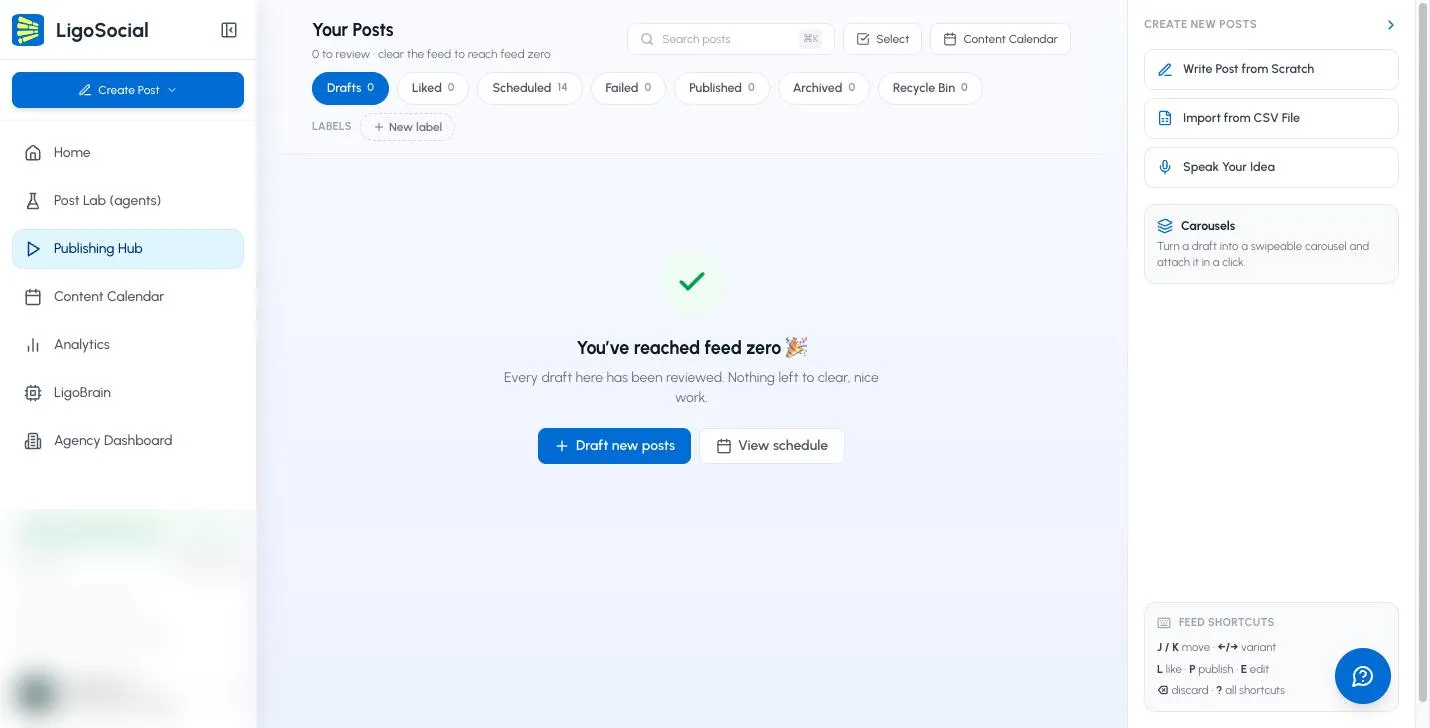
- Your Posts header: Search posts (or press Cmd/Ctrl + K), Select to pick several posts at once and move them to the recycle bin, and a Content Calendar shortcut.
- Status tabs, each with a count: Drafts, Liked, Scheduled, Failed, Published, Archived and Recycle Bin.
- Labels row: click a label to see only posts with that label, or New label to create one. See Post labels.
- Create New Posts panel on the right:
- Write Post from Scratch opens Add Your Own Post. Type your post and click Add to Drafts.
- Import from CSV File adds many posts at once. See Import posts from a CSV file.
- Speak Your Idea opens the idea bank so you can record or type an idea.
- Carousels turns a draft into a swipeable carousel.
- Feed shortcuts lists the keyboard shortcuts.
When the Drafts tab is empty you will see You've reached feed zero, with buttons to draft new posts or view your schedule.
Work with variants
A generated post usually comes in a few versions, called variants, each with a different angle or structure. On the active post card you will see Variant 1 of 3 (or similar) with arrows on each side. Click the arrows, or press the left and right arrow keys, to compare them.
When you find the version you want, click Like in the card footer (or press L). A Choose This Variant? dialog explains what happens next. Click Confirm Selection to move that variant to Liked Posts and the other variants to the Recycle Bin.
The post card actions
Each post card has a few direct buttons in its footer:
- Like: keep this variant (Drafts only).
- Carousel: create a carousel from the post, where carousels are available on your plan.
- Discard: move the post to the Recycle Bin (Drafts, Liked and Failed). You can also press Backspace.
Everything else is in the ... (More actions) menu. The items change with the post's status. For a draft you will see:
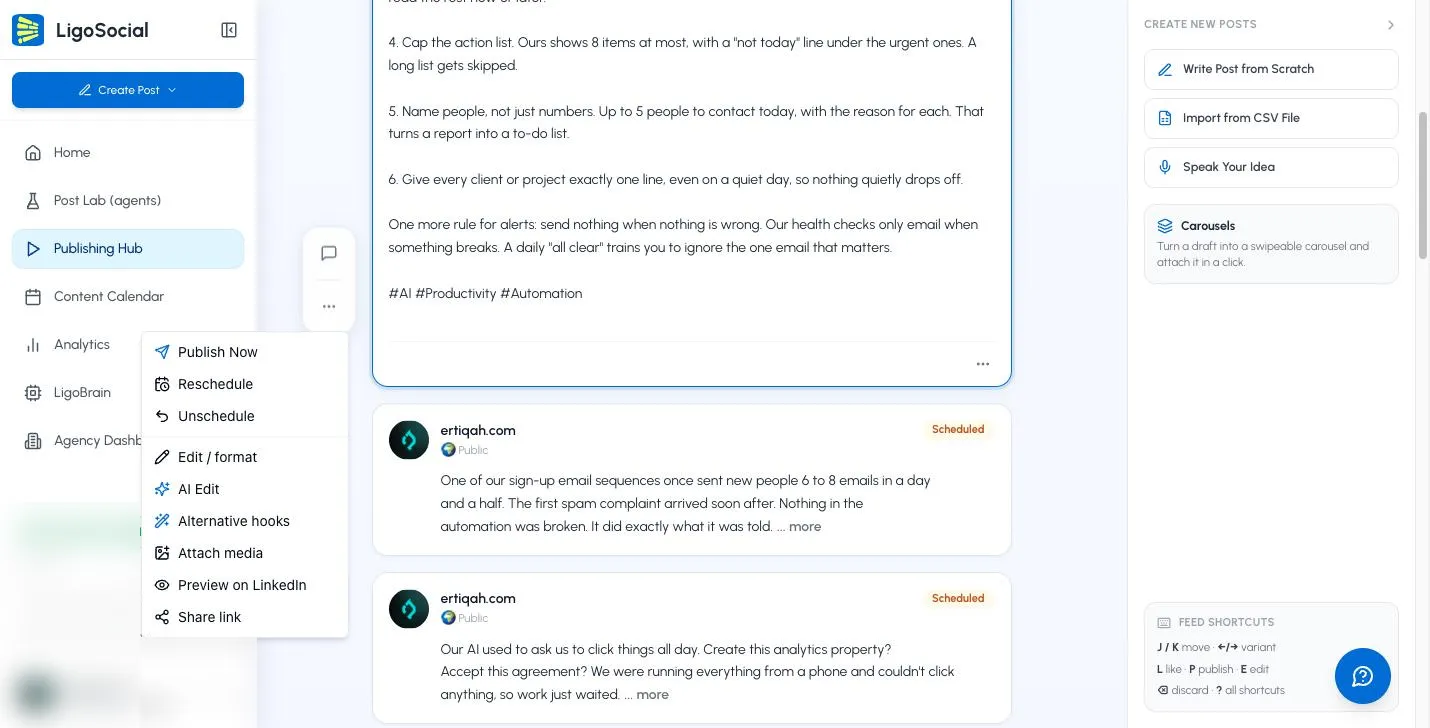
- Publish Now and Schedule for later (on scheduled posts: Reschedule and Unschedule)
- Edit / format
- AI Edit
- Alternative hooks
- Attach media
- Labels
- Preview on LinkedIn
- Share link
- Move to Drafts, Move to Archive, Move to Published or Move to Recycle Bin
Edit a post yourself
- Open the ... menu and click Edit / format, or press E.
- Edit the text directly on the card. A small bar gives you Bold and Italic (select text first), bulleted and numbered lists, and an @ button to tag a LinkedIn company page.
- Click Save, or press Cmd/Ctrl + Enter. Click Cancel, or press Esc, to drop your changes.
Clicking outside the editor does not save, so always use Save.
Improve a post with AI
- Open the ... menu and click AI Edit.
- Pick one or more quick options: Change the hook, Adjust length, Change tone, Enhance clarity or Translate. Some options let you choose a preference, such as shorter or longer, a tone, or a language.
- Add your own instruction in the text box if you like, for example "Make this more conversational" or "Use a B2B example instead of B2C". You can also dictate it with the microphone.
- Press Enter or click the send arrow, review the new version, then click Apply to keep it or Discard to go back.
Results can vary, so read the new version before applying it.
To try a new opening line only, choose Alternative hooks from the ... menu. It suggests three openings that you can copy and paste into your post.
Add media
Choose Attach media from the ... menu to add images, a video or a PDF to the post. See Posting images, carousels, PDFs and video.
Preview before you publish
Choose Preview on LinkedIn from the ... menu. Switch between Desktop and Mobile to see how the post will look.

Pay most attention to your hook: LinkedIn shows only the first lines before ...more, so those lines need to make people want to keep reading.
Publish or schedule
- Publish now: open the ... menu and click Publish Now (or press P). In the Do you want to publish this post? dialog, click Yes, publish it!.
- Schedule: open the ... menu and click Schedule for later (or press S), then pick a date and time.
If your LinkedIn account is not connected yet, you will see Enable LinkedIn Posting first. The full steps are in Post scheduling and publishing.
LinkedIn allows up to 3,000 characters, but posts close to that limit are often rejected. If your post is over 2,800 characters, LigoSocial asks you to shorten it before publishing or scheduling.
Where your post goes next
- Scheduled: waiting to go out at its date and time.
- Published: live on LinkedIn. To open the live post, find it in the Content Calendar, open its preview and click View on LinkedIn.
- Failed: could not be published. Open the ... menu and choose Retry Publish or Schedule for later.
Remove a scheduled post
Scheduled posts have no Discard button, so unschedule them first:
- Open the Scheduled tab and select the post.
- In the ... menu, click Unschedule. The post goes back to Drafts and you will see "Post unscheduled and moved to drafts."
- Open Drafts, select the post and click Discard.
- To delete it for good, open Recycle Bin, then choose Empty recycle bin from the ... menu.
If you only want a different date or time, use Reschedule instead.
Common questions
How long do posts stay in the Recycle Bin?
Until you empty it. Nothing is deleted automatically. To bring a post back, select it in the Recycle Bin and click Restore.
Can I tag people or companies?
You can tag LinkedIn company pages: in Edit / format, type @ or click the @ button, then search for the page or paste its URL. Tagging people is not supported yet.
Can I add hashtags?
Yes. Type them into the post as normal text while editing.
Was this page helpful?