
LigoSocial Onboarding Guide
When you first sign in to LigoSocial, a short guided chat sets up your account and writes your first LinkedIn post in your own voice. It takes a few minutes. This guide explains each step, what LigoSocial does with your answers and what to do once setup is finished.
How onboarding works
Onboarding happens on the Home page, in a chat with Lee, our assistant. Lee asks a few quick questions. You answer by pasting a link or tapping options. Every question has a Skip button, and Skip setup lets you leave at any time.
Step 1: Share your LinkedIn profile
Lee asks you to paste your LinkedIn profile link or username. You can paste:
- your full profile link, for example linkedin.com/in/yourname
- just your username
- a company page link, for example linkedin.com/company/yourcompany
Lee reads your public headline and recent posts so your content sounds like you. This does not connect your LinkedIn account, and LigoSocial never posts anything without you. If you already gave your LinkedIn link when you signed up, this step is skipped.
Not active on LinkedIn yet? Tap I don't post on LinkedIn yet. Lee will ask you to describe what you do in one line instead.
Step 2: Tell Lee your role
Pick any options that describe you, for example Founder or owner, Executive, Sales or BD, Marketing, Consultant or freelancer, Creator, Looking for a job or Specialist or team member.
If you signed up with a work email, Lee may recognise your company and ask about your role there. Lee may also offer to read your company website for more context. Choose Yes, read it or No thanks.
Step 3: Choose your goals
Tell Lee what LinkedIn should do for you. Pick any of Win clients, Build my personal brand, Grow my company, Share what I know, Hire people and Land a job.
Step 4: Get your first post
While Lee works, a checklist shows the progress: Finding your profile, Reading your recent posts, Learning how you write and Writing your first post. Lee then shows your first post in the chat. You can keep chatting to change it, just as you would on Home at any time.
In the background, LigoSocial also creates content themes from your profile and answers, so your future ideas match your expertise and audience.
What happens next
If your plan includes Post Lab, Lee tells you at the end which Post Lab agents were switched on for you, with an Open Post Lab link. Your first drafts arrive by email from [email protected] within 24 hours, and new ones follow on each day a draft passes our quality check.
If your plan does not include Post Lab, nothing is emailed. You keep writing with Lee on Home whenever you like.
After onboarding
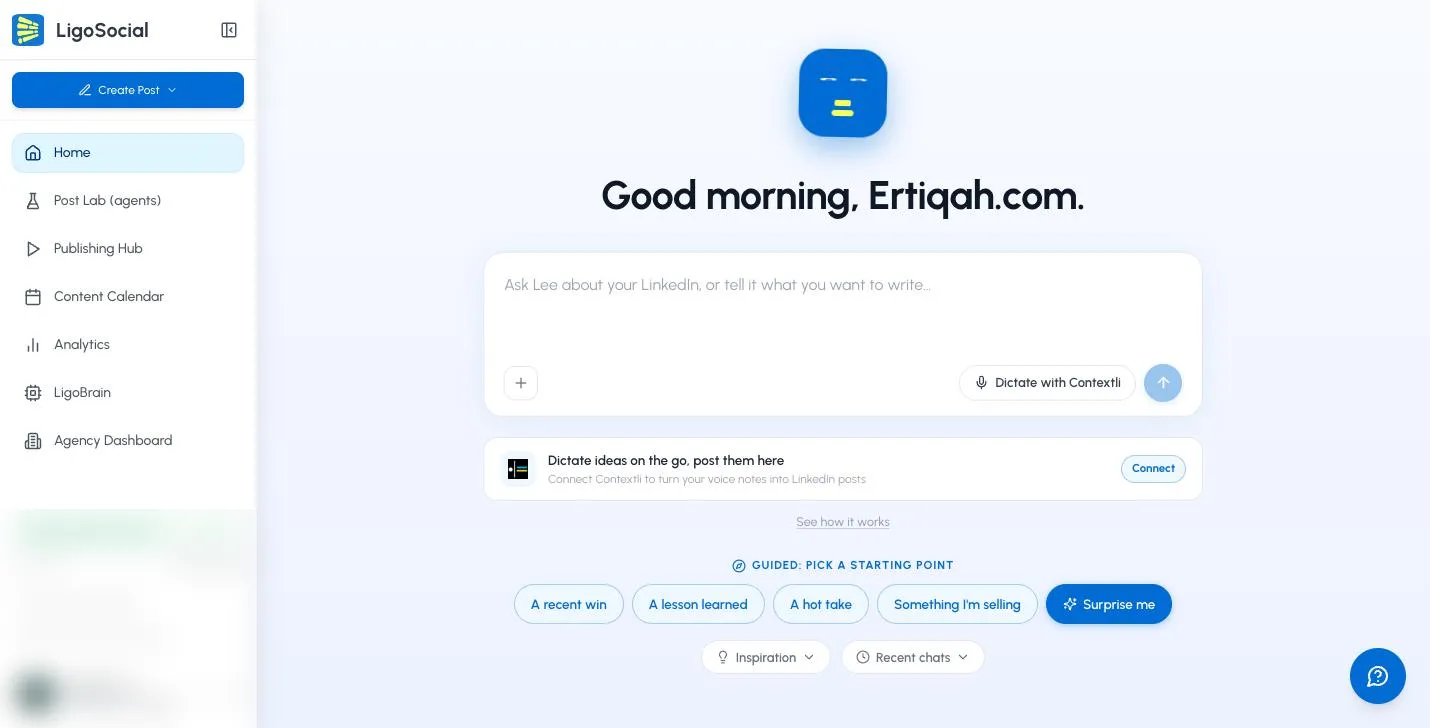
Here is where to go next:
-
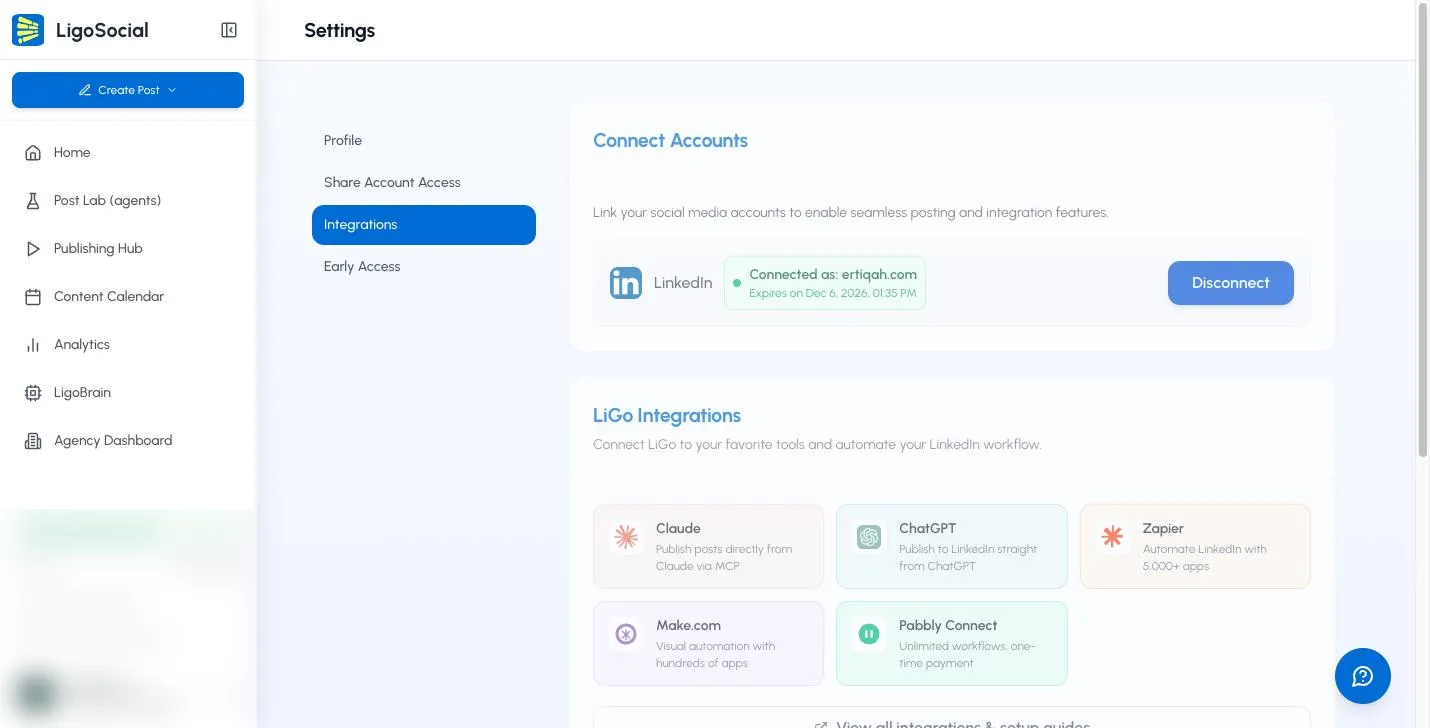
Connect LinkedIn for publishing. Sharing your profile link during onboarding does not let LigoSocial post for you. To publish or schedule, open Settings & Support > Settings > Integrations and click Connect next to LinkedIn. See Post scheduling and publishing.
-
Review your drafts. Open Publishing Hub in the sidebar to review, edit and publish posts. See the Complete guide to post publishing.
-
Check your themes. Click Create Post > Explore themes, then open My Themes or Drafts to review or refine the themes created for you. See Creating your first content theme and the Content theme strategy guide.
-
Write more posts. On Home, tell Lee what you want to write, or tap a starting point such as A recent win, A lesson learned or A hot take. You can also use Create Post at the top of the sidebar.
Common questions
What information does LigoSocial use during onboarding?
Your public LinkedIn profile and recent posts (if you share your link), your role, your goals, and your company website if you agree to it. We use this to write content that reflects your background and voice.
Does sharing my LinkedIn username connect my account?
No. It only lets us read your public profile and posts. To publish from LigoSocial, connect LinkedIn in Settings > Integrations.
I skipped onboarding. Can I still set up my account?
Yes. Chat with Lee on Home whenever you want to write a post, and create or edit themes from the Content Themes page.
How many themes can I have?
As many as you need. There is no limit on the number of themes.
Can I edit my themes later?
Yes. On the Content Themes page, open the three-dot menu on a theme and click Edit.
Is LigoSocial safe for my LinkedIn account?
Was this page helpful?