
Post Labels
Post labels are coloured tags you add to your posts, such as Needs edits, Awaiting graphics or Needs approval. They turn a pile of drafts into a clear workflow, so you and your team can see what each post still needs before it goes out. This guide shows how to add labels, filter by them and use them well.
Why use labels
- See status at a glance: know which posts are ready and which still need work.
- Focus on one stage: filter to only the posts that need editing, or only those waiting for graphics.
- Work as a team: writers, designers and approvers can each find the posts meant for them.
- Save time: nobody has to open every draft to work out where it stands.
Add a label to a post
Labels can be added to posts in Drafts and Liked.
-
Open the Publishing Hub from the sidebar and select a post.
-
Open the label picker in one of three ways:
- click + Label on the post card
- click the tag icon (Add label) in the action rail next to the card
- open the ... menu and click Labels
-
In the Add labels... dialog, tick one or more labels. You can start with the suggested ones: Needs approval, Awaiting graphics and Needs edits.

-
To create a new label, type its name in Type to search or create, then click Create new label: "your label".

-
Under Pick a color for label, choose a colour: Grey, Dark Grey, Purple, Teal, Green, Yellow, Orange, Pink or Red.

The label now shows on the post card. A post can have several labels. To remove one, click the label on the card.
Create a label before using it
You can also create labels up front:
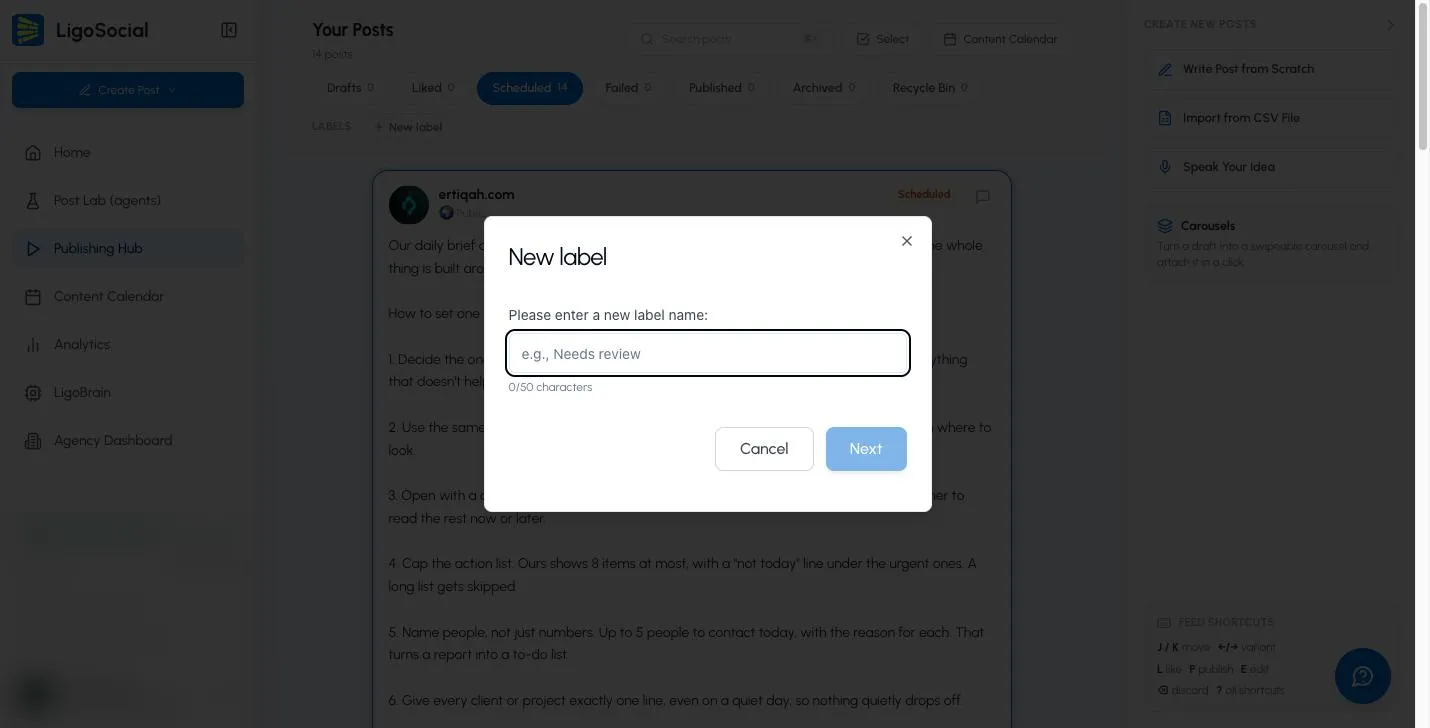
- In the Publishing Hub, click New label in the Labels row under the status tabs.
- Type a name (up to 50 characters) and click Next.
- Choose a colour and click Create.
Filter posts by label
All your labels appear in the Labels row at the top of the Publishing Hub. Click a label to see every post with that label. Click it again to go back to the normal view.
Add labels in bulk with a CSV
When you import posts from a CSV file, you can fill in a labels column, with several labels separated by semicolons. See Import posts from a CSV file.
Label ideas
Use one approach or mix them to suit how you work.
Workflow stage
- Needs edits
- Awaiting graphics
- Needs approval
- Ready to publish
Post type
- Story post
- Tool recommendation
- Thought provoking
- Personal achievement
Priority
- High priority
- Medium priority
- Low priority
Combining labels
- Needs edits and Story post: a narrative post that still needs revising.
- Awaiting graphics and High priority: urgent design work.
Best practices
- Keep the set small: a handful of core labels is easier to use than dozens.
- Use colour on purpose: bright colours such as red or orange for urgent states, softer ones such as grey for information.
- Choose clear names: new team members should understand a label without asking.
- Combine labels for detail: rather than creating one label for every situation, use two or three together.
Common questions
Can a post have more than one label?
Yes. Tick as many labels as you need in the Add labels... dialog.
How many labels can I create?
Up to 50 labels, each with a name of up to 50 characters.
Why can't I add a label to a scheduled or published post?
Labels are for organising work in progress, so they can be added to posts in Drafts and Liked. Add your labels before you schedule or publish a post.
Can I rename or delete a label?
Not at the moment. If you no longer need a label, remove it from your posts and stop using it.
Was this page helpful?