
Understanding LiGo's Delegate Access Feature
Share Account Access lets other people work inside your LigoSocial workspace with their own login, so you never share your password. It suits founders working with a ghostwriter or assistant, teams running LinkedIn for several executives, and agencies managing clients. In some menus the same feature is called Delegate Access.
Share Account Access is available on plans that include it; see Billing in the app.
Roles and what they can do
When you invite someone, you pick one of three roles. They appear in the app as Admin (Full access), Editor (Can manage content) and Viewer (View-only access).
| What they can do | Admin | Editor | Viewer |
|---|---|---|---|
| View posts, calendar, analytics and leads | Yes | Yes | Yes |
| Create, edit, schedule and publish posts | Yes | Yes | No |
| Edit themes, ideas and profile settings | Yes | Yes | No |
| Manage the subscription and billing | Yes | No | No |
| Invite, edit or revoke other delegates | Yes | No | No |
| Connect or reconnect LinkedIn | No | No | No |
Things only the account owner can do:
- Connect LinkedIn. Delegates publish through the owner's LinkedIn connection. They cannot connect, refresh or reconnect it, and the Switch Account menu cannot be used to link a LinkedIn profile to someone else's account.
- Change the password or delete the account.
The LigoSocial Chrome extension always works as the person signed in to it. A delegate cannot write comments or save leads as you from the extension.
Invite a delegate (account owner or Admin)
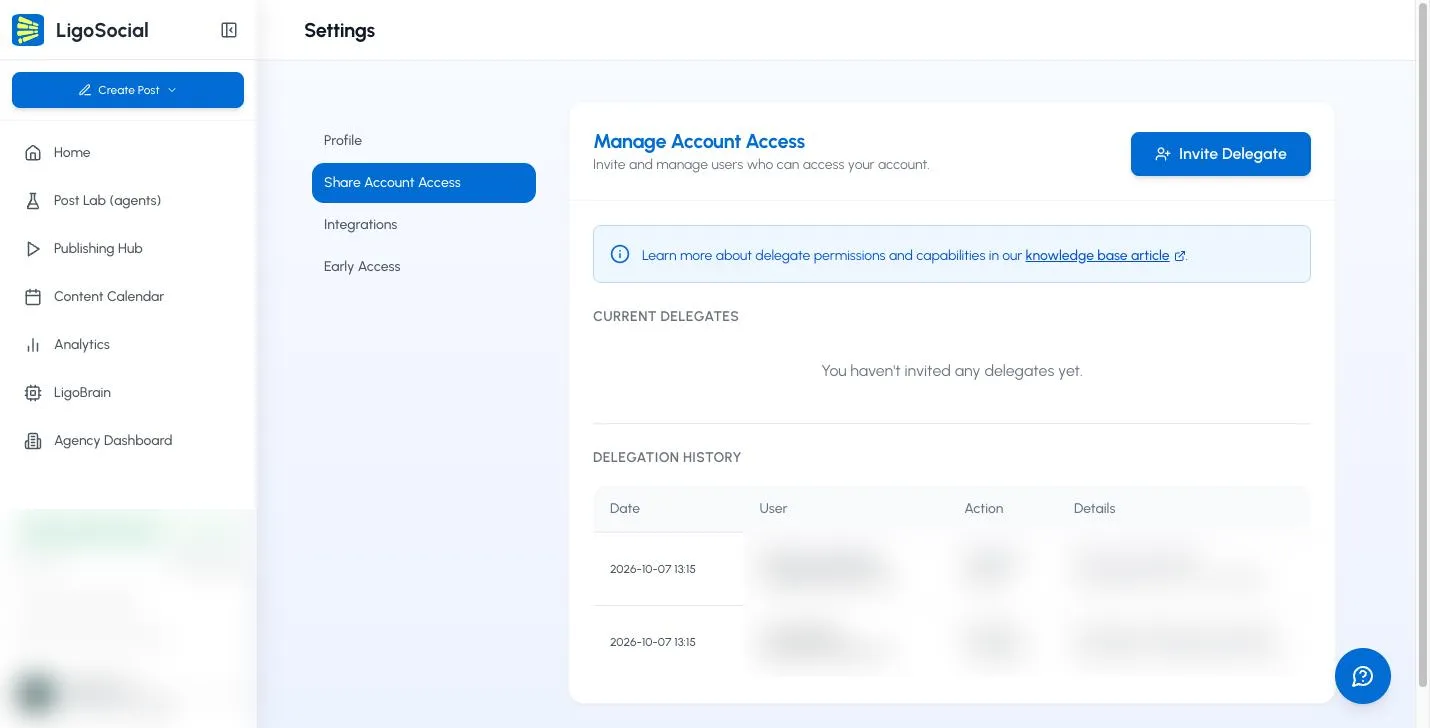
- Click Settings & Support at the bottom of the sidebar, then Settings. You can also open https://app.ligosocial.com/settings#access directly. On a phone, use the menu, then ACCOUNT > Delegate Access.
- Click Share Account Access in the settings menu. You will see the Manage Account Access card.
- Click Invite Delegate.
- Enter the person's Email.
- Choose a Permission: Admin, Editor or Viewer.
- Click Send Invitation.
The person gets an email with an invite link. Until they accept, they show as Pending under Current Delegates. If the email did not arrive, click Resend invite, or click Copy link and send the link yourself.
Change or remove access
Under Current Delegates, each person has two buttons:
- Edit: opens Edit Permissions, where you switch their role.
- Revoke: removes their access after you confirm with Revoke Access.
The Delegation History table below lists every invite, change and removal with the date.
If you were invited
You use your own LigoSocial login. You never need the owner's password.
- Open the invitation email and click the link.
- On Accept Invitation, click Log In, or Sign Up if you do not have an account yet. Use the same email address the invite was sent to.
- The invitation is accepted automatically and you see Invitation Accepted!.
- To work in the shared account, click your account at the bottom of the sidebar. Under Switch Account, pick the account you were invited to. Each shared account shows your role, for example Editor Access.
While you are inside someone else's account, a DELEGATE badge appears next to the account name. Switch back to your own account from the same Switch Account menu.
Keep the owner's LinkedIn connection active
LinkedIn connections expire after a period LinkedIn sets. When that happens, nothing can be published from the account, by the owner or by delegates, until the owner reconnects.
- The owner can see the expiry date in Settings > Integrations, next to LinkedIn.
- We email the account owner before the connection expires.
- The owner renews it in Settings > Integrations by clicking Refresh Connection and approving access on LinkedIn. The button appears when the connection is close to expiring or has expired.
For agencies
If you manage clients from the Agency Dashboard (https://app.ligosocial.com/agency-dashboard), clients whose LinkedIn connection has expired show a Remind button (tooltip: "Send LinkedIn reconnect reminder"). It notifies the client to reconnect. It does not reconnect the account for them.
Some agencies prefer a separate LigoSocial account for each client, with the agency invited as a delegate. That keeps billing, themes and content strategy separate per client.
Common use cases
- Founder and ghostwriter. Invite your writer as Editor. They draft and schedule posts, and everything goes out on your profile through your connection.
- Team running content for executives. Each executive connects LinkedIn once in their own account and invites the content team as Editor.
- Stakeholders who only need to watch. Invite them as Viewer so they can see posts and analytics without changing anything.
FAQ
Can a delegate connect LinkedIn for me? No. Only the account owner can connect or reconnect LinkedIn.
Which role does someone need to publish? Editor or Admin. Viewer is view-only.
My delegate's posts are failing. What should I check first? Check the LinkedIn connection in Settings > Integrations on the owner's account and reconnect if it has expired. Then retry the post from the Failed tab in the Publishing Hub.
Related articles
Was this page helpful?