
How to Connect LigoSocial with ChatGPT (GPT and Custom GPT)
You can use LigoSocial from inside ChatGPT: ask it to write a LinkedIn post in your voice, publish it, schedule it, or look at your recent posts and profile. There are two ways to set this up:
- The LigoSocial GPT (recommended). A ready-made GPT. You sign in to LigoSocial once and you are done.
- Your own custom GPT (advanced). Build a private GPT that talks to LigoSocial with your API key. Choose this if you want to change its instructions or behaviour.
Before you start
- A LigoSocial account with your LinkedIn profile connected. Check this in the web app: click Settings & Support at the bottom of the sidebar, then Settings, then Integrations. Under Connect Accounts, LinkedIn should show Connected as with your name. If it does not, click Connect (or Refresh Connection if the connection has expired).
- A ChatGPT account that can use GPTs. Building your own GPT needs a ChatGPT plan that lets you create GPTs.
- Publishing works on every LigoSocial plan. Some actions, such as scheduling, writing posts from your history and reading your posts, are available only on plans that include them; see Billing in the app.
Option 1: Use the LigoSocial GPT
- Open the LigoSocial GPT in ChatGPT and start a chat.
- The first time the GPT needs your data, ChatGPT asks you to sign in to LigoSocial. Log in with your LigoSocial email and allow access.
- Ask for what you need, for example "Show me my recent LinkedIn posts" or "Write a post about this and schedule it for tomorrow at 9am."
That is all. Posts you publish or schedule from ChatGPT appear in your Publishing Hub and Content Calendar in LigoSocial.
Option 2: Build your own custom GPT
Step 1: Generate a LigoSocial API key
-
In the web app, click Settings & Support > Settings > Integrations, or go to https://app.ligosocial.com/settings#integrations.
-
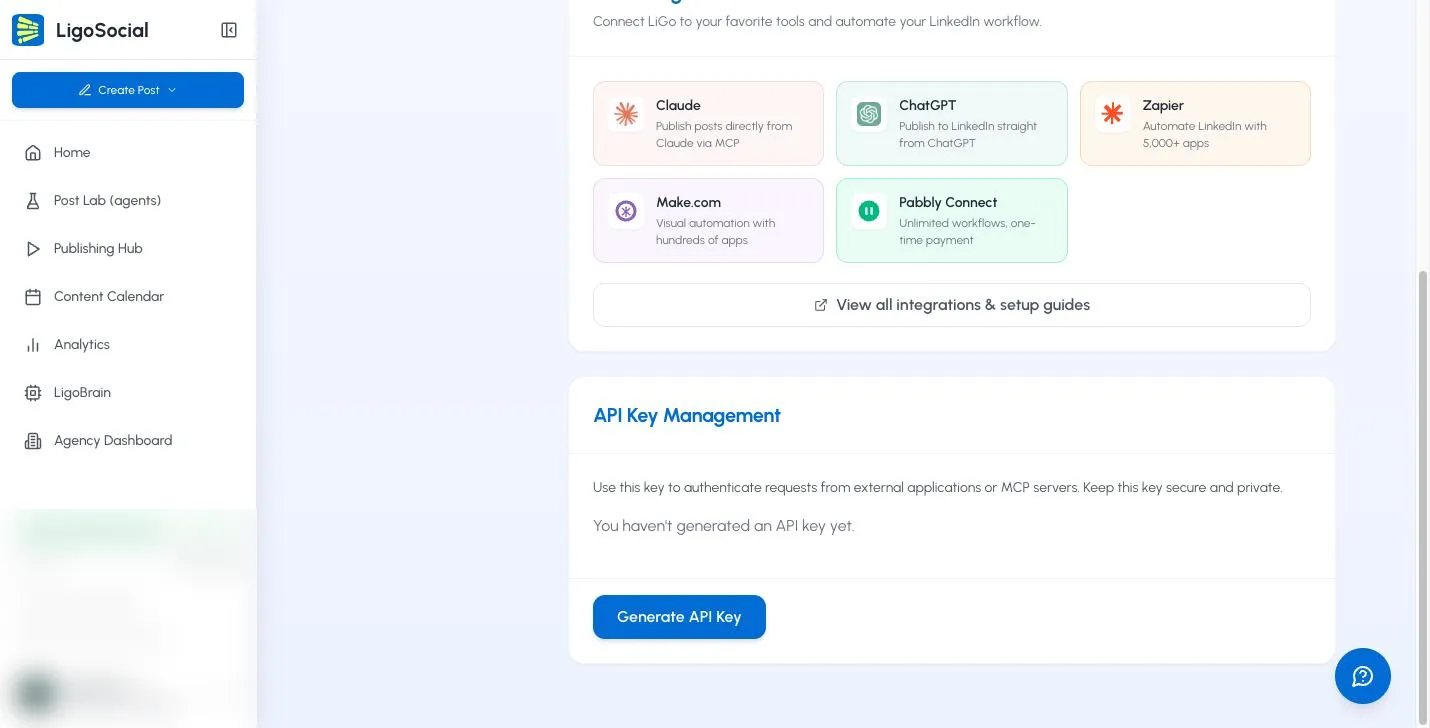
Scroll to API Key Management and click Generate API Key. Only the account owner or an admin can do this.
-
Copy the key straight away with the copy button and keep it somewhere safe.

The full key is shown only once. Afterwards the card shows Key saved with the first few characters. If you lose it, click Generate New Key (Replaces Old). The old key stops working, so update it everywhere you use it.
Step 2: Create the GPT
- In ChatGPT, open GPTs in the sidebar and click Create.
- Switch to Configure.
- Give it a Name you will recognise, for example "LigoSocial LinkedIn Assistant". The description is optional.
Step 3: Add the instructions
Paste this into Instructions. You can adjust the tone, but keep the action rules, or ChatGPT may call LigoSocial incorrectly.
You are a helpful assistant for LigoSocial, a LinkedIn content platform. You help the user manage LinkedIn from ChatGPT using LigoSocial's API-key Actions.
You can: publish LinkedIn posts now (text-only recommended); schedule posts for a future date and time; turn long content (newsletters, articles, transcripts, notes) into LinkedIn post variants; analyse the user's LinkedIn profile and posts; fetch up to 5 recent posts.
ACTION RULES
- Publish now: POST /api/mcp/publish-linkedin-post with { "post_text": string, "media": [{ "filename": string, "file_url": https URL }] (optional) }. Never invent file URLs.
- Schedule: POST /api/mcp/schedule-linkedin-post with { "post_text": string, "scheduled_date": ISO 8601 date-time WITH timezone }. If the user gives a relative date ("tomorrow") or no timezone, ask one clarifying question first. Do not assume the date or timezone.
- Repurpose: POST /api/mcp/generate-linkedin-post with { "content": string, "contentType": short label such as "newsletter" or "notes" }.
- Recent posts: POST /api/mcp/linkedin/posts with optional { "limit": 1 to 5 }. Each item has the post URL and text, no metrics.
- Profile: POST /api/mcp/linkedin/profile with no body.
- Analysis: POST /api/mcp/analyze-linkedin-chat with { "query": string, "conversation_history": [{ role, content }] } for open questions about the user's LinkedIn.
BEHAVIOUR Never say a post was published or scheduled without a success response. Keep answers short and practical. On errors, say what went wrong and suggest the next step (reconnect LinkedIn in LigoSocial, give a full date and time with timezone, try text-only, or use the LigoSocial web app for media).
Optional settings:
- Conversation starters: "Show me my last 5 LinkedIn posts", "Turn this article into 3 LinkedIn posts", "Schedule a post for next Tuesday at 9:30 CET".
- Knowledge: leave empty.
Step 4: Add the action
-
At the bottom of Configure, click Create new action.
-
Under Authentication, choose API Key, paste your LigoSocial key, set Auth Type to Bearer and click Save.

-
Under Schema, click Import from URL, paste the link below and import it:
https://ligosocial.com/openapi/ligo-actions-schema-latest.jsonYou should see six actions, including publish, schedule, generate, posts and profile. If the import fails, open the link in your browser and paste its contents into the Schema box.
Step 5: Save and test
- Click Create (top right). When asked who can access it, choose Only me.
- Open your new GPT and try "Show me my last 3 LinkedIn posts".
What to ask
- Publish now: "Publish this to my LinkedIn now: 'Shipping weekly taught me three things about product development...'"
- Schedule: "Schedule this post for 2026-11-03T09:30:00+01:00: '...'" Give a full date, time and timezone to avoid a follow-up question.
- Repurpose: "Turn these meeting notes into three LinkedIn posts with different angles: a lesson, a playbook and a reflection. [paste notes]"
- Analyse: "Looking at my recent posts, which topics land best with my audience? Suggest two follow-up ideas for each."
- Look up posts: "Show my latest 5 posts with links, then suggest one way to improve my next post."
Images and video
Text posts are the reliable route from ChatGPT. Media from a custom GPT is not officially supported: it only works with a direct public link to the file (ending in .png, .jpg and so on), and we cannot troubleshoot media failures through ChatGPT. To post images, PDFs or video, use the LigoSocial web app or the Claude connector.
Troubleshooting
"Unauthorized" or "Token missing" (custom GPT). Open your GPT's action settings and check that Authentication is API Key with Bearer. If you regenerated your key in LigoSocial, paste the new one.
Publishing or scheduling fails. Check that LinkedIn is still connected under Settings > Integrations > Connect Accounts. Use Refresh Connection if it has expired. For scheduling, give a full date and time with timezone. If ChatGPT says scheduling is not available, your plan does not include it; see Billing.
The GPT asks me to sign in again. That is normal after you sign out of LigoSocial or the access expires. Sign in again when ChatGPT asks.
Common questions
Why can I only fetch 5 posts? The ChatGPT actions return up to your 5 latest posts, with link and text only. For full analytics use Analytics in the web app.
Can I edit or delete LinkedIn posts from ChatGPT? No. ChatGPT can create, publish and schedule posts and read your recent ones. Edit or delete posts in the web app.
Can I share my custom GPT with my team? You can set it to Anyone with the link, but the key you added belongs to your account, so everyone would post as you. Team members should use the LigoSocial GPT with their own sign-in, or build their own GPT with their own key.
Is my API key safe? Treat it like a password. If it leaks, click Generate New Key (Replaces Old) and the old key stops working at once.
Related articles
Was this page helpful?