
Zapier Integration: Automate LinkedIn Tasks with LigoSocial
The LigoSocial app for Zapier connects your LinkedIn workflow to thousands of other apps, with no code. For example, a new calendar event can become a scheduled LinkedIn post, a new scheduled post can ping your team on Slack, or a blog article can be turned into post drafts automatically.
In some Zapier menus the app still appears under its earlier name, LiGo. It is the same app and account.
What you can automate
Triggers (start a Zap from LigoSocial):
- New LinkedIn post published: fires when a post goes live through LigoSocial.
- New LinkedIn post scheduled: fires when a post is added to your schedule.
Actions (LigoSocial does something when another app triggers it):
- Publish a LinkedIn post right away.
- Schedule a LinkedIn post for a date, time and time zone.
- Create drafts from an idea: turn a rough idea into post variants saved to your drafts.
- Repurpose content: turn an article, email or transcript into LinkedIn post variants.
- Generate post ideas for your profile.
- Find posts: fetch your drafts, scheduled or archived posts, or posts with a given label.
Publishing works on every LigoSocial plan. Triggers, scheduling and the other actions are available on plans that include them; see Billing in the app.
Step 1: Accept the Zapier invite
The LigoSocial app is shared by invite. Open the Zapier invite link while signed in to Zapier and accept it. After that, the app shows up when you search for it in Zapier.
Step 2: Generate your API key
-
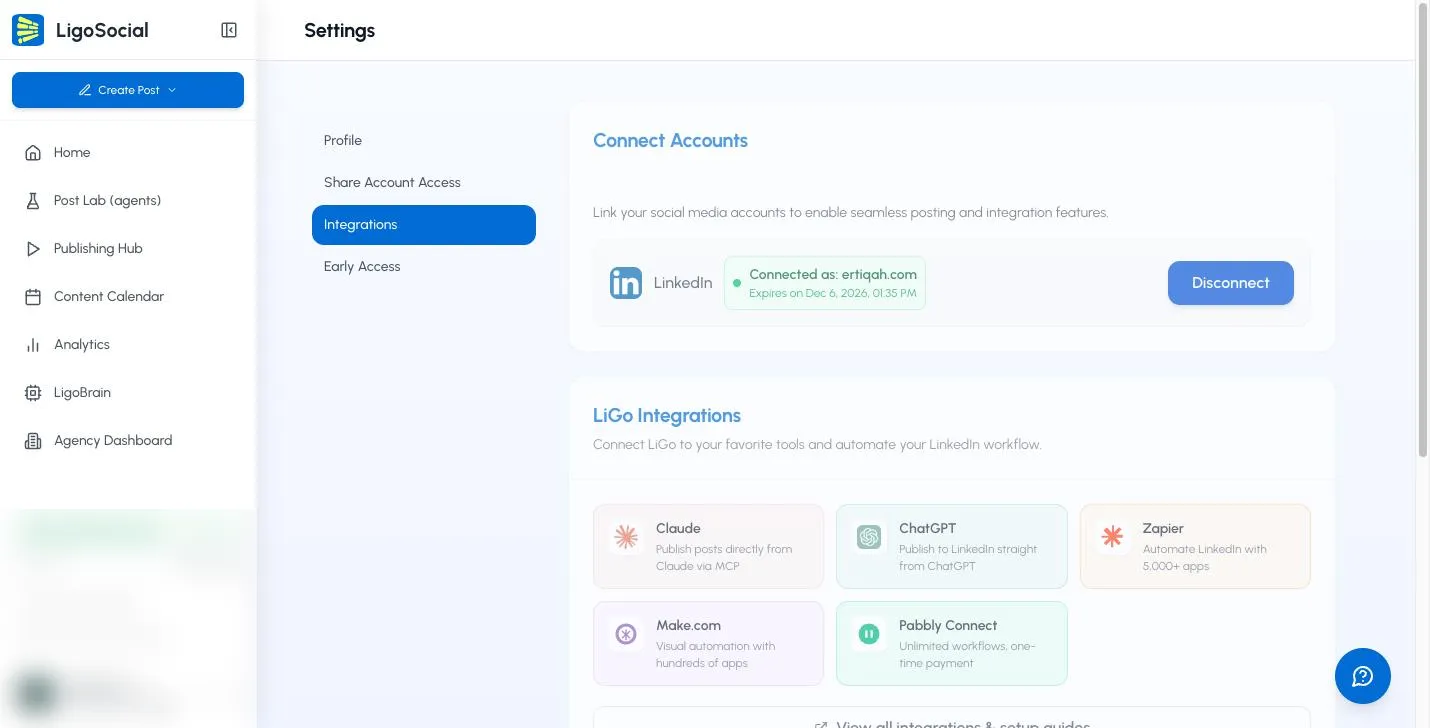
In the LigoSocial web app, click Settings & Support at the bottom of the sidebar, then Settings, then Integrations. Or go straight to https://app.ligosocial.com/settings#integrations.
-
Check that LinkedIn shows Connected as under Connect Accounts. Zaps cannot post without it.
-
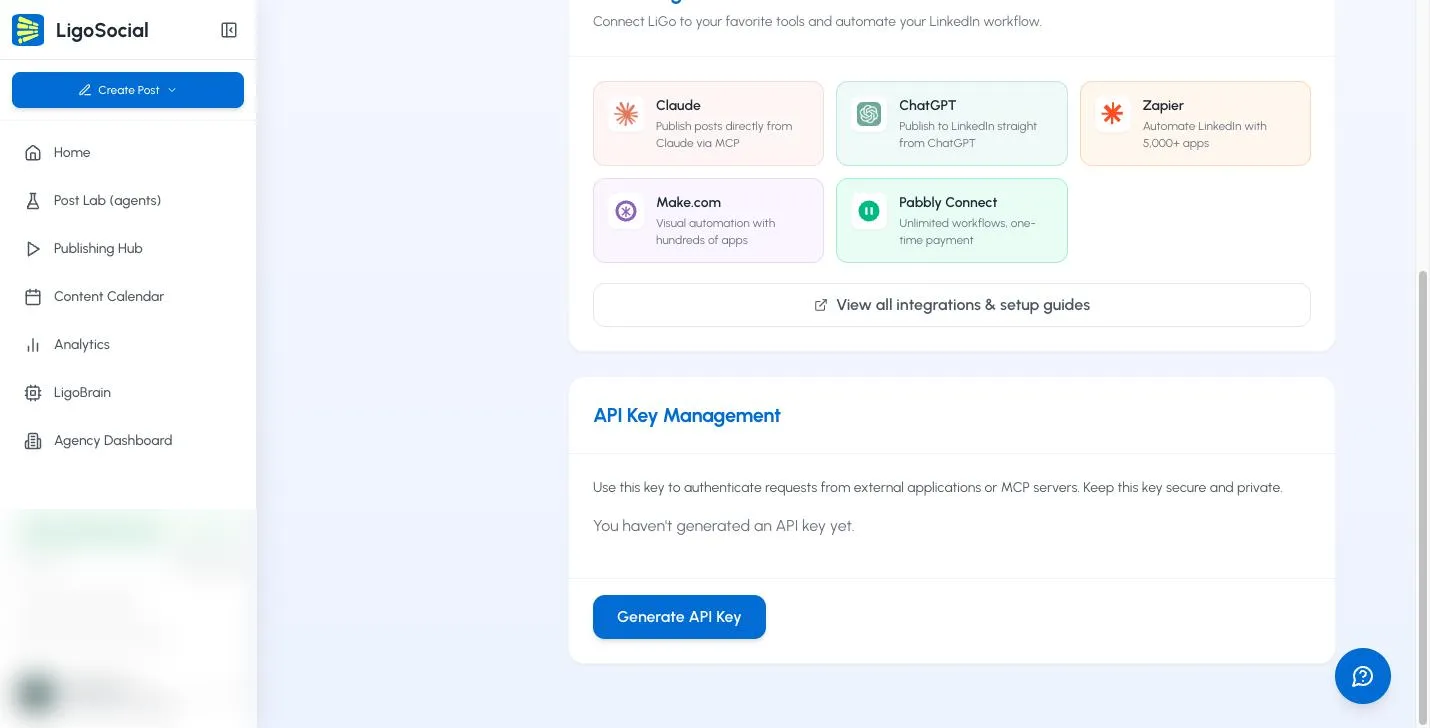
Scroll to API Key Management and click Generate API Key. Only the account owner or an admin can do this.
-
Copy the key right away and keep it safe.
The full key is shown only once. Later the card only shows Key saved with the first few characters. If you need the key again, click Generate New Key (Replaces Old); the old key stops working, so reconnect Zapier with the new one.
Step 3: Connect LigoSocial in Zapier
- In Zapier, start a new Zap, or open your app connections and add a new connection.
- Search for LigoSocial (or LiGo) and choose it.
- When Zapier asks for your API key, paste the key from Step 2 and continue.
- Zapier tests the connection. When it succeeds, your LigoSocial account appears in your Zapier app connections and you can pick its triggers and actions.
Example Zaps
Google Calendar event to scheduled LinkedIn post
- Trigger: Google Calendar, new event.
- Formatter by Zapier: format the event's start date as YYYY-MM-DD and the time with its time zone. LigoSocial needs the date, time and time zone in a clear format.
- Action: LigoSocial, schedule a LinkedIn post, with the event description as the post text.
- Optional: Gmail, send yourself a confirmation.
Tell your team when a post is scheduled
- Trigger: LigoSocial, new LinkedIn post scheduled.
- Action: Slack or Discord, send a channel message with the post text and date.
Turn chat messages into post ideas
- Trigger: ClickUp or Slack, new message in a chosen channel.
- Action: LigoSocial, create drafts from an idea.
- Optional: create a task to review the drafts in the Publishing Hub.
Repurpose new blog articles
- Trigger: RSS by Zapier, new item in your blog feed.
- Action: LigoSocial, repurpose content, using the article text.
- Review the variants in your drafts before publishing.
Test your Zap
- Use Zapier's test buttons on the trigger and each action before you turn the Zap on.
- Start with a draft or scheduled post rather than publishing straight away, so you can check the result in LigoSocial first.
- Check Zapier's Zap history for the request, the response and any error code.
Troubleshooting
401 or 403 when connecting or running a step. The key is wrong, has been replaced, or the action is not included in your plan. Paste the key again without extra spaces. If you generated a new key in LigoSocial, reconnect Zapier with it. If the message mentions your plan, see Billing in the app.
I can't find the app in Zapier. Accept the invite in Step 1 while signed in to the same Zapier account, then search again for LigoSocial or LiGo.
Scheduling fails with a date or time error. Add a Formatter step so the date is YYYY-MM-DD and the time includes the time zone.
The post did not appear on LinkedIn. Open Settings > Integrations and check the LinkedIn connection. If it has expired, click Refresh Connection.
No sample data for the trigger. Create a test post in LigoSocial (publish or schedule one) so Zapier has something to pull in.
If you are still stuck, use Contact Support under Settings & Support in the sidebar, or email [email protected]. Include the Zap name, the failed step, the error and the time it happened.
Keep your key safe
- Treat the API key like a password. Do not paste it into shared documents or public code.
- If it may have leaked, click Generate New Key (Replaces Old) at once and reconnect Zapier.
- Share Zapier connections only with people you trust, since they can post as you.
Common questions
Do I need to know how to code? No. Everything is set up in Zapier's visual editor.
How do I disconnect LigoSocial from Zapier? In Zapier, open your app connections, find LigoSocial (or LiGo) and remove it. To block access completely, also generate a new key in LigoSocial.
Where are the developer docs? The LigoSocial API reference is at https://ligosocial.com/api-documentation.
Related articles
Was this page helpful?