
Post Scheduling & Publishing
This guide shows how to connect LinkedIn, publish a post right away, schedule it for later and manage everything you have scheduled. It is for anyone who has a post ready in the Publishing Hub and wants it on LinkedIn.
Connect your LinkedIn account
You need to connect LinkedIn once before you can publish or schedule.
- In the Publishing Hub, open a post's ... menu and choose Publish Now or Schedule for later.
- If LinkedIn is not connected yet, the Enable LinkedIn Posting dialog opens. Click Enable Posting.
- You are taken to Settings > Integrations. In the Connect Accounts card, click Connect next to LinkedIn and approve access on LinkedIn.

You can manage the connection at any time from Settings & Support > Settings > Integrations, or at https://app.ligosocial.com/settings#integrations. When connected, the LinkedIn row shows who you are connected as, when the connection expires and a Disconnect button. If it has expired, click Refresh Connection.

LinkedIn sign-in uses LinkedIn's own secure authorization. We never see or store your LinkedIn password.
Publish a post now
- Open the Publishing Hub from the sidebar and select your post.
- Open the ... menu on the post card and click Publish Now, or press P.
- In the Do you want to publish this post? dialog, click Yes, publish it!.
The post moves to the Published tab. Before publishing, it is worth checking Preview on LinkedIn in the same menu to see how the post looks on desktop and mobile.
If the post is over 2,800 characters, LigoSocial asks you to shorten it first, because LinkedIn often rejects posts close to its 3,000 character limit.
Schedule a post for later
-
Open the ... menu on the post card and click Schedule for later, or press S.
-
The Schedule Your Post dialog opens. Under 1 Select a Date, pick a day. Past dates are greyed out.

-
Under 2 Select a Time, pick one of the suggested times. Times you set in your posting preferences show Your Preference. Other suggestions come from when your past posts got the most engagement and show the average reactions, or Recommended.

-
To choose your own time, click Select Custom Time. Pick the hour, the minutes (00, 15, 30 or 45) and AM or PM, then click Confirm.

-
Optional: under 3 Post Preview, click See Preview Before Scheduling for a last look.
-
Click the button at the bottom, which reads Schedule Post for followed by your date, time and time zone.

Good to know:
- Times use your browser's time zone, which is shown on the final button. There is no separate time zone picker in this dialog.
- You can schedule up to 2 months ahead.
- Scheduling is available on plans that include it. If yours does not, LiGo shows a message when you try to schedule. To see your options, open Settings & Support > Manage Subscription.
Manage scheduled posts
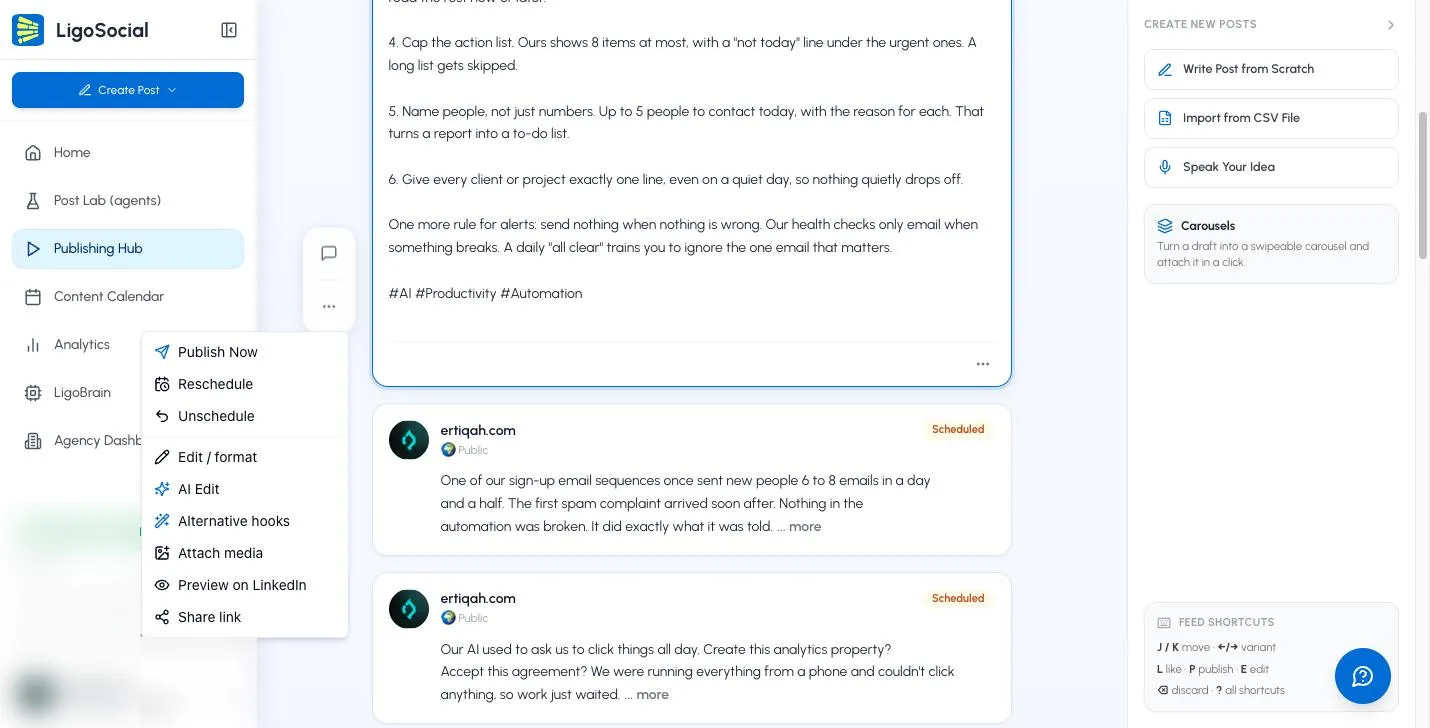
Open the Scheduled tab in the Publishing Hub. Each post shows a Scheduled badge. Open its ... menu to:
- Publish Now: post it immediately instead of waiting.
- Reschedule: pick a new date or time.
- Unschedule: cancel the schedule and move the post back to Drafts.
- Edit / format, AI Edit, Attach media and Preview on LinkedIn: change the post. It stays scheduled for the same time.
To delete a scheduled post, unschedule it first, then discard it from Drafts.
Published and failed posts
- Published: posts that are live on LinkedIn. To open the live post, find it in the Content Calendar, open its preview and click View on LinkedIn.
- Failed: posts that could not be published at their time. Open the ... menu and choose Retry Publish, or Schedule for later to pick a new time. If posts keep failing, check your LinkedIn connection in Settings > Integrations and click Refresh Connection or reconnect.
Use the Content Calendar
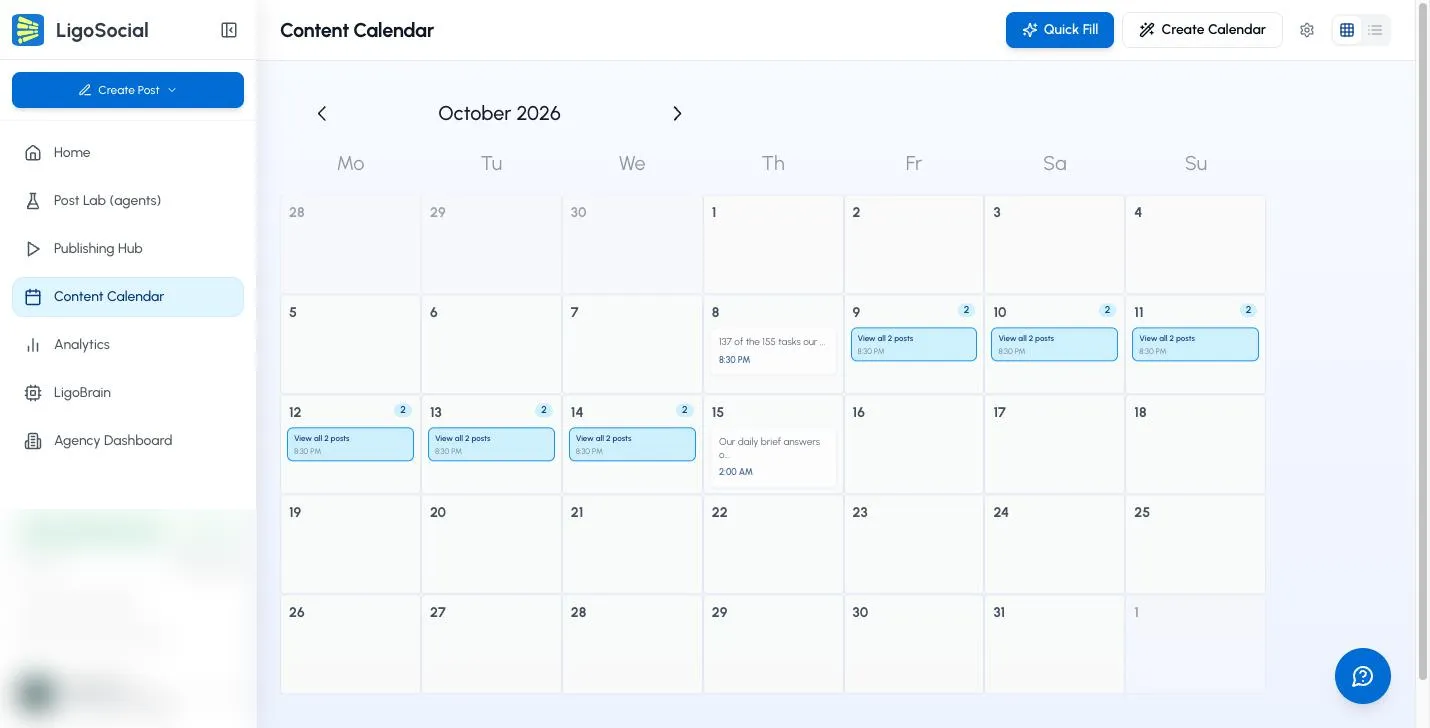
The Content Calendar (sidebar, or https://app.ligosocial.com/content-calendar) shows all your scheduled and published posts by date.
-
Switch between Calendar View and List View with the icons at the top right.
-
Click a post to preview it.
-
Click a day (or Schedule New Post in List View) to schedule a post for that date. You will see your Liked posts. Pick one, click Continue to Time Selection, choose a time and click Confirm Schedule. Only Liked posts appear here, so like a variant first in the Publishing Hub.

-
The gear icon opens Set Your Posting Schedule, where you set how often and when you like to post. These preferred times are shown first when you schedule.
-
Quick Fill places your Liked posts into your preferred time slots.
-
Create Calendar walks you through how often to post, which days and how far ahead, then adds your ready posts to the calendar for review.
How scheduled posts are published
Scheduled posts stay in LigoSocial until their time. At that moment we publish them to LinkedIn directly, the same way as Publish Now. We do not hand them to LinkedIn's own scheduler.
Tips for timing
- Start with the suggested times in the scheduling dialog. They are based on when your own posts have done best.
- If you have no history yet, weekday mornings, lunchtime and late afternoon in your audience's time zone are sensible starting points. Test and adjust.
- If your audience is in another time zone, convert their best time to your own time before you schedule, since the dialog uses your browser's time zone.
- For more ideas, read Best days and times to post on LinkedIn.
Common questions
How far ahead can I schedule?
Up to 2 months.
Can I edit a scheduled post?
Yes. Open it in the Scheduled tab and use Edit / format from the ... menu. It keeps its scheduled time unless you choose Reschedule.
Can I post the same content more than once?
Yes, but leave a few weeks between them and change the wording, so the repeat feels fresh to your audience.
Related articles
Was this page helpful?