
Automation with Pabbly Connect
Pabbly Connect lets you link apps together into workflows without code. The LigoSocial app for Pabbly Connect lets those workflows publish, schedule and draft LinkedIn posts in your voice, or start when you publish or schedule a post in LigoSocial. For example, a new row in a Google Sheet can become post drafts, or a new blog article can become three LinkedIn variants.
In Pabbly Connect the app may still appear under its earlier name, LiGo. It is the same app and account.
What you can automate
Triggers (start a workflow from LigoSocial):
- New LinkedIn post published: fires when a post goes live through LigoSocial.
- New LinkedIn post scheduled: fires when a post is added to your schedule.
Actions (LigoSocial does something inside your workflow):
- Publish a LinkedIn post right away.
- Schedule a LinkedIn post for a date, time and time zone.
- Create drafts from an idea: turn a rough idea into three post variants saved to your drafts.
- Repurpose content: turn an article, email or transcript into three LinkedIn post variants.
- Generate post ideas for your profile.
- Find posts: fetch your drafts, scheduled or archived posts, or posts with a given label.
Publishing works on every LigoSocial plan. Triggers, scheduling and the other actions are available on plans that include them; see Billing in the app.
Key terms
- Workflow: the whole automation you build in Pabbly Connect.
- Trigger: the first step, the event that starts the workflow (for example a new sheet row or RSS item).
- Action: a task the workflow performs (for example creating drafts in LigoSocial or sending a Slack message).
- Field mapping: placing data from an earlier step into a field of the current step (for example mapping the sheet row's text into the idea field).
Step 1: Generate your API key
-
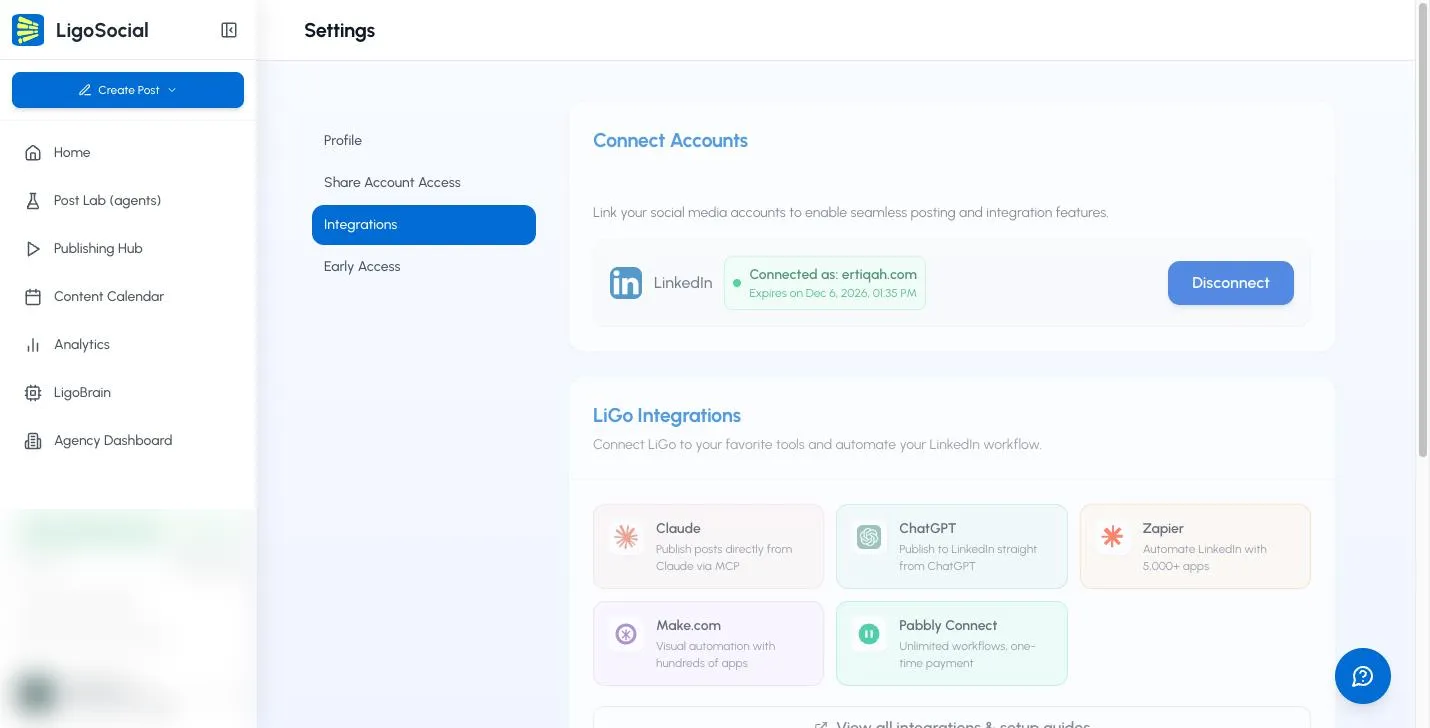
In the LigoSocial web app, click Settings & Support at the bottom of the sidebar, then Settings, then Integrations. Or open https://app.ligosocial.com/settings#integrations.
-
Check that LinkedIn shows Connected as under Connect Accounts. Workflows cannot post without it.
-
Scroll to API Key Management and click Generate API Key. Only the account owner or an admin can do this.

-
Copy the key right away and keep it somewhere safe.
The full key is shown only once. Later the card shows Key saved with the first few characters. If you need the key again, click Generate New Key (Replaces Old). The old key stops working, so update every connection that used it.
Step 2: Add the shared app to Pabbly Connect
The LigoSocial app for Pabbly Connect is shared by link. Open the Pabbly Connect share link while signed in to Pabbly Connect and accept it.
Step 3: Build a workflow
- In Pabbly Connect, click Create Workflow and give it a clear name.
- Choose your trigger app and event.
- Add an action step, search for LigoSocial (or LiGo) and pick the action you want.
- When asked to connect, paste your API key from Step 1.
- Map the fields from your trigger into the LigoSocial action.
Example workflows
Google Sheets row to post drafts
- Trigger: Google Sheets, new or updated row.
- Action: LigoSocial, create drafts from an idea, mapping the idea column.
Each new idea in your sheet becomes three draft variants in the Publishing Hub.
RSS feed to repurposed posts
- Trigger: RSS by Pabbly, new item in feed.
- Action: LigoSocial, repurpose content, mapping the article text.
Every new article becomes LinkedIn variants in your voice, ready to review.
Slack alert when a post is scheduled
- Trigger: LigoSocial, new LinkedIn post scheduled.
- Action: Slack, send channel message with the post text and scheduled date.
Trello card to post drafts
- Trigger: Trello, card moved to a list (for example "Content").
- Action: LigoSocial, create drafts from an idea, mapping the card description.
Test your workflow
- After setting up a step, click Save & Send Test Request.
- Check the response. It should contain real data from your account.
- Make sure the thing you are asking for exists. If a step fetches drafts, have at least one draft in LigoSocial; if a trigger waits for a scheduled post, schedule a test post.
Start with draft actions rather than publishing, so you can check the result in LigoSocial before anything goes live.
Troubleshooting
401 or 403 errors, or an empty response. The key is wrong, has been replaced, or the action is not included in your plan. Paste the key again without extra spaces. If you generated a new key in LigoSocial, update the connection in Pabbly Connect. If the message mentions your plan, see Billing in the app.
I can't find the app in Pabbly Connect. Open the share link in Step 2 again while signed in to the same Pabbly Connect account, then search for LigoSocial or LiGo.
The trigger has no sample data. Do the action once in LigoSocial (for example schedule a post) so the trigger has an event to capture.
Scheduling fails with a date or time error. Send the date as YYYY-MM-DD and include the time zone. Pabbly's date formatter can convert it.
The post did not appear on LinkedIn. Open Settings > Integrations and check the LinkedIn connection. If it is expiring or has expired, click Refresh Connection.
Very long content. Repurposing works on up to 10,000 characters. Split longer pieces into parts.
Keep your key safe
- Treat the API key like a password. Do not share it or put it in screenshots.
- If it may have leaked, click Generate New Key (Replaces Old) at once and update your workflows.
- Only share Pabbly Connect connections with people you trust, since they can post as you.
Common questions
How do I disconnect LigoSocial from Pabbly Connect? In Pabbly Connect, open your connections, find the LigoSocial (or LiGo) connection and delete it. To block access completely, also generate a new key in LigoSocial.
Where are the developer docs? The LigoSocial API reference is at https://ligosocial.com/api-documentation, and the Pabbly Connect overview page is https://ligosocial.com/integrations/pabbly.
Contact support
Use Contact Support under Settings & Support in the sidebar, or the round Contact Support button at the bottom right of the screen (on a computer). You can also email [email protected]. Include the workflow name, the step that failed, a screenshot of the error and the time it happened. Never send your API key.
Related articles
Was this page helpful?