
Step-by-Step LinkedIn Company Page Setup
LigoSocial can run a LinkedIn Company Page as well as a personal profile. With a company account you write posts in your brand's voice, schedule and publish them to the page, and see page analytics. This guide is for page admins setting up a company account for the first time.
Before you start
- One LinkedIn connection per account. Each LigoSocial account connects to either one personal profile or one company page, not both. If your current account is set up for your personal profile, use a separate account for the company page.
- You must be a page admin. You connect the page by signing in to LinkedIn with your own profile, and that profile needs content administrator (or higher) access to the page.
- Use the public page URL. It looks like
https://www.linkedin.com/company/your-company-name/. Do not use the admin view (.../admin/...) or a URL with a numeric ID such as.../company/12345678/. LinkedIn's numeric IDs cannot be matched to your page.
How to find the public URL
- On a computer: search for your company on LinkedIn, open the page as a visitor and copy the address from the browser bar.
- In the LinkedIn app: open the company page, tap the three dots, then share and copy the link.
Step 1: Create the company account
- Go to https://app.ligosocial.com/auth and sign up with an email address that is not already used for LigoSocial. Your work email is a good choice.
- On your first visit, Lee (the setup assistant on Home) asks you to paste your LinkedIn profile link. Paste the public company page URL. LigoSocial recognises a
/company/link and sets the account up as a company page. - Answer the rest of Lee's questions about your role, goals and audience.
Already have a personal account and want to reuse the same email? You can delete it from Settings > Profile (the Delete Account card at the bottom), then sign up again. Deleting is permanent and removes your posts, themes and settings, so most people pick a second email instead.
Step 2: Check the LinkedIn URL in your profile
- Click Settings & Support at the bottom of the sidebar, then Settings.
- In Profile, check that LinkedIn URL shows your company page URL.
- If you changed it, click Save Changes.
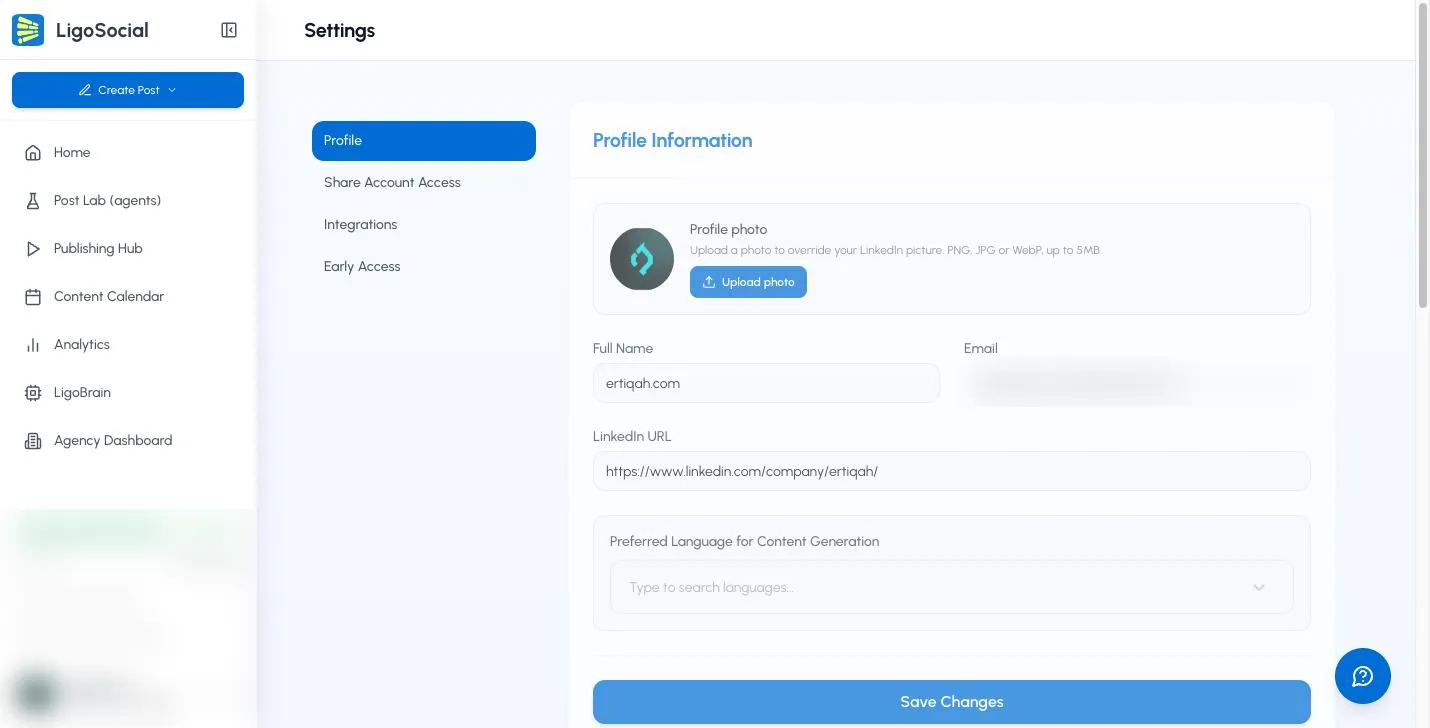
If the account is a company page but the URL is a personal profile (or the other way round), you will see an Invalid URL warning asking you to change it.
Step 3: Connect the company page
- In Settings, click Integrations.
- In the Connect Accounts card, click Connect next to LinkedIn.
- In Connect LinkedIn Account, choose Company Page, then click Continue.
- Sign in to LinkedIn with the personal profile that administers the page, and approve access.
When it works, the LinkedIn row shows Connected as: with your page name and an expiry date.
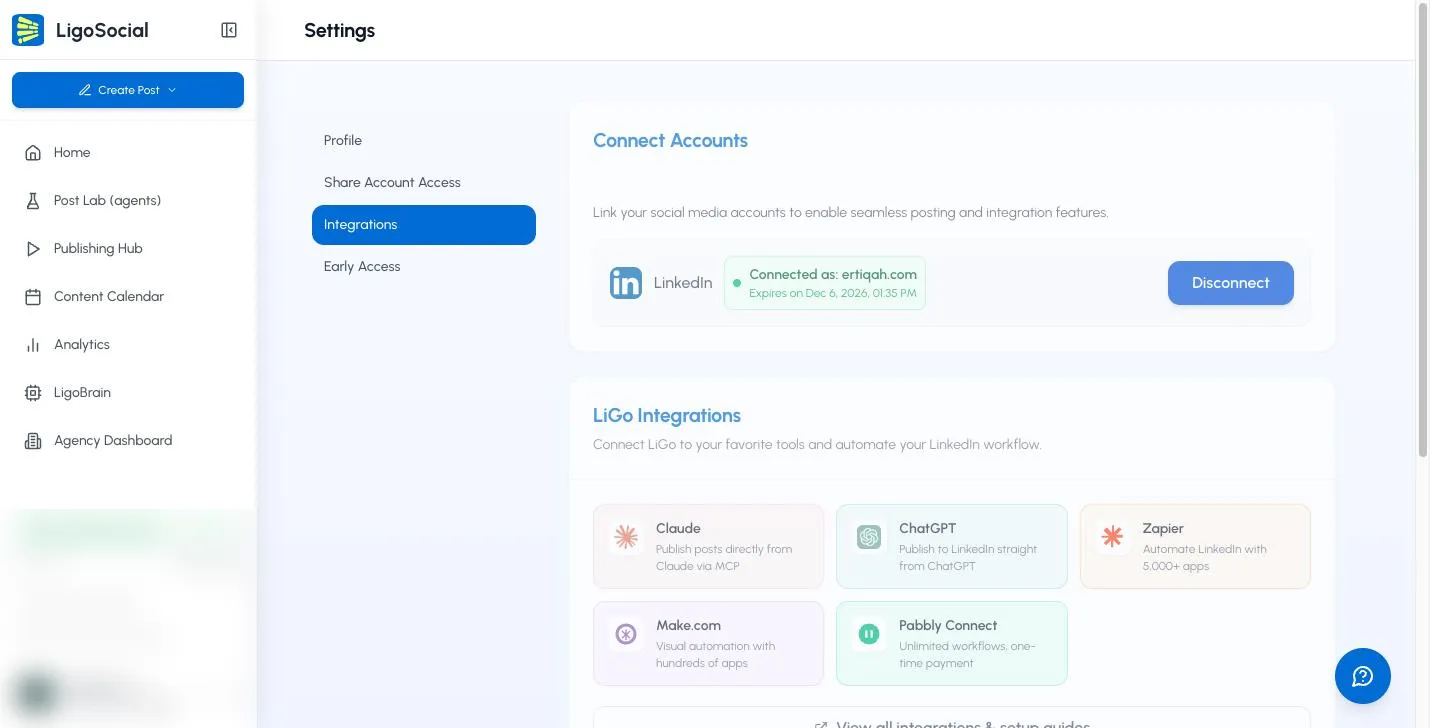
If you see Company Page Permission Required, the LinkedIn profile you signed in with does not have content administrator (or higher) access to the page. Ask a page super admin to give you that role in LinkedIn, then connect again. Until then, publishing to the page will fail.
LinkedIn connections expire after a while. When the expiry date gets close, the button changes to Refresh Connection. Click it and approve access again.
Step 4: Teach LigoSocial about the company
Generated posts are only as good as what LigoSocial knows about your business.
- Fill in the page on LinkedIn. A clear About section, tagline, logo and a few existing posts give the AI much more to work with than an empty page.
- Import your website. Open LigoBrain in the sidebar, find Import from Website, enter your domain and click Scan. LigoSocial reads the site and stores facts about your company, products and market as memories it uses when writing.
Step 5: Create, publish and track
- Create posts from Create Post at the top of the sidebar, and schedule them in the Publishing Hub or Content Calendar. They publish to the company page you connected.
- Open Analytics in the sidebar. For a company account it opens company analytics with Overview, Posting Timeline and AI Insights. If it says No Company Data Available, try a wider date range or check that the page has recent posts and is connected.
Managing several company pages
Each page needs its own LigoSocial account. Agencies and teams can then invite one person to all of them with Share Account Access and move between them with Switch Account at the bottom of the sidebar. See Understanding LiGo's delegate access feature.
FAQ
Can one account post to my personal profile and my company page? No. Each account connects to one LinkedIn entity. Use one account for your profile and another for the page.
Do I connect with the company's login? No. LinkedIn pages do not have their own login. You sign in with your personal LinkedIn profile, which must be an admin of the page, and choose Company Page when connecting.
Publishing to the page fails. What should I check? First, that your profile still has content administrator access to the page. Then check the connection in Settings > Integrations and click Refresh Connection if it is expiring or expired. Retry the post from the Failed tab in the Publishing Hub.
My generated posts sound generic. Add detail to your LinkedIn page, run Import from Website in LigoBrain, and see Creating your first content theme.
Need help?
Click the round Contact Support button at the bottom right of the screen (on a computer), or Settings & Support > Contact Support in the sidebar. You can also email [email protected].
Was this page helpful?