
Creating Your First Content Theme
A content theme tells LigoSocial what you talk about, who you talk to and why they should care. Every post idea generated from a theme builds on it, so a specific theme gives you specific, useful ideas. This guide is for anyone setting up their first theme.
What a theme contains
A theme is a short brief about you and your content:
- Who you are and what you offer
- Who you want to reach
- What topics you cover
- How your posts should sound (your example posts)
The idea of a few clear content pillars comes from popular LinkedIn creator strategy: pick a small number of themes and post consistently within them.
Open the Content Themes page
- In the default sidebar, click Create Post, then Explore themes.
- In the Classic layout, open WRITE > Content Themes.
- Or go to https://app.ligosocial.com/themes-library.
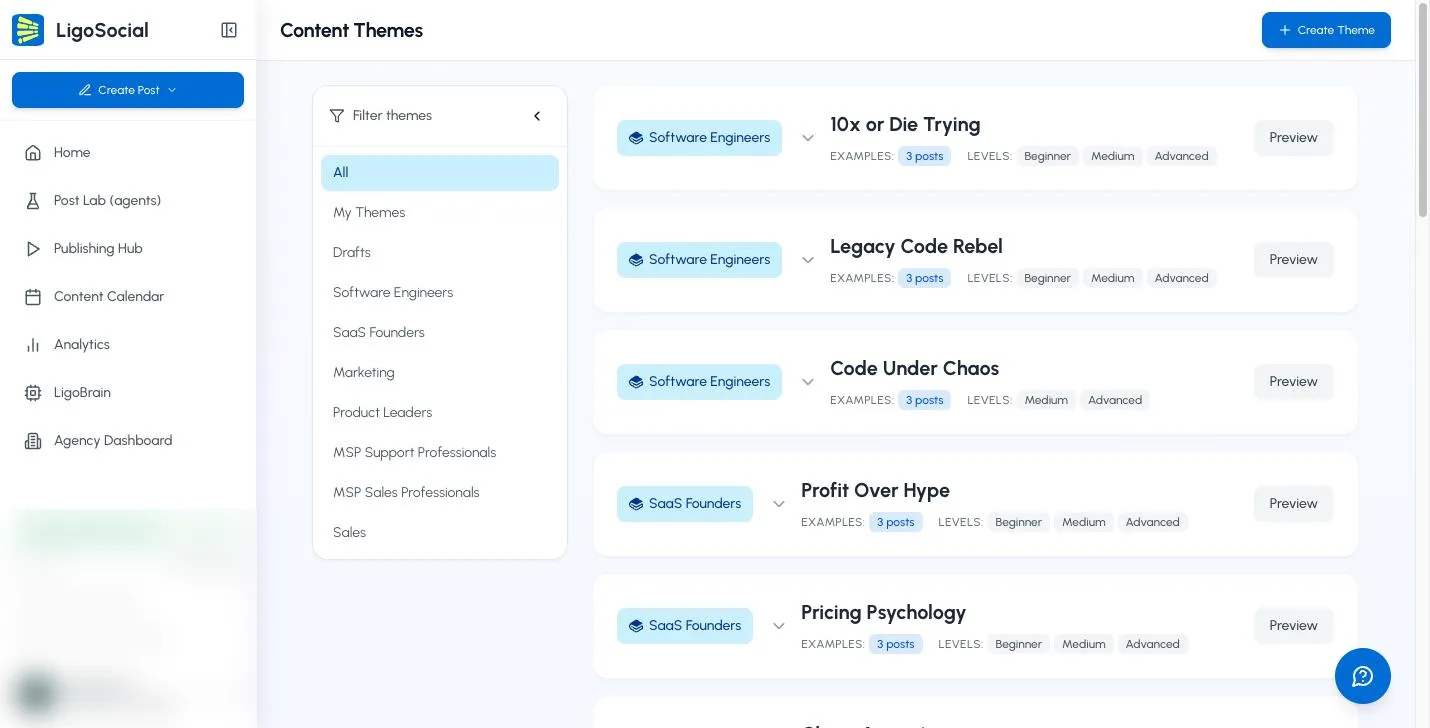
The page opens on My Themes. Use the Filter themes panel to switch to All, Drafts or a ready-made category such as SaaS Founders or Marketing. Click Preview on any ready-made theme to see what it contains.
Choose how to create your theme
Click Create Theme. The Create New Theme dialog offers two ways to start:
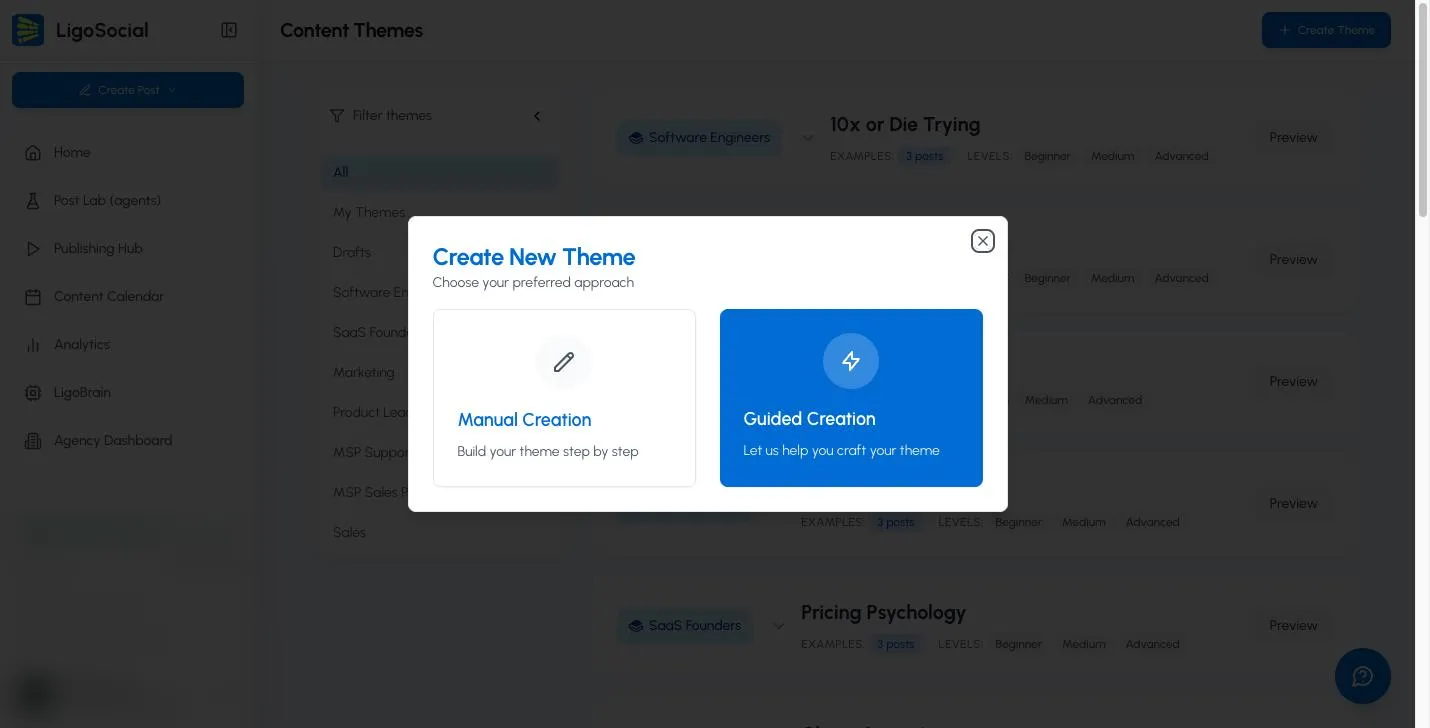
- Guided Creation ("Let us help you craft your theme"): best if you do not have a LinkedIn strategy yet. The Theme Assistant asks you a few questions (you can type or speak your answers) and then suggests several draft themes. Click Select & Customize on the one you like. The others are saved so you can use them later.
- Manual Creation ("Build your theme step by step"): best if you already know your positioning, for example if you are a ghostwriter or have posted for years. You fill in each field yourself.
The rest of this guide covers the fields in the theme editor, which you will use either way.
Fill in the theme editor
The editor has two cards. Your Content Pillar on the left holds the theme details. Writing Style & Voice on the right holds your example posts.
Theme Name
A label for your own reference. It never appears in your posts, so make it easy to tell apart from your other themes.
Example: "From Agency Trenches to Growth Machine"
I write about
The specific topics you will cover. It does not need to be long, but it must be specific. Generic topics such as "AI, founder branding, LinkedIn marketing" lead to generic ideas.
- Name concrete problems and the solutions you know
- Mix tactical topics with bigger-picture ones
- Include the mindset side where it fits
Example: "The mental battles agency founders face but rarely discuss: imposter syndrome that stays even after success, decision paralysis, treating mediocrity as stability, the loneliness of leadership."
I write for
Your target audience, described in detail: their role, their challenges, where they are in their journey and what they want.
Example: "Agency founders stuck in survival mode, service business owners who know content matters but cannot post consistently, technical founders who deliver well but struggle to win clients."
Background & Offering
Your credibility and what you sell. The more context here, the better LigoSocial can connect your posts to your expertise.
- Start from your LinkedIn About section, if it is current.
- Add your experience and the problems you have solved.
- Explain what your product or service does and who it is for.
- Add what makes you different: your opinions, your story, and for products, your key features and how you differ from competitors.
Advanced settings (optional)
Click Show Advanced Settings to see two optional fields:
- Purpose (Optional): the value your content gives your audience. This can be broader than your business. If you sell content services to agencies, your purpose might be helping agencies build steady growth systems.
- Complexity Level (Optional): tick any of Beginner (new to the topic), Medium (knows the basics) and Hard (in-depth content for experts). You can choose more than one.
Save the theme
For a new theme, click Create Theme at the top. It becomes clickable once Theme Name, I write about, I write for and Background & Offering are filled in. After that, every change saves automatically and you will see Saving... and then Saved at the top.
Add example posts
Example posts teach LigoSocial the writing style for this theme. A thought-leadership theme and a storytelling theme should not sound the same, so this is where you fine-tune the voice per theme.
- In the Writing Style & Voice card, click Add Your Best Posts (or Teach LigoBrain Your Style if you have none yet). This opens Refine Your Style.
- Pick posts from:
- My Top Posts: your own best-performing LinkedIn posts. Click Use Style to add one.
- Expert Library: posts from well-known creators, if you want to borrow a style.
- Add from scratch: paste any post and click Save Style.
- Check your choices under Selected, then click Finish Calibration.
You need at least 3 example posts to generate ideas, and you can add up to 5. The badge on the card shows your progress, for example 3/5 Trained.
Tips for choosing examples:
- Pick posts that match this theme's topics.
- They can be your own posts or someone else's, since only the style is used.
- Include a mix of formats, such as a story, a list and a how-to.
For more detail, see Choosing example posts for your theme.
Generate your first ideas
Once you have 3 or more example posts, click Generate Post Ideas at the top of the editor. Until then the button shows how many more posts you need, for example Add 2 More Posts to Generate. Your new ideas appear on the Post Ideas page. See Reviewing and selecting content ideas.
Examples of strong themes
Software development agency
- Theme Name: "Engineering Leadership: Building Teams That Ship"
- I write for: Engineering managers and CTOs at early-stage startups
- Purpose: Helping technical leaders balance new ideas with reliable delivery
Marketing consultant
- Theme Name: "Data-Driven Marketing for Service Businesses"
- I write for: Service business owners frustrated by inconsistent marketing results
- Purpose: Cutting through marketing hype to focus on growth you can measure
Common questions
Can I create more than one theme?
Yes. There is no limit on the number of themes. Click Create Theme on the Content Themes page whenever you want another one.
How often should I update my theme?
Review it every few months, or whenever your business focus or audience changes.
What if I am not sure about my audience or purpose?
Start with what you know and refine it later. Your best-performing posts and your client conversations are good clues to what your audience cares about.
Related articles
Was this page helpful?