
Import Posts from a CSV file
Bulk import lets you add up to 50 posts at once from a CSV file, with optional labels and schedule times. Use it when you move drafts over from another tool, work with a ghostwriter's spreadsheet, or plan a batch of posts in one go.
What you need
A CSV file with a header row and at least one column named content. Everything else is optional. You can make the file in Excel or Google Sheets and export it as CSV.
Import your posts
-
Open the Publishing Hub from the sidebar (or go to https://app.ligosocial.com/publish-post).
-
In the Create New Posts panel on the right, click Import from CSV File. On a phone, tap the + button first.
-
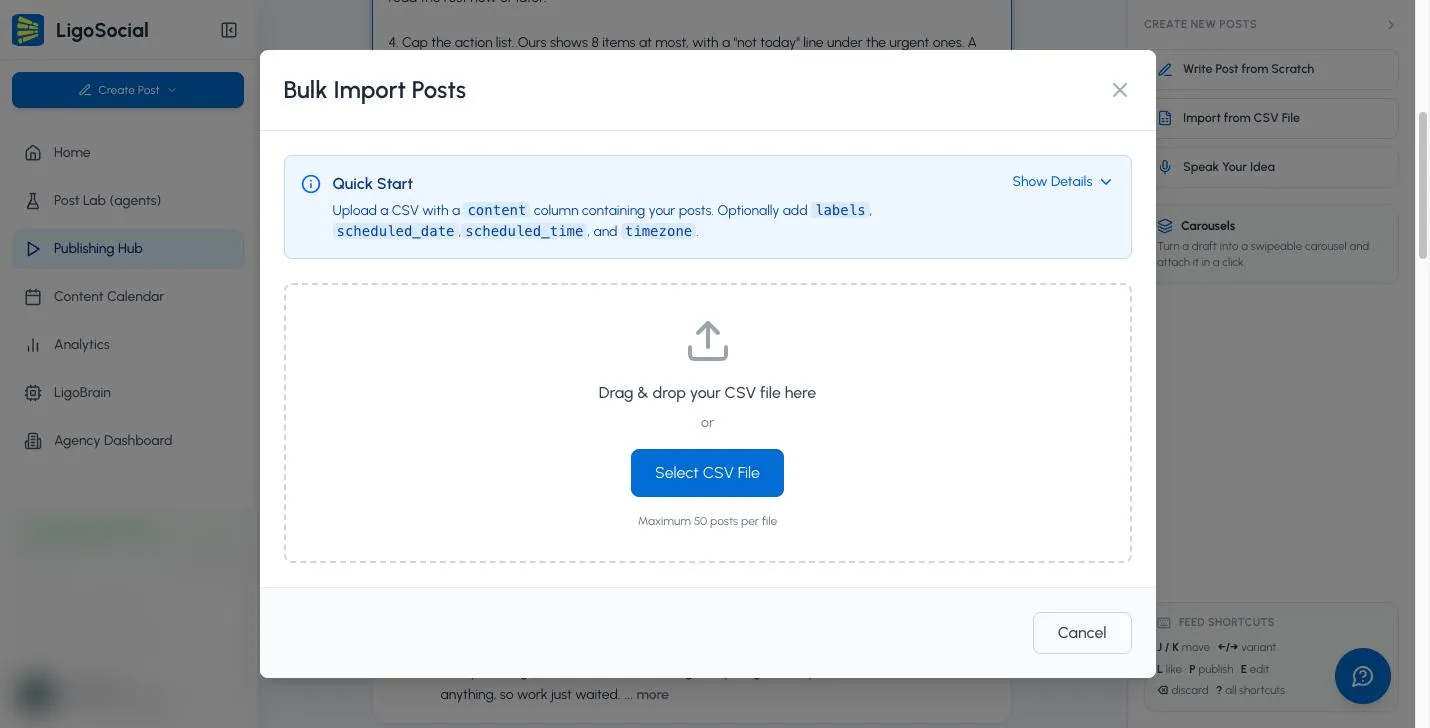
The Bulk Import Posts dialog opens. Drag your file onto the drop zone, or click Select CSV File.
-
LigoSocial checks every row and shows a preview, for example Preview: 10 posts ready to import. If all is well, you will see All posts validated successfully!. If not, Validation Errors Found lists each problem by row number. Click Back, fix the file and upload it again.

-
Click Import Posts.
-
When you see Import Successful!, click Done.

Rows without a date and time go to Drafts. Rows with a date, time and time zone are scheduled straight away and appear under Scheduled.
If any row has an error, nothing is imported until you fix it, so you never end up with half a batch.
CSV columns
Click Show Details in the dialog to see the format guide at any time.

| Column | Required | Format | Example |
|---|---|---|---|
| content | Yes | The post text | My first post about productivity |
| labels | No | Labels separated by semicolons | Marketing;Growth |
| scheduled_date | No | YYYY-MM-DD | 2026-11-01 |
| scheduled_time | No | HH:MM, 24-hour clock | 14:30 |
| timezone | No (see below) | Whole-hour offset from UTC | UTC+2 or +2 |
Rules for scheduling columns:
- scheduled_date and scheduled_time go together. If you fill in one, fill in the other.
- If you fill in a date or time, the timezone column is required, or the import fails.
- The date and time must be in the future.
- Scheduling from a CSV works on plans that include scheduling. On other plans, import your posts as drafts by leaving the scheduling columns empty.
Time zone examples
| Location | Value |
|---|---|
| New York (EST) | UTC-5 or -5 |
| London (GMT) | UTC+0 or +0 |
| Paris, Berlin (CET) | UTC+1 or +1 |
| Dubai | UTC+4 or +4 |
| Pakistan | UTC+5 or +5 |
| Singapore, China | UTC+8 or +8 |
| Tokyo | UTC+9 or +9 |
Only whole-hour offsets are accepted. If your time zone is on a half hour, such as India (UTC+5:30), convert your times to UTC and use UTC+0. Remember to adjust for daylight saving time, for example New York is UTC-4 in summer.
Example CSV
content,labels,scheduled_date,scheduled_time,timezone
"My first post about productivity tips",Productivity,,,
"This post has commas, quotation marks, and special characters!",Marketing;Growth,2026-11-01,14:30,UTC+2
"Multi-line post:

This is line 1
This is line 2

End of post",Content,,,
"Quick update without any special formatting",,,,
"Scheduled for Tokyo time",Business,2026-11-05,09:00,+9
Formatting tips
- Create the file in Excel or Google Sheets and export it as CSV. They handle quotes and line breaks for you.
- If a post contains commas, the text must be wrapped in double quotes, for example "This post, has commas". Spreadsheet apps do this automatically.
- For multi-line posts, put real line breaks inside the cell. They are kept when you export.
- Keep each file to 50 posts or fewer. Split bigger batches into several files.
- Try a one-row file first if you are unsure about the formatting.
Checklist before you import
- Is there a content column header?
- Does every row have content?
- Are dates YYYY-MM-DD and times 24-hour HH:MM?
- Does every scheduled row have a timezone?
- Are labels separated by semicolons?
- Are there 50 posts or fewer?
Troubleshooting
- Broken rows or errors about commas: open the file in Excel or Google Sheets and export it as CSV again.
- "Content is required": a row has an empty content cell, or only invisible characters or a formula. Paste the text in as plain text.
- "Timezone is required": add a timezone value to every row that has a date or time.
- "Invalid timezone format": use a whole-hour value such as UTC+5, UTC-5, +5 or -5.
- "Scheduled date must be in the future": check the date, time and time zone together.
- Wrong time after import: check that the time is 24-hour and the time zone offset matches the date (summer or winter time).
Still stuck? Contact support with the first few rows that fail and a screenshot of the error.
Common questions
How many posts can I import at once?
Up to 50 per file.
Where is the import option?
In the Publishing Hub, in the Create New Posts panel on the right: Import from CSV File.
Can I add labels when I import?
Yes. Use the labels column and separate several labels with semicolons. Learn more about post labels.
Can I check the posts after importing?
Yes. Open Drafts or Scheduled in the Publishing Hub to review, edit or reschedule them. See Post scheduling and publishing.
Was this page helpful?